
Calendar
Overview
The Practice Calendar is a unified operational view of the deadline-sensitive work in your firm: engagement start and due dates, individual task due dates, forecasted fires from recurring playbooks, and personal events you create yourself. It is distinct from the client-facing Scheduler (which handles bookings) — the practice calendar is for internal deadlines and recurring work. Because it is wired into the practice pipeline, clicking an engagement or task event opens the relevant engagement workspace, and a recurring-fire event links straight to its playbook.
The calendar offers three layouts. Month is a full 7-column grid. Week shows the seven days of the current week as plain columns, each listing that day’s events. Day shows a single day as an agenda list. There is no hourly timeline or time-slot grid — every event is treated as an all-day item on its date.
You can also connect a Google Calendar for two-way sync, filter the view by practice area, drag task deadlines to reschedule them, and export the visible range as an ICS file.
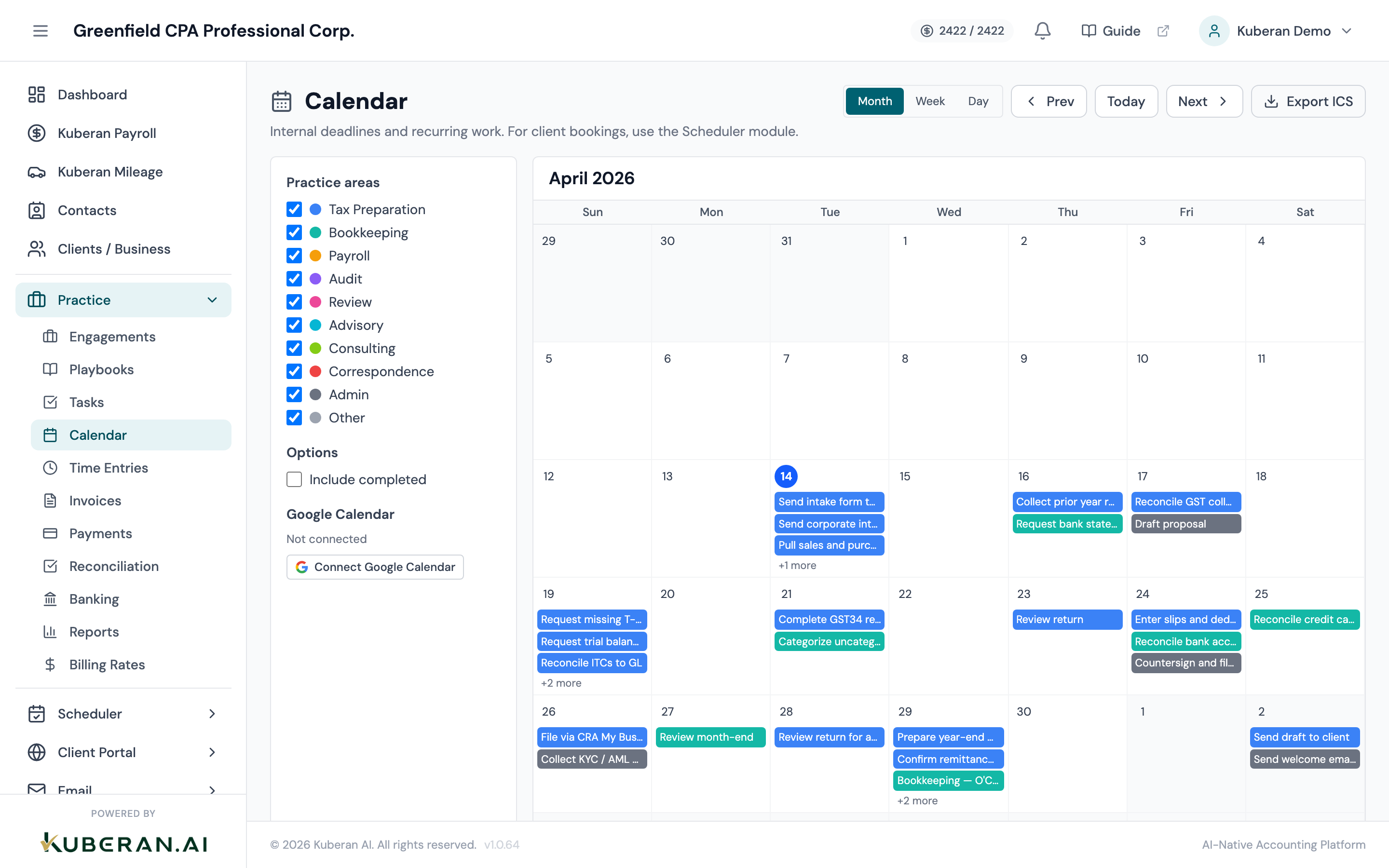
- (1) View selector — toggle between Month, Week, and Day layouts
- (2) Navigation — Prev / Today / Next move through the current period
- (3) Export ICS — download engagement and task deadlines for the visible range
- (4) Filter sidebar — practice-area checkboxes, Include completed toggle, and Google Calendar panel
- (5) Engagement / task chip — coloured by the engagement's practice area
- (6) Google Calendar event — blue chip with a 'G' badge
Screen Layout
Toolbar (top right): The view selector (Month / Week / Day), the Prev, Today, and Next navigation buttons, and the Export ICS button.
Filter sidebar (left): A Practice areas checklist (each with a colour dot), an Include completed toggle under Options, and a Google Calendar panel for connecting and syncing an external calendar.
Calendar area (centre): The active layout. In Month view, a 6-row × 7-column grid where each cell shows up to three event chips before a “+N more” overflow line, with the month name and year labelled above the grid. In Week view, seven day columns each listing that day’s events (an em dash when a day is empty), labelled “Week of <date>”. In Day view, an agenda list of the cursor date’s events, or “Nothing scheduled on this day.” when empty.
Event popover: Clicking any event chip opens a centred detail card showing the event’s type, title, date, and — where applicable — client, practice area, and status. Personal events also show their description, location, meeting link, attendees, and reminders.
UI Elements
A 6-row × 7-column grid for the whole month, Sunday-leading. Each day cell shows up to three event chips; extra events collapse into a “+N more” line. Clicking an empty part of a cell opens the New item modal for that day.
Seven plain columns, one per day of the current week, each listing that day’s events. There are no time slots or hourly rows — events are shown as all-day chips.
A single day shown as an agenda list. Each row shows a colour dot, the event title, the client name (if any), and the event type. Best for a daily standup.
Resets the calendar to the current month (and today’s date) regardless of where you have navigated.
Move backward or forward by one month (Month view), one week (Week view), or one day (Day view).
Downloads a .ics file (practice-calendar.ics) containing the engagement due dates and task due dates that fall in the visible range, so they can be imported into any external calendar app. Whether completed items are included follows the Include completed toggle.
A checklist in the sidebar, one row per practice area with its colour dot. Un-checking an area hides its engagement and task events from the calendar. Recurring-fire and personal events without a practice area always stay visible.
Off by default. When on, the calendar also shows completed engagements (on their completion date) and completed tasks alongside the open ones.
Event chips
The colour of a chip tells you what it is:
| Appearance | Event type | Clicking opens |
|---|---|---|
| Solid pill in the engagement’s practice-area colour (grey if none) | Engagement due, engagement start, engagement completed, task due, recurring fire | Engagement workspace (or the playbook, for a recurring fire) |
| Chip with a coloured left border and a text badge — MTG (meeting), DL (deadline), REM (reminder), or none for a plain personal event | Personal events, in the colour you chose | The event popover, with an Edit button |
| Blue chip with a white G badge | Google Calendar event | The popover, with Open in Google Calendar |
There is no fixed per-type colour scheme and no red “overdue” border — engagement and task chips take the colour of their practice area.
Actions
Navigate Calendar Views
- Click Month, Week, or Day in the view selector to switch layouts.
- Click Prev or Next to move to the previous or next period (a month, week, or day depending on the active view).
- Click Today to jump back to the current month.
Create a Task or Personal Event
- Click an empty area of a day cell in Month view. The New item — <date> modal opens, pre-set to that date.
- Choose a Type: Task (on engagement) to add a dated task to an existing engagement, or a personal type — Personal Event, Meeting, Deadline, or Reminder.
- For a Task, enter a Task Name and pick the Engagement it belongs to. The task is created with its due date set to the clicked day.
- For a personal type, enter a Title, and optionally a Description, Location, and (for a Meeting) a Meeting Link.
- Optionally add one or more Reminders — each with a lead time (15 minutes, 30 minutes, 1 hour, 1 day, or 1 week before) and a delivery method (Popup or Email).
- Optionally add Attendees (a name and email each), and pick a Color from the eight-swatch picker.
- Click Create Task or Create Event. The item appears on the calendar immediately.
There is no standalone “Add Event” button or start/end-time fields — the event’s date always comes from the day cell you click, and events are all-day.
View or Edit an Event
- Click any event chip. A detail popover opens with the event’s type, title, date, and related fields.
- For an engagement, task, or recurring fire, click View details to open the engagement workspace (or the playbook).
- For a Google Calendar event, click Open in Google Calendar to open it in Google.
- For a personal event, click Edit to reopen the New item modal pre-filled with its values, make changes, and click Update Event.
- Click the × or click outside the popover to close it.
Reschedule a Task by Dragging
- In Month view, drag a task-due chip from its current day.
- Drop it onto another day cell. The task’s due date updates to the drop date and the calendar refreshes.
Only task-due chips are draggable, and only in Month view — engagement, recurring, personal, and Google events cannot be dragged.
Filter by Practice Area
- In the sidebar, un-check any practice area to hide its engagement and task events.
- Re-check it to bring those events back. Filtering happens instantly on the client — no reload.
- Toggle Include completed to add or remove completed engagements and tasks.
Google Calendar sync
The Google Calendar panel in the sidebar connects the practice calendar to a Google account for two-way sync.
- Click Connect Google Calendar. A Google OAuth consent window opens in a new tab; approve access to authorise the connection.
- Once connected, the panel shows the connected email and the last synced time.
- Click Sync Now to pull the latest events from Google. A toast confirms how many events were synced, and the calendar refreshes.
- Click Disconnect to remove the connection and stop syncing.
Synced Google events appear as blue chips with a G badge; their popover links out to the original event in Google Calendar. Personal events you create in Kuberan (meetings, reminders, and so on) are pushed to Google when a connection is active, so the two calendars stay in step.
Event sources
The calendar aggregates several kinds of item into one feed:
- Engagement due dates — every engagement whose due date falls in the visible range.
- Engagement start dates — engagements in the planned status, shown on their start date.
- Completed engagements — shown on their completion date, only when Include completed is on.
- Task due dates — open tasks in the range (and completed tasks when Include completed is on).
- Recurring playbook fires — forecasted run dates computed from each recurring playbook’s schedule; the chip links to the playbook.
- Personal events — the personal, meeting, deadline, and reminder items you create.
- Google Calendar events — pulled in when a Google account is connected.
Related
- Engagements List — Set engagement start and due dates that appear on the calendar
- Tasks — Set task due dates and reschedule them by dragging on the calendar
- Reports — Time summary and billing reports for the period visible on the calendar