
Invite your team
Kuberan AI uses a role-based permissions system to control what each team member can see and do. Before you invite anyone, it is worth understanding the three roles so you assign the right level of access from the start.
Roles overview
| Role | What they can do |
|---|---|
| Owner | Full access to everything, including billing and subscription management. Only one Owner per workspace. |
| Admin | Full access to all client data, engagements, invoices, and reports. Can invite and remove users. Cannot access subscription billing. |
| Staff | Can log time, work on assigned engagements, and view their own clients. Cannot see financial reports, billing rates, or other staff members’ time entries by default. |
Most firms will have one or two Admins (firm principals or managers) and several Staff (junior accountants, bookkeepers, and clerks).
How to invite a team member
Navigate to Settings > Permissions
In the left sidebar, click Settings, then click Permissions & Users in the submenu. This screen lists all current users in your workspace and their roles.
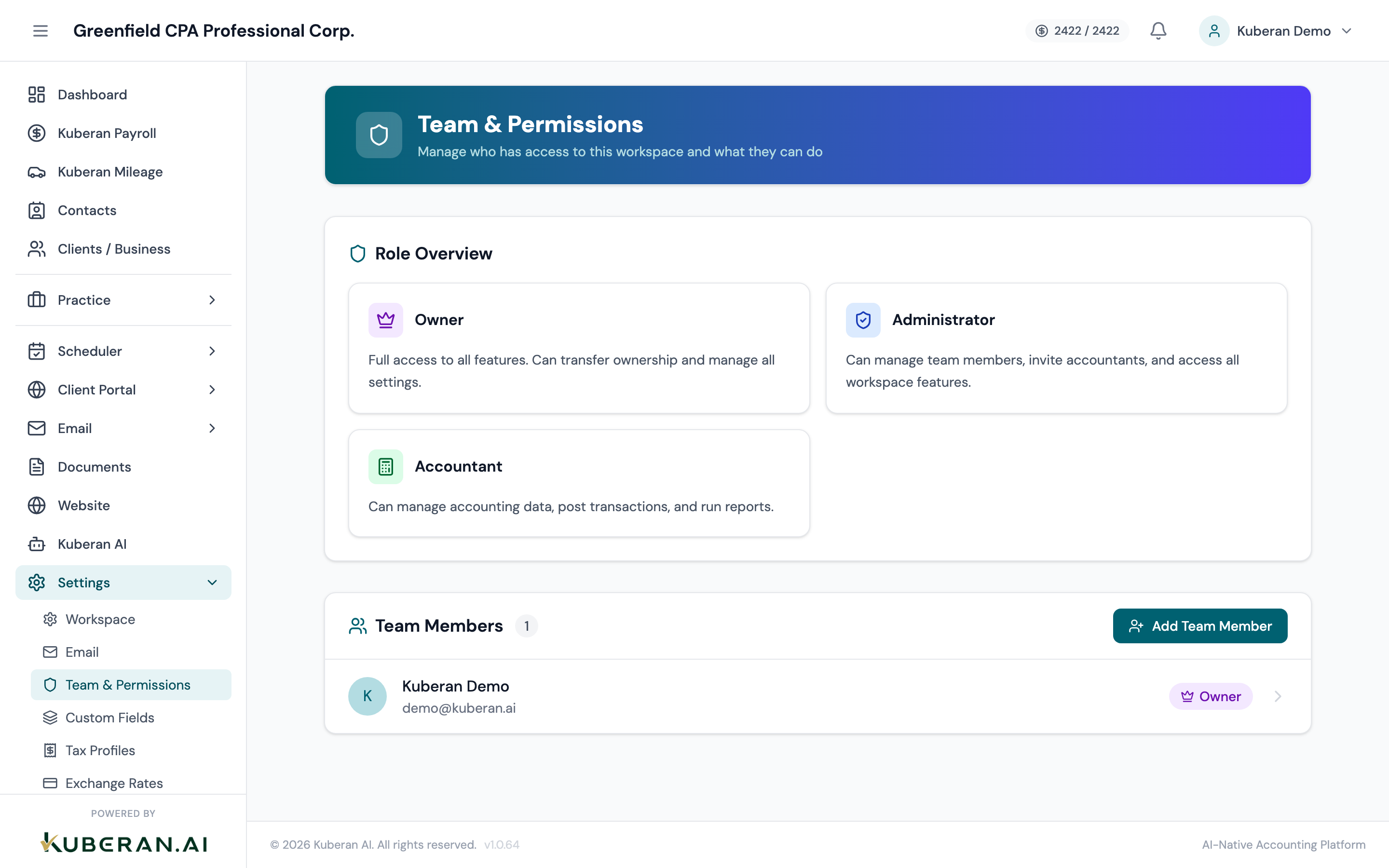
The Permissions screen lists every user and their current role. Click Invite User
Click the Invite User button in the top-right corner of the Permissions screen. A modal panel opens.
Enter the team member’s email address
Type the email address of the person you are inviting. This must be an address they have access to — the invitation is sent there.
You can invite multiple people at once by entering additional email addresses separated by commas.
Select their role
Choose Owner, Admin, or Staff from the Role dropdown. See the table above for guidance.
For a new junior staff member joining to handle bookkeeping work, select Staff. For a manager or partner who needs to review all client files and run billing reports, select Admin.
Click Send Invitation
The team member receives an email from Kuberan AI with a link to accept the invitation. The link is valid for 72 hours.
While the invitation is pending, you will see the user listed on the Permissions screen with a Pending badge.
The invitation acceptance flow
When your team member receives the invitation email:
They click Accept invitation in the email.
If they already have a Kuberan AI account (from a previous workspace), they are asked to sign in. Their existing account is linked to your workspace.
If they do not have an account yet, they are prompted to create a password. They set their name, choose a password, and click Join workspace.
They land on the Kuberan AI dashboard inside your workspace, with the permissions appropriate to their assigned role.
Changing a user’s role
To change someone’s role after they have joined:
- Go to Settings > Permissions & Users.
- Find the user in the list and click the role badge next to their name.
- Select the new role from the dropdown.
- The change takes effect immediately — no re-invitation required.
Removing a user
To remove a team member (for example, when someone leaves the firm):
- Go to Settings > Permissions & Users.
- Find the user and click the ··· (more options) button to the right of their name.
- Select Remove from workspace.
- Confirm the removal.
Resending or cancelling a pending invitation
If an invitation has not been accepted and you need to resend it:
- Go to Settings > Permissions & Users.
- Find the pending invitation in the list.
- Click Resend to send a fresh link, or Cancel to withdraw the invitation.
Common questions
Can a staff member see all clients or only their assigned ones? By default, Staff can see all clients in the workspace. If you need to restrict a staff member to only specific clients, contact support — granular client-level access controls are available on the Pro plan.
Can I change the Owner? Ownership can be transferred to another Admin. Go to Settings > Permissions & Users, click on the Admin you want to promote, and select Transfer ownership. The current Owner becomes an Admin.
Do invitations cost an extra seat? Yes — each active user (accepted invitation) counts as one seat. Pending invitations do not count toward your seat limit until accepted.