
Customers
Overview
The Customers screen is the accounts receivable directory for the client’s books. Each customer record stores contact details, a billing address, payment terms, an optional credit limit, and business/tax numbers. Customers are linked to invoices, estimates, sales receipts, and received payments, so AR aging and revenue-by-customer reporting stay accurate. Click any customer to open a detail panel that rolls up their revenue, lists every invoice and payment, and surfaces matched bank transactions.
The outstanding balance shown in the summary reflects the net amount owed across all open invoices for the client.
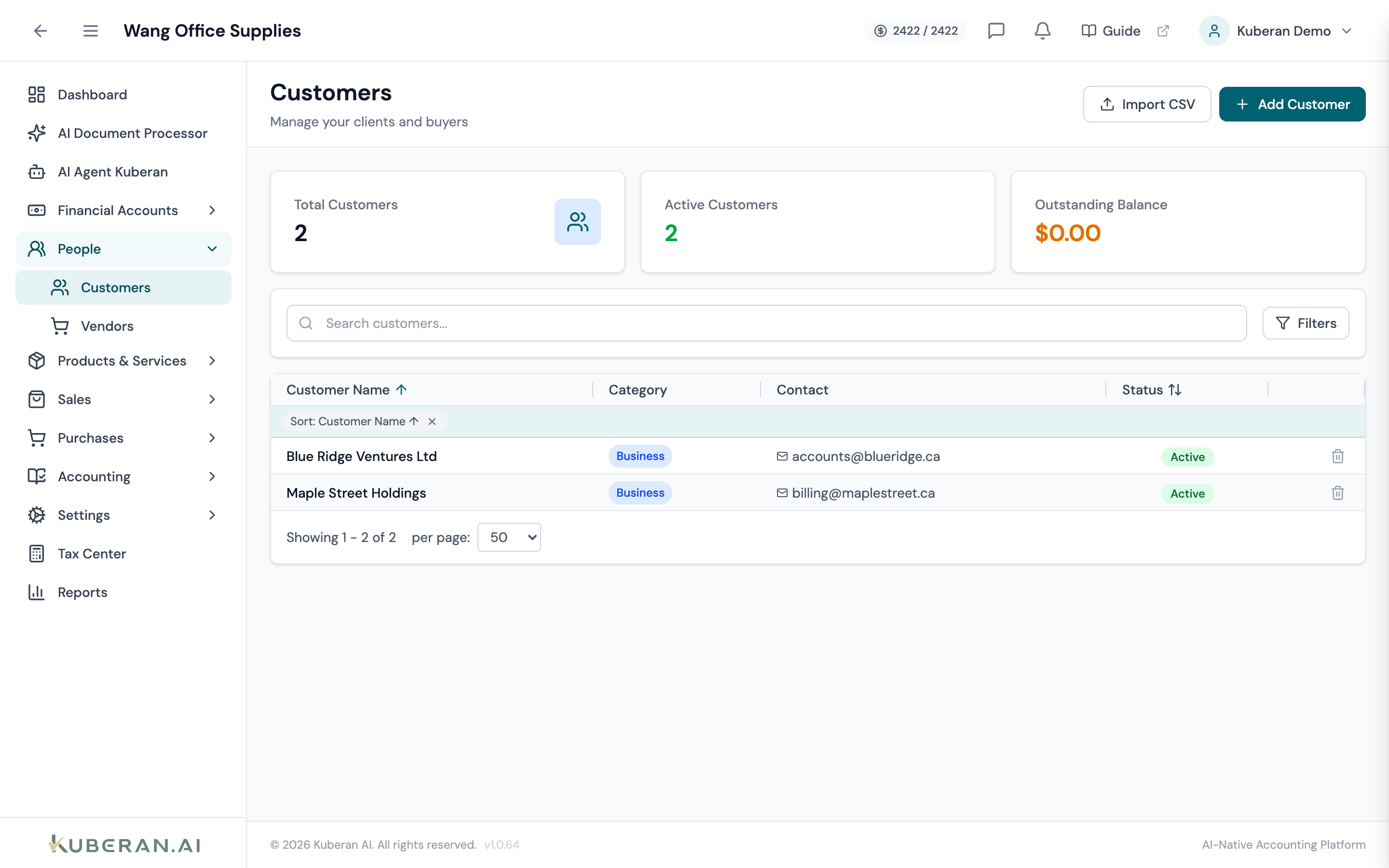
- (1) Import CSV and Add Customer buttons
- (2) Summary cards — Total Customers, Active Customers, Outstanding Balance
- (3) Search field — find by name or email
- (4) Status and Type filters, plus the Show tenants toggle
- (5) Customer row — click to open the detail panel; delete icon at the end
Screen Layout
Toolbar (top): Import CSV and Add Customer buttons.
Summary cards: Total Customers, Active Customers, and Outstanding Balance.
Filter bar: Search field, a Status filter (All / Active / Inactive), a Type filter (All Types / Individual / Business / Government / Other), and a Show tenants toggle.
Customer table (centre): Each row represents one customer. Columns: Customer Name, Category, Contact, Status, and a per-row delete action. Click any row to open the customer detail panel.
UI Elements
Toolbar
Searches by customer name or email address. Case-insensitive partial match.
Opens the Add Customer panel.
Bulk-imports customers from a CSV file. After import, a banner reports how many records were created and lists any rows that failed.
Filters the list by All, Active, or Inactive customers.
Filters by customer category: Individual, Business, Government, or Other.
Off by default. When on, the list also shows shadow-Customer records created automatically by the Properties module — every Tenant is paired with a Customer record so rent invoices, receipts, and AR aging flow through the standard accounting plumbing. See Tenants for the mechanics.
Table Columns
The customer’s name (with the display name shown beneath when it differs). Clicking the row opens the customer detail panel.
The customer type — Individual, Business, Government, or Other.
The primary email address and phone number.
Active or Inactive. Customers with linked transactions are marked Inactive rather than hard-deleted.
Deletes the customer. If the customer has linked transactions, it is marked Inactive instead of being removed, preserving the audit trail.
Customer Detail Panel
Clicking a customer opens a side panel. At the top, summary tiles show Total Revenue, Avg per Invoice, and revenue for the current and prior year.
Below that are editable information tiles — click a tile’s edit control to update it in place:
Basic Info: Name, display name, and type.
Contact Information: Email, phone, and website.
Address: Billing/shipping street, city, province, postal code, and country.
Payment Terms: Default payment terms and credit limit.
Business Info: Business Number and HST/GST Number.
Notes: Free-text internal notes.
A Related Records area then lists, in collapsible sections, the customer’s Invoices, Payments Received, and matched Bank Transactions.
Credit Terms
The default net payment terms applied to new invoices for this customer. Options: Due on Receipt, Net 15, Net 30, Net 45, and Net 60. These terms pre-populate on new invoices but can be overridden per invoice.
Optional. When set, finalizing an invoice that would push the customer’s outstanding balance over the limit is blocked unless an admin overrides it.
Business / Tax Numbers
The customer’s business number, recorded for reference.
The customer’s GST/HST registration number, if applicable.
Actions
Add a Customer
- Click Add Customer in the toolbar.
- Enter the Customer Name (required). This is the name that appears on invoices.
- Optionally set a Display Name and choose the Type (Individual, Business, Government, or Other).
- Enter the Email, Phone, and Website.
- Set the Payment Terms (default: Net 30) and an optional Credit Limit.
- Add the Billing Address and any Notes.
- Click Save to create the customer.
Import Customers from CSV
- Click Import CSV in the toolbar and choose a file with a header row.
- Rows are created as customer records; a results banner reports the count created and any per-row errors.
Review a Customer’s Invoices and Payments
- Click a customer row to open the detail panel.
- Expand the Invoices or Payments Received section under Related Records to see the customer’s history, with status and amount.
- The Bank Transactions section shows deposits matched to this customer.
Delete a Customer
- Click the delete icon on the customer row.
- If the customer has linked transactions, they are marked Inactive instead of deleted, so their history is preserved. Otherwise the record is removed permanently.
- Confirm in the dialog.
Related
- Invoices — Create, send, and track invoices for customers
- Estimates — Create quotes and convert them to invoices
- Received Payments — Record and apply customer payments
- Reports — Sales by Customer and AR Aging reports
- Items — Products and services added to invoice line items