
Bank Accounts
Overview
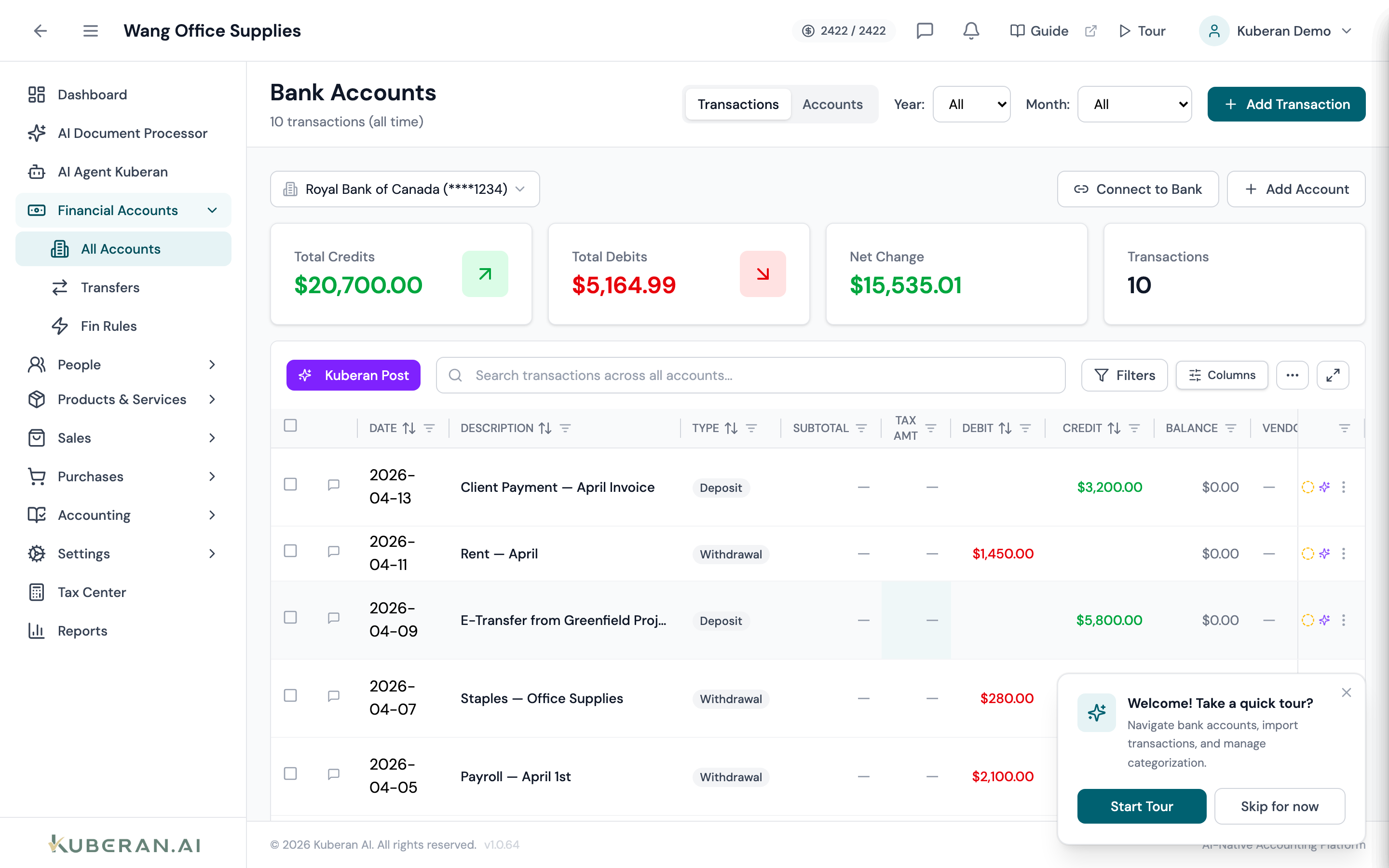
The Bank Accounts screen lists every bank account, credit card, loan, and investment account attached to the client’s file. Accounts can be linked via Plaid for on-demand transaction imports, or added manually for institutions you enter yourself. Each account is shown as a card with its current balance, type, and — for Plaid-linked accounts — a connection health badge. Creating any account automatically creates a linked general-ledger account and, if you enter an opening balance, posts an opening-balance journal entry against Opening Balance Equity. All imported transactions flow into the Bank Transactions screen for review and categorisation.
- (1) Transactions / Accounts tabs — the Accounts tab shows this card grid
- (2) Type filter pills — All, Bank, Credit Cards, Loans, Investment
- (3) Add Account button — create an account (manual or as a Plaid target)
- (4) Connection badge — Connected / Re-auth Required / Connection Error (Plaid accounts)
- (5) Current Balance — current balance, or the opening balance if none imported yet
Screen Layout
Bank Accounts and Bank Transactions share one screen with two tabs — Transactions and Accounts.
Accounts tab: A grid of account cards with type-filter pills (All / Bank / Credit Cards / Loans / Investment) and an Add Account button.
Transactions tab: This is where the Plaid controls live — a Connect to Bank button, a second Add Account button, and the Plaid connection status panel with a Sync Now button. (The transaction grid itself is documented in Bank Transactions.)
Account Types & Processing
An account is one of four categories, each mapped to a general-ledger account automatically on creation:
| Category | GL mapping | Ongoing transaction processing |
|---|---|---|
| Bank Account (depository) | Asset · Bank | Fully processed — categorising a transaction posts a journal entry (and a payment record for income/expense) |
| Credit Card (credit) | Liability · Credit Card | Fully processed — same as bank accounts |
| Loan | Liability · Long-term liability | Balance-tracking only — categorising a transaction marks it reconciled but posts no per-transaction journal entry or payment |
| Investment | Asset · Other asset | Balance-tracking only — same as loans |
UI Elements
Accounts Tab
Filter the card grid by account category: All, Bank, Credit Cards, Loans, Investment.
Opens the Add Account form. Use it for any account you enter manually. (The same form is reachable from the Transactions tab.)
Each card shows the institution icon, bank/lender name, the account type and last four digits, an optional nickname, a Plaid connection badge where applicable (Connected / Re-auth Required / Connection Error), a status pill, and the Current Balance. Cards carry an edit (pencil) and delete (trash) icon.
Transactions Tab (Plaid controls)
Launches the real Plaid Link flow (via Plaid’s hosted UI) to select the institution and authorise access. On success, Plaid runs an initial transaction sync. Supports institutions available through Plaid.
Lists connected institutions with their status. Shows a Sync Now button that imports new transactions for all connected items on demand, and a Re-authenticate action when an item needs its login refreshed.
In the transaction toolbar’s ⋯ overflow menu. Import Statement accepts a CSV bank statement; Import Data imports accounts or transactions from CSV, Excel, or JSON.
Actions
Connect a Bank Account via Plaid
- On the Transactions tab, click Connect to Bank. Plaid Link opens.
- Select the client’s financial institution and authorise access in Plaid’s flow. Credentials are handled by Plaid and are not stored in Kuberan AI.
- Choose the accounts to link. Plaid performs an initial sync, importing available transaction history.
- The linked accounts appear on the Accounts tab with a Connected badge. Newly imported transactions appear in Bank Transactions as Uncategorized.
Add an Account Manually
- Click Add Account.
- Choose the Account Category: Bank Account, Credit Card, Loan, or Investment. When the category has more than one subtype, pick the Account Type (e.g. Checking/Savings; Mortgage/Auto Loan/Line of Credit; Brokerage/RRSP/TFSA).
- Enter the institution name (labelled Bank Name, Lender Name, Card Issuer / Bank, or Brokerage / Institution Name depending on the category) and the last 4 digits of the account/card number. Add an optional Nickname.
- Fill any category-specific details — a credit Credit Limit, or a loan’s Original Loan Amount, Interest Rate, Term (Months), and Monthly Payment.
- Enter the Opening Balance and, when it is non-zero, the Opening Balance Date. A linked GL account is created automatically, and a non-zero opening balance posts an opening-balance journal entry.
- Click to save. The account appears on the Accounts tab. Add transactions manually or import them from the Transactions tab.
Sync Plaid Transactions
- On the Transactions tab, in the Plaid connection panel, click Sync Now.
- New transactions for all connected institutions are imported. Sync is on demand — there is no automatic daily background sync.
Re-authenticate a Plaid Connection
When an account shows Re-auth Required (or a connection error), the institution needs the login refreshed — common after a password change or MFA reset.
- In the Plaid connection panel on the Transactions tab, click Re-authenticate for the affected institution.
- Complete Plaid’s update flow and any MFA steps.
- Plaid refreshes the connection; the badge returns to Connected once transactions import.
Edit an Account
- Click the pencil icon on the account card.
- Update the name, nickname, details, or the linked GL account (you can link an existing unlinked GL account or create one).
- Save.
Delete an Account
- Click the trash icon on the account card.
- If the account still has transactions, deletion is blocked — a message asks you to delete its transactions first.
- Otherwise, confirm in the dialog. This cannot be undone.
Related
- Bank Transactions — Review, categorise, and split imported transactions
- Bank Rules — Set up automatic categorisation rules for recurring transactions
- Reconciliation — Match ledger transactions against bank statements