
Connect a Bank Account
Connecting a bank account via Plaid brings transactions directly into Kuberan Books, eliminating manual CSV exports from the bank’s website. Once connected, Kuberan syncs new transactions automatically — ready for you to categorise.
Before you begin
- Confirm that the client’s bank or credit union is supported by Plaid. Most major Canadian institutions are — RBC, TD, Scotiabank, BMO, CIBC, National Bank, Desjardins, and most credit unions.
- Have the client’s online banking credentials ready, or arrange for the client to complete the Plaid authentication step themselves.
- Ensure Books setup is complete (accounting method, fiscal year, and chart of accounts configured). See Set up client books if you have not done this yet.
Connect the bank account
Open the Bank Accounts screen
Inside the client’s Books, click Bank Accounts. The screen has two tabs — Transactions and Accounts. Bank connection and imports live on the Transactions tab.
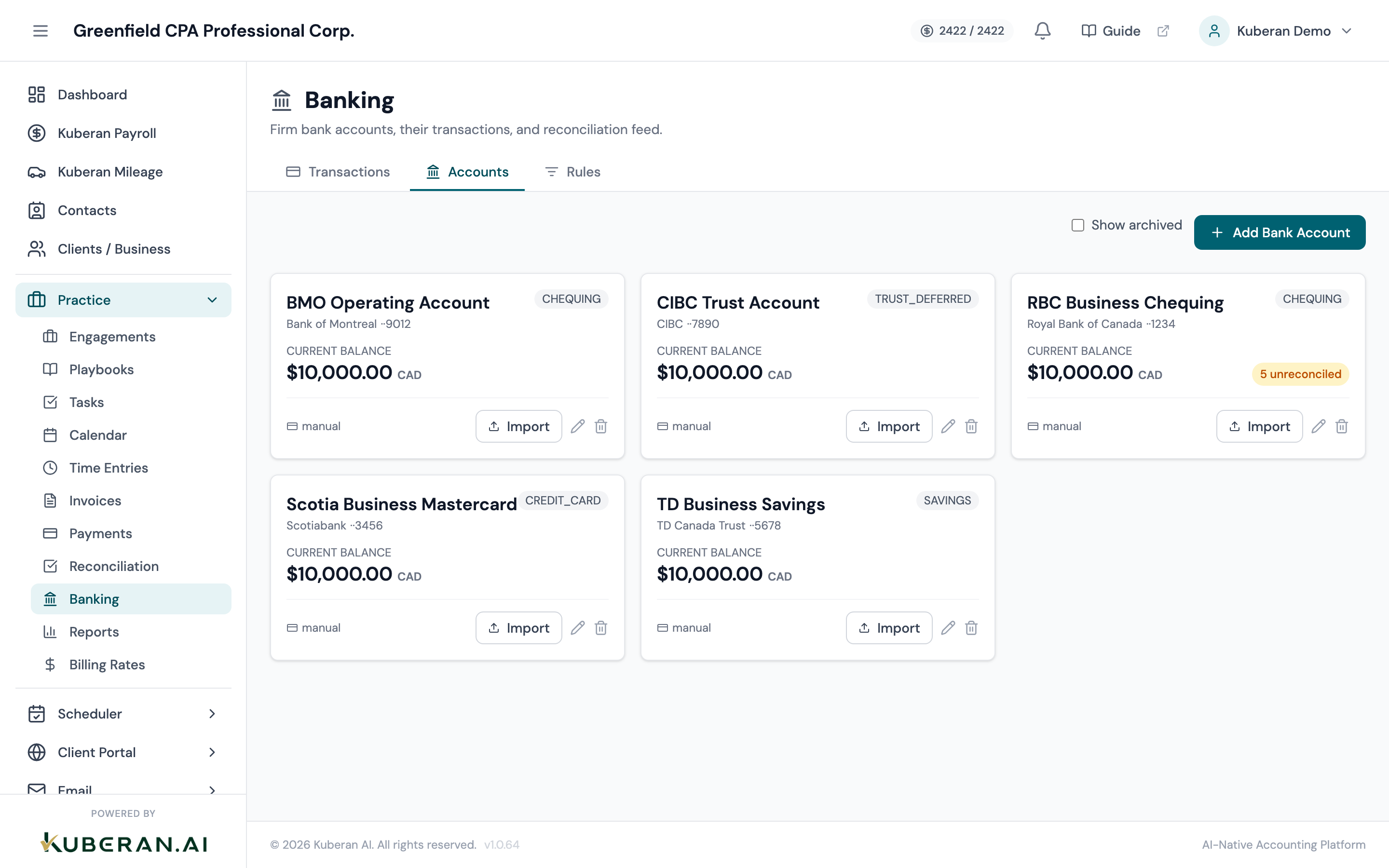
The Bank Accounts screen. Connect a live feed or add accounts from the Transactions tab. Click Connect to Bank
On the Transactions tab, click the Connect to Bank button. The Plaid Link modal opens.
Search for the financial institution
In the Plaid search box, type the name of the bank or credit union. Select it from the results list.
Authenticate with the bank
Plaid displays the bank’s login screen. Enter the online banking username and password. Many institutions also require multi-factor authentication — Plaid handles this inline (SMS code, security question, or push notification depending on the institution).
Select which accounts to connect
After authentication, Plaid displays all accounts held at that institution (chequing, savings, credit card, line of credit). Select the accounts relevant to this client’s bookkeeping. You can connect multiple accounts in one session.
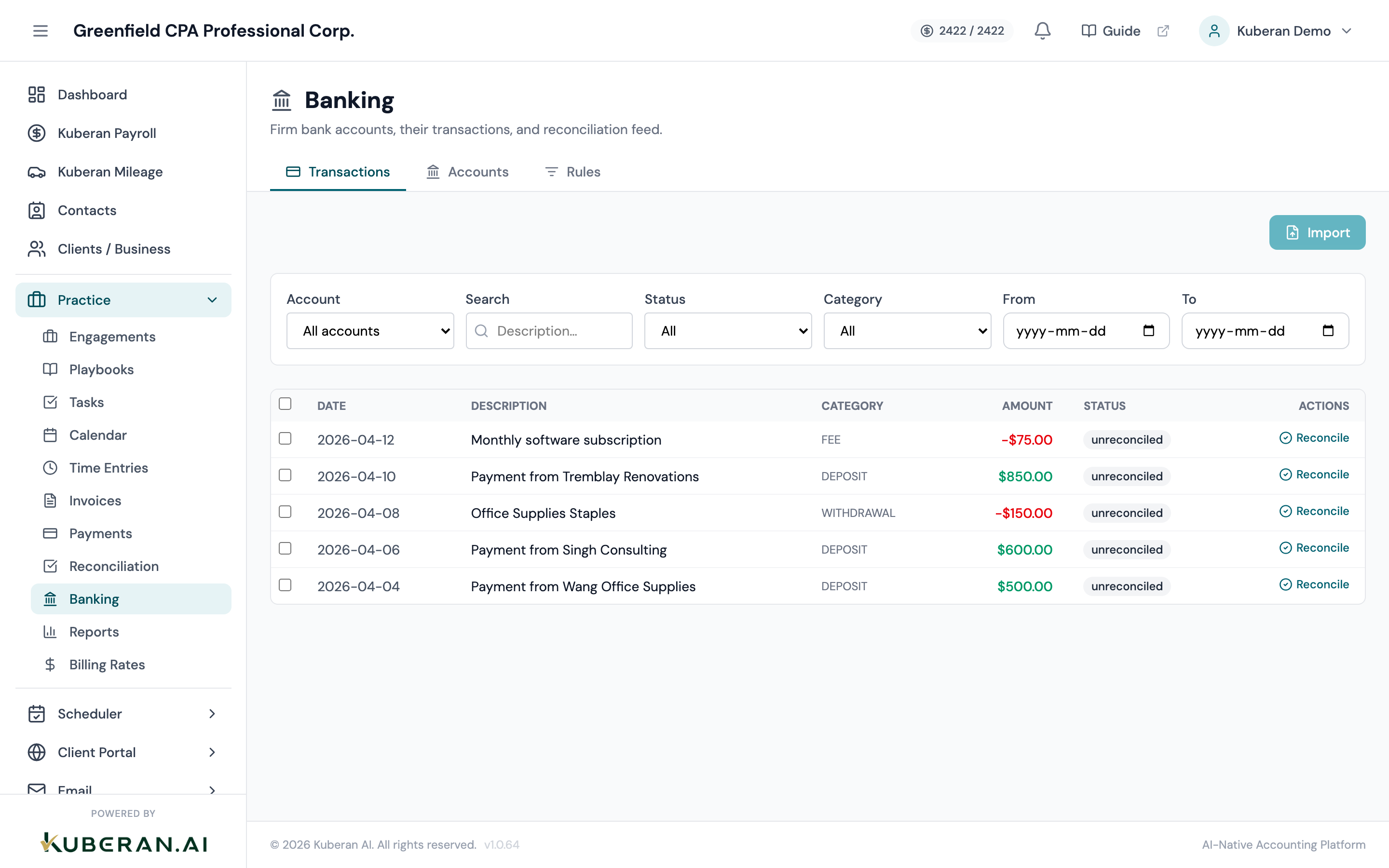
Select the accounts you want to import. You can always add or remove accounts later. Finish the connection
Plaid secures the connection and Kuberan begins the initial transaction import. You are returned to the Transactions tab, where a connection status strip shows each linked item.
Initial transaction import
Plaid imports the historical transactions the bank makes available on the initial sync. This process usually completes within a few minutes.
The connection status strip on the Transactions tab shows, for each linked institution:
- The institution name and number of accounts
- A Connected status (or Re-auth Required / Connection Error if there is a problem)
- The relative time of the last sync (e.g. “5m ago”)
- A Sync Now button to pull the latest transactions on demand
Imported transactions appear in the grid on the Transactions tab. Until they are assigned to an account, they show up in the categorisation workflow described in Categorise transactions.
Verify the imported balances
Before categorising any transactions, verify that the imported balance matches your bank statement:
- Locate the most recent bank statement for each connected account.
- Compare the closing balance on the statement with the balance shown on the Accounts tab.
- If they match, you are ready to proceed.
- If they do not match, click Sync Now and wait for the sync to finish. If the discrepancy persists, see the troubleshooting section below.
Troubleshooting Plaid connection issues
“Institution unavailable” or “Connection failed” Some institutions have intermittent Plaid availability due to maintenance windows or security changes. Wait a few hours and try again. If the problem persists, use the manual file import as a temporary workaround.
Multi-factor authentication not completing Ensure you have access to the phone number or email associated with the bank account before starting the connection. If the client uses a hardware token, you may need them to complete the Plaid link themselves.
Missing accounts after authentication Some institutions only expose certain account types to Plaid. If a credit card or line of credit is not appearing, it may need to be linked to the main online banking profile first from within the bank’s own platform.
Balance discrepancy A small discrepancy (usually less than a day’s transactions) is typically a sync timing issue — Plaid updates balances at different intervals. Click Sync Now on the connection status strip. If the discrepancy is large or unexplained, compare the Plaid transaction history against the bank statement line by line.
“Re-auth Required” Banks periodically require Plaid to re-authenticate (for example when the client changes their password). When this happens, the account shows a Re-auth Required badge. Click Re-authenticate and repeat the authentication steps.
Adding a bank account manually (without Plaid)
If a client’s bank is not supported by Plaid, or if the client prefers not to use automated feeds, you can add an account manually:
On the Bank Accounts screen, click Add Account (or Add Bank Account from the empty state on the Accounts tab).
Choose the Account Category — Bank Account, Credit Card, Loan, or Investment — then the matching Account Type (e.g. Checking, Savings, Credit Card, Line of Credit). Enter the account name, the last 4 digits, and the Opening Balance with its Opening Balance Date.
Click Save. The account appears on the Accounts tab with no live-feed badge — it simply has no Plaid connection.
Import transactions for this account via CSV. See Import transactions for the full workflow.
What to do next
- Import transactions from a file if you also have historical transactions to upload
- Categorise transactions to assign imported transactions to the correct accounts
- Reconcile the bank account once you have categorised a full month’s transactions