
Payroll — Pay Runs
Overview
The Pay Runs screen lists every payroll run for the current client, from the most recent to the earliest on record. Each row shows the pay period covered, the run status, and the total gross and net pay amounts. The workflow moves a pay run through four stages: Draft → Processing → Processed. A processed run can be voided if an error is discovered after the fact. Direct deposit instructions are sent to the bank only when a run reaches the Processed stage.
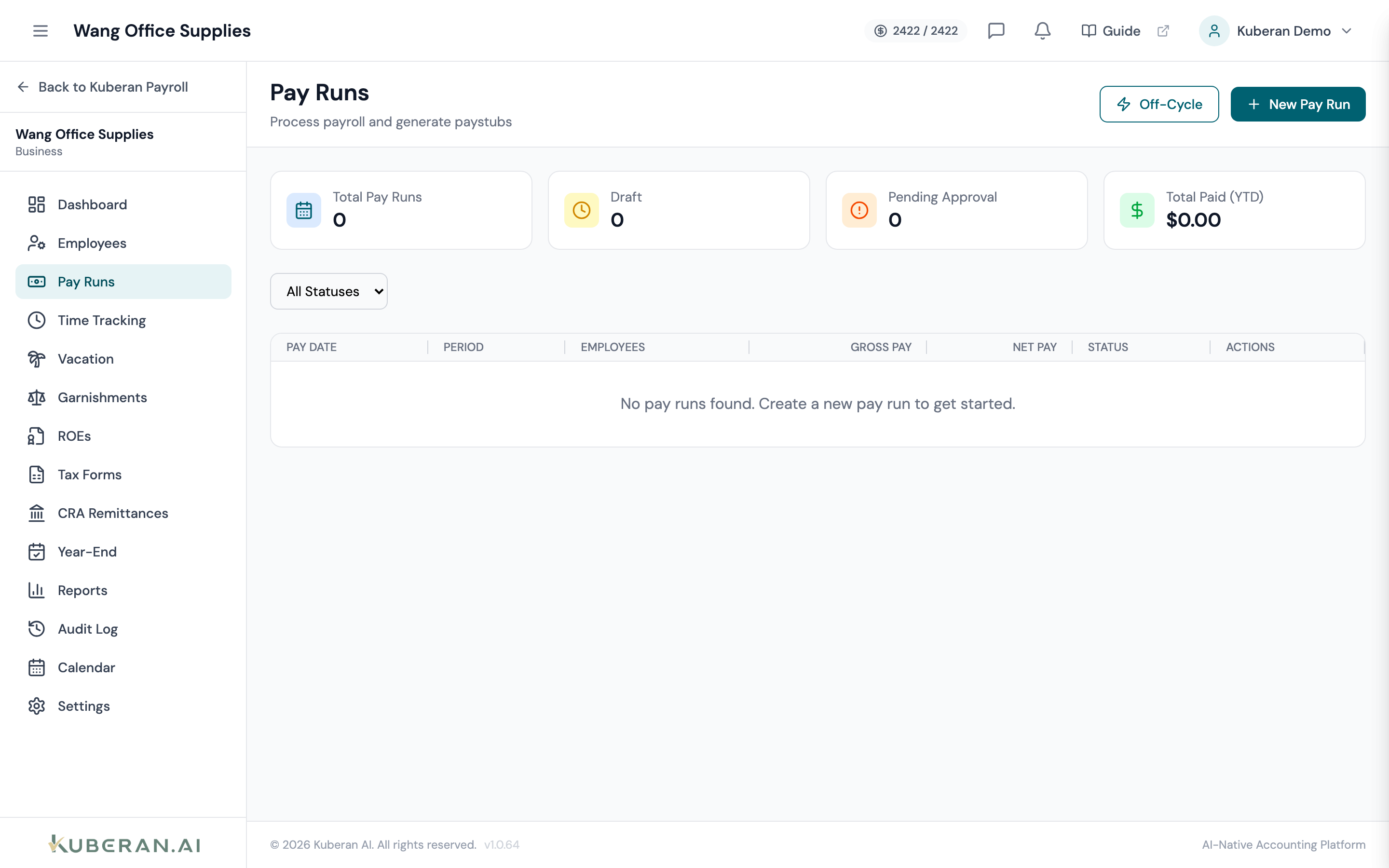
- (1) Create Pay Run button
- (2) Pay period date range
- (3) Status badge — Draft, Processing, Processed, or Voided
- (4) Total Gross and Total Net columns
- (5) Review / Approve / Void actions
Screen Layout
Toolbar (top): Create Pay Run button, year filter dropdown (shows current year by default).
Pay Runs table: One row per run with columns for Pay Period, Status, Employees, Total Gross, Total Net, and Actions.
Pay Run Statuses
| Status | Meaning |
|---|---|
| Draft | Pay run created; earnings and deductions can still be edited. |
| Processing | Approved and submitted for payment; direct deposit files sent to bank. |
| Processed | Bank has confirmed payment; run is locked and cannot be edited. |
| Voided | Run has been reversed; a new corrected run should be created. |
UI Elements
The start and end dates of the pay period covered by this run (e.g., Apr 1–Apr 14). The pay date — the date employees are actually paid — appears in smaller text below.
The sum of all gross earnings for every employee included in the run, before any deductions. Includes regular pay, overtime, bonuses, and other taxable additions.
The sum of all net pay amounts (i.e., what employees actually receive after CPP, EI, income tax, and other deductions are subtracted).
Actions
Create a Pay Run
- Click Create Pay Run in the toolbar.
- Kuberan AI pre-selects the next open pay period based on your pay schedule. Adjust the dates if needed.
- The run opens in Draft status. Each active employee appears as a row with their regular earnings pre-populated.
- Review each employee’s earnings. For hourly employees, enter the hours worked. Add any bonuses, retroactive adjustments, or additional deductions as needed.
- Kuberan AI automatically calculates CPP (employee and employer), EI (employee and employer), and federal/provincial income tax for each employee.
- Click Save Draft to return later, or proceed to Approve.
Review Earnings and Deductions Per Employee
While a pay run is in Draft status, click on any employee’s row to expand their pay detail. The detail panel shows:
- Earnings — regular pay, overtime, vacation pay, bonuses, and other additions
- Statutory deductions — CPP employee, EI employee, federal income tax, provincial income tax
- Voluntary deductions — benefits, RRSP, union dues, garnishments
- Net pay — the final amount to be deposited
All editable fields in the detail panel can be overridden. Overrides are flagged with a pencil icon so they are easy to identify during review.
Approve a Pay Run
Click Approve on the Draft pay run. This locks earnings and deductions. You will be shown a summary of the total payroll liability (net pay, employer CPP, employer EI) before you confirm. Once approved, the run moves to Processing and direct deposit files are queued for transmission.
Process (Send Direct Deposit)
Kuberan AI submits the direct deposit file to your configured payroll bank account automatically upon approval, provided banking details are set up in Payroll Settings. Once the bank confirms receipt, the run status changes to Processed. If direct deposit is not configured, you can mark the run as Processed manually after distributing pay by cheque.
Void a Pay Run
- Open the Actions menu on a Processed run and select Void.
- Enter the reason for voiding (this is recorded in the audit log).
- Click Confirm Void.
Voiding reverses the CRA remittance liability for that period. You should create a new corrected pay run immediately after voiding to avoid a gap in the remittance schedule.
Tips
- CPP exemption is automatically applied for employees under 18 or over 70 based on the date of birth recorded in the employee record.
- Quebec payroll uses QPP and QPIP instead of CPP and EI. If the province of employment is Quebec, Kuberan AI switches to the Quebec deduction tables automatically.
- Vacation pay can be paid out each period (as a percentage of gross) or accrued to a balance. Configure this per employee in the Earnings & Deductions section of the employee record.