
Bank reconciliation for your firm
Bank reconciliation in Practice Management is for reconciling your firm’s own bank accounts — the accounts your practice uses to receive client payments and pay firm expenses. This is distinct from reconciling a client’s bank account, which is done inside that client’s Books module.
Reconciliation here works as a two-pane matcher. On one side are the bank transactions you have imported; on the other are the client payments you have recorded but not yet tied to a deposit. You confirm which payment produced which deposit, one transaction at a time. Fees, interest, and transfers — which have no client payment behind them — are cleared with a single click from the Banking screen instead.
There is no statement closing balance to enter and no running difference to drive to zero. The point is to link every deposit to the payment(s) it represents, and to clear the non-payment items, so that nothing is left unexplained.
Before you begin
To reconcile a bank account, you need:
- The imported bank transactions for the period, on the account you want to reconcile (see Banking)
- The client payments recorded in Kuberan AI (these appear in the right pane as “outstanding” until matched)
If some transactions are missing, import the statement in Practice > Banking before you start.
Opening the workspace
Navigate to Practice > Reconciliation
In the left sidebar, click Practice, then click Reconciliation. Open Reconciliation
Choose the account and period
At the top of the screen, select the Bank account to reconcile and set the From/To date range for the period. The left pane loads the account’s unreconciled bank transactions for that range; the right pane loads outstanding client payments grouped by client.
The header also shows a Reconciled this period total and a reconciled / unreconciled count for the account.
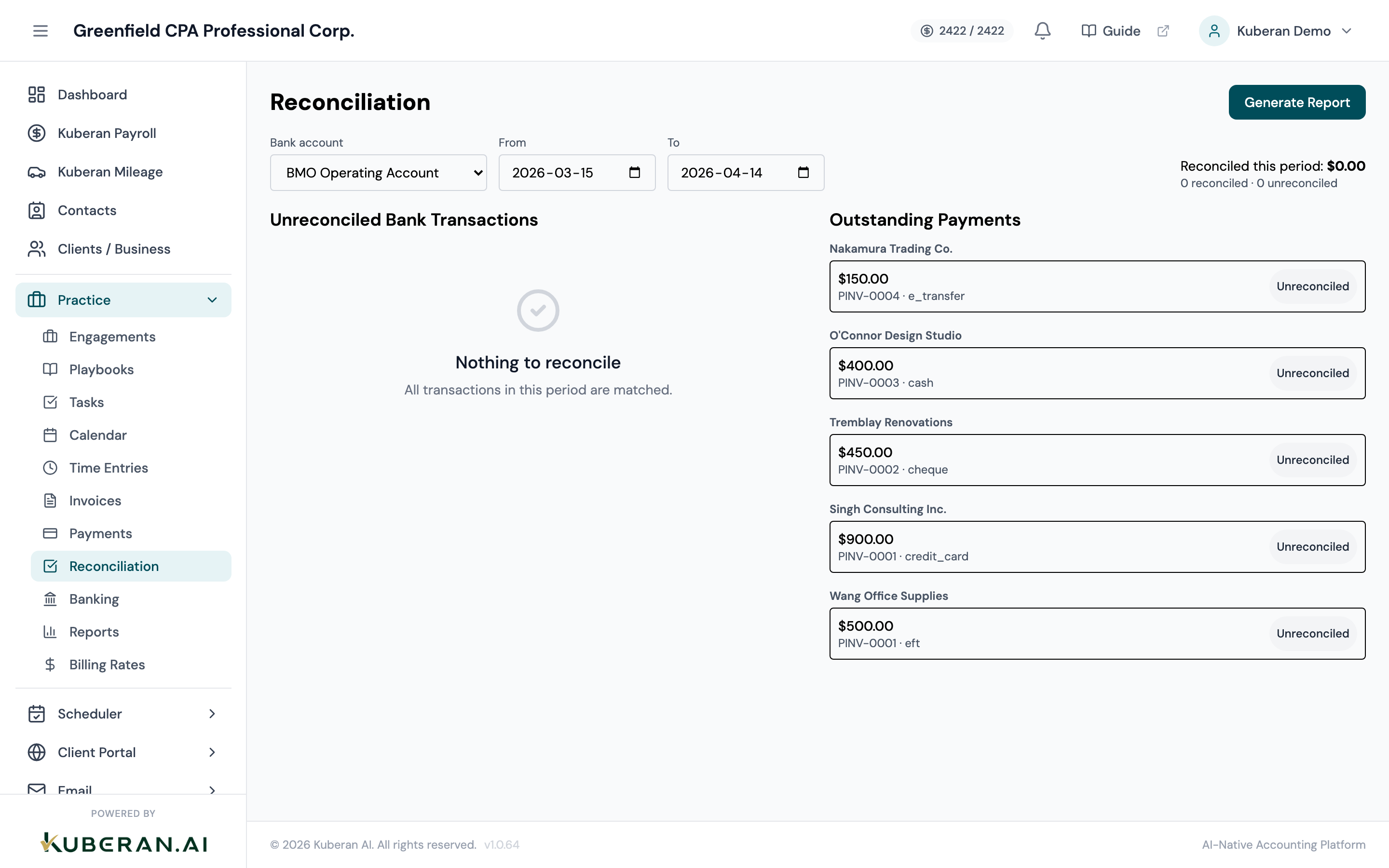
Pick the bank account and date range in the header. The left pane lists unreconciled transactions; the right pane lists outstanding client payments.
Matching deposits to payments
Ask for match suggestions
In the left pane, find a deposit and click Suggest matches. Kuberan AI proposes candidate client payments, each with a confidence score and the reasons it matched (amount, client, date proximity, and so on).
The suggestions are advisory — nothing is reconciled until you confirm.
Confirm the correct match
Click Confirm on the right suggestion. Kuberan AI records (or reuses) the client payment and links it to the bank transaction, marking the transaction reconciled. The matched payment drops out of the outstanding list on the right.
Split a deposit that covers several payments
If one deposit represents several client payments (for example, a batch EFT), click Split deposit instead of confirming a single suggestion, and allocate the deposit across the outstanding payments.
Undo a mistake
If you confirm the wrong match, click Unmatch on that transaction. It returns to unreconciled and the payment goes back to the outstanding list.
Clearing fees, interest, and transfers
Bank service charges, interest earned, NSF fees, and internal transfers have no client payment to match against. Clear these from the Banking screen:
Open Practice > Banking
Go to the Transactions tab and find the fee, interest, or transfer.
Click Reconcile on the row
In the transaction’s Actions column, click Reconcile. The transaction is marked reconciled without a payment match, and an entry is written to the reconciliation audit log so there is a record of who cleared it.
Generating a reconciliation report
Whenever you need a record for your working papers, generate a PDF:
Set the account and date range
Confirm the Bank account and From/To range in the header cover the period you want to report on.
Click Generate Report
Click Generate Report in the header. A server-rendered PDF opens for that account and date range. Save it to your engagement documentation.
Generate Report produces a PDF scoped to the selected account and date range.
There is no separate “finalise” or “lock period” step — the report is a snapshot you can produce at any time, and matches remain editable (via Unmatch) if you later find an error.