
Books Dashboard
Overview
The Books Dashboard is the landing page for each individual client accounting file. It provides a snapshot of the client’s financial health for the selected period — revenue, expenses, and net income, headline balances (net worth, bank, credit card, and loan), any uncategorised transactions that still need attention, accounts receivable and payable with ageing, a short cash-flow projection, recent activity, and a monthly revenue-vs-expenses chart. Quick-action cards and per-section links let you jump straight into the most common tasks. The period shown is controlled by the year and month selectors in the header.
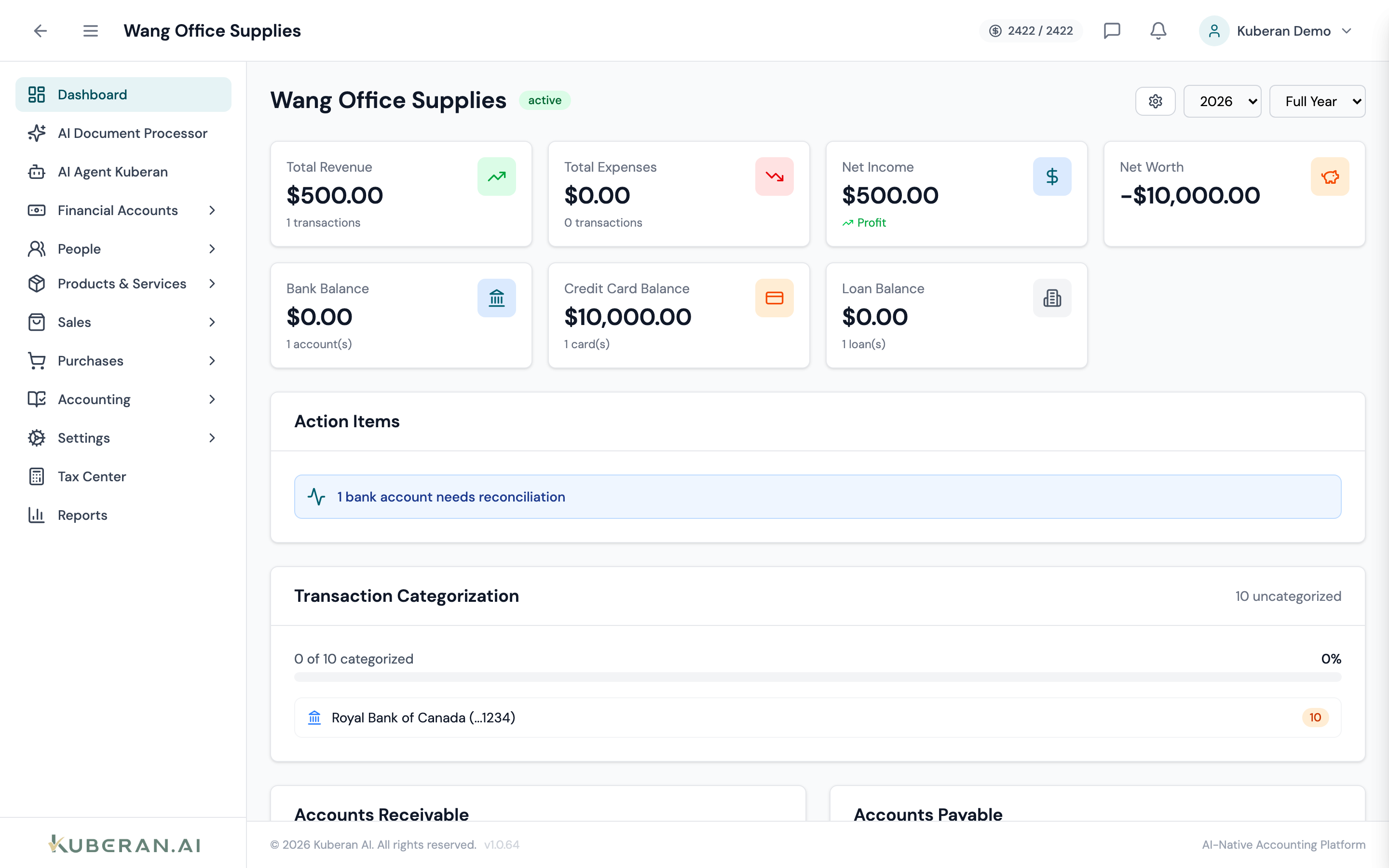
- (1) Period selectors — year and month (or Full Year)
- (2) Summary stat cards — revenue, expenses, net income, and balances
- (3) Uncategorised Transactions widget — items still needing a category
- (4) Accounts Receivable & Payable — outstanding totals with ageing
- (5) Quick action cards — Documents, Invoices, and Bills
Header
The client’s business name with a status badge (Active, Archived, etc.), and the business type / industry beneath it.
Opens the Client Settings panel, where details such as the accounting method, fiscal-year start, and business numbers are maintained.
Chooses the fiscal/calendar year the dashboard reports on (the current year and the four prior years).
Narrows the figures to a single month, or Full Year for the whole year.
Summary Stat Cards
A row of headline figures for the selected period:
Sum of income for the selected period.
Sum of expenses for the same period, including cost of goods sold where applicable.
Revenue minus Expenses, tagged Profit when positive and Loss when negative.
Assets less liabilities — the client’s overall position.
Aggregate balances across the client’s bank accounts, credit cards, and loans, shown as separate cards.
Widgets
Uncategorised Transactions
Highlights imported bank transactions that still need a chart-of-accounts category, grouped so you can see how many items — and which accounts — are waiting. Use it as the to-do list for cleaning up the books before running reports.
Accounts Receivable
Summarises money owed to the client. Shows the total Outstanding, and breaks it into Overdue, Due Soon, and Current (each with a count), plus the average days to payment when available.
Accounts Payable
The mirror image for money the client owes: total Outstanding, broken into Overdue, Due Soon, and Future.
Cash Flow (Next 30 Days)
A short projection of expected inflows and outflows over the coming 30 days, based on outstanding receivables and payables.
Recent Activity
A feed of the most recent transactions and changes recorded in this client’s books.
Monthly Revenue vs Expenses
A bar chart comparing revenue and expenses month by month, so trends and unusual months stand out at a glance.
Quick Action Cards
Three cards below the widgets link straight to the busiest areas of the file:
Opens the client’s Documents area for uploading and managing files. The card also shows the current file count.
Opens the Invoices list to track income.
Opens the Bills list to track spending.
Client Details
Below the quick actions, three cards summarise the client record:
- Contact Information — linked contacts (with the ability to link or unlink a contact) and the client’s address.
- Tax Information — Business Number, HST/GST number, fiscal-year start, accounting method, business type, and industry, with a shortcut to the Tax Centre.
- Book Activations — the per-year book credits for this client, showing which fiscal years are Active or Read-only and letting you activate a year when credits are available.
If the client has notes, they appear in a full-width card at the bottom.
Related
- Bank Accounts — Connect Plaid accounts and manage manual accounts
- Bank Transactions — Categorise and review all imported transactions
- Invoices — Create and send invoices, record payments
- Bills — Enter vendor bills and track payables
- Reports — Generate P&L, Balance Sheet, and other financial reports