
Payments
Overview
The Payments screen is a consolidated ledger of every payment recorded against your firm’s invoices. Payments themselves are always recorded from an individual invoice — this screen is where you review them all in one place, filter by method or reconciliation status, and edit or delete records. It is especially useful for month-end review and answering client queries about payment history.
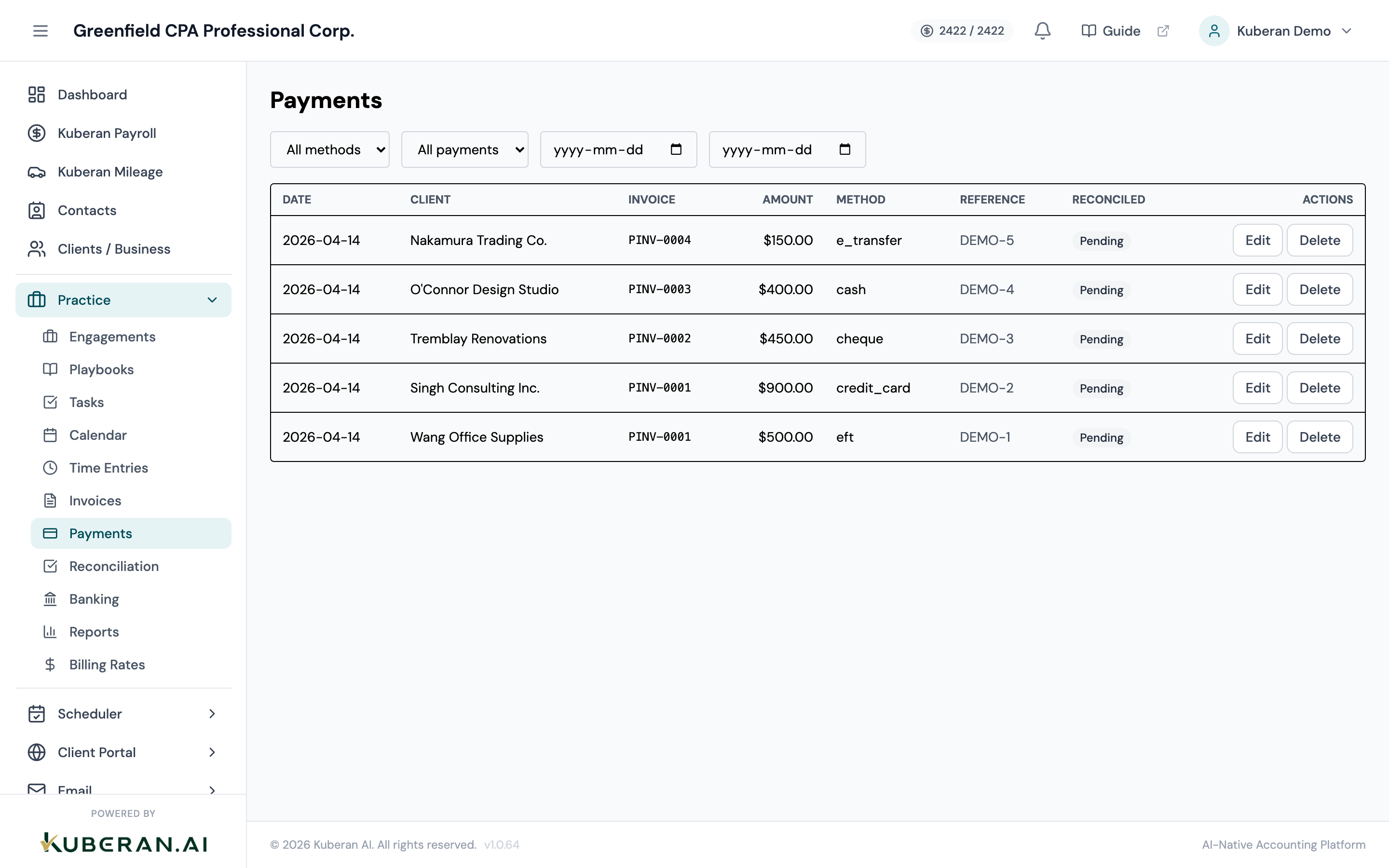
- (1) Payment Method filter — narrow to a single method or show all
- (2) Reconciled filter — All, Reconciled, or Unreconciled
- (3) From / To date filters — limit by payment date
- (4) Reconciled badge — shows whether the payment has been matched in reconciliation
- (5) Row actions — Edit and Delete the payment record
Screen Layout
Filters (top): A Payment Method dropdown, a Reconciled dropdown (All / Reconciled / Unreconciled), and From / To date inputs. There are no client filter or date presets.
Payments table: Sorted by payment date descending. Columns: Date, Client, Invoice, Amount, Method, Reference, Reconciled, Actions.
UI Elements
Filters
Options: All methods, Cheque, E-Transfer, Wire, Credit Card, Cash, EFT, Other.
Options: All payments, Reconciled, Unreconciled. Filters by whether the payment has been matched during bank reconciliation.
Date inputs that limit the list to payments received within the range.
Table Columns
The date the payment was received.
The client who made the payment.
The number of the invoice this payment is applied to, shown as plain text (not a link).
The amount recorded in this payment.
The payment method: Cheque, E-Transfer, Wire, Credit Card, Cash, EFT, or Other.
The optional reference entered when the payment was recorded (cheque number, e-transfer reference, etc.). Shows a dash when empty.
A Reconciled badge once the payment has been matched during bank reconciliation, otherwise a Pending badge.
Edit and Delete buttons for the payment record.
Actions
Edit a Payment Record
- Click Edit on the payment row. The Edit Payment modal opens with the current values pre-filled.
- Adjust the amount, date, method, reference, or notes as needed.
- Save. The linked invoice’s outstanding balance recalculates automatically.
Delete a Payment Record
- Click Delete on the payment row.
- Confirm in the dialogue. The payment is removed and the linked invoice’s balance is restored — if the invoice had been marked Paid, it reverts to Sent, Partial, or Overdue depending on its remaining balance and due date.
Record a New Payment
To add a payment, start from the invoice rather than this screen:
- Open Invoices and click the invoice the payment applies to.
- In the detail panel, click Record Payment and complete the form (amount, date, method, reference, notes).
- Save. The payment then appears here in the Payments ledger.
Related
- Invoices — Record payments from within an invoice’s detail panel
- Reconciliation — Match bank statement deposits to recorded payments
- Reports — Billing and revenue reports include payment data