
Payroll — Employees
Overview
The Employees screen lists every employee on a client’s payroll file, both active and terminated. Each row shows the key details needed to manage payroll: name, employment status, pay type, province of employment, and a masked Social Insurance Number (SIN) for privacy. From this screen you can add new employees, edit existing records, terminate an employee, rehire a previously terminated employee, or permanently delete a record.
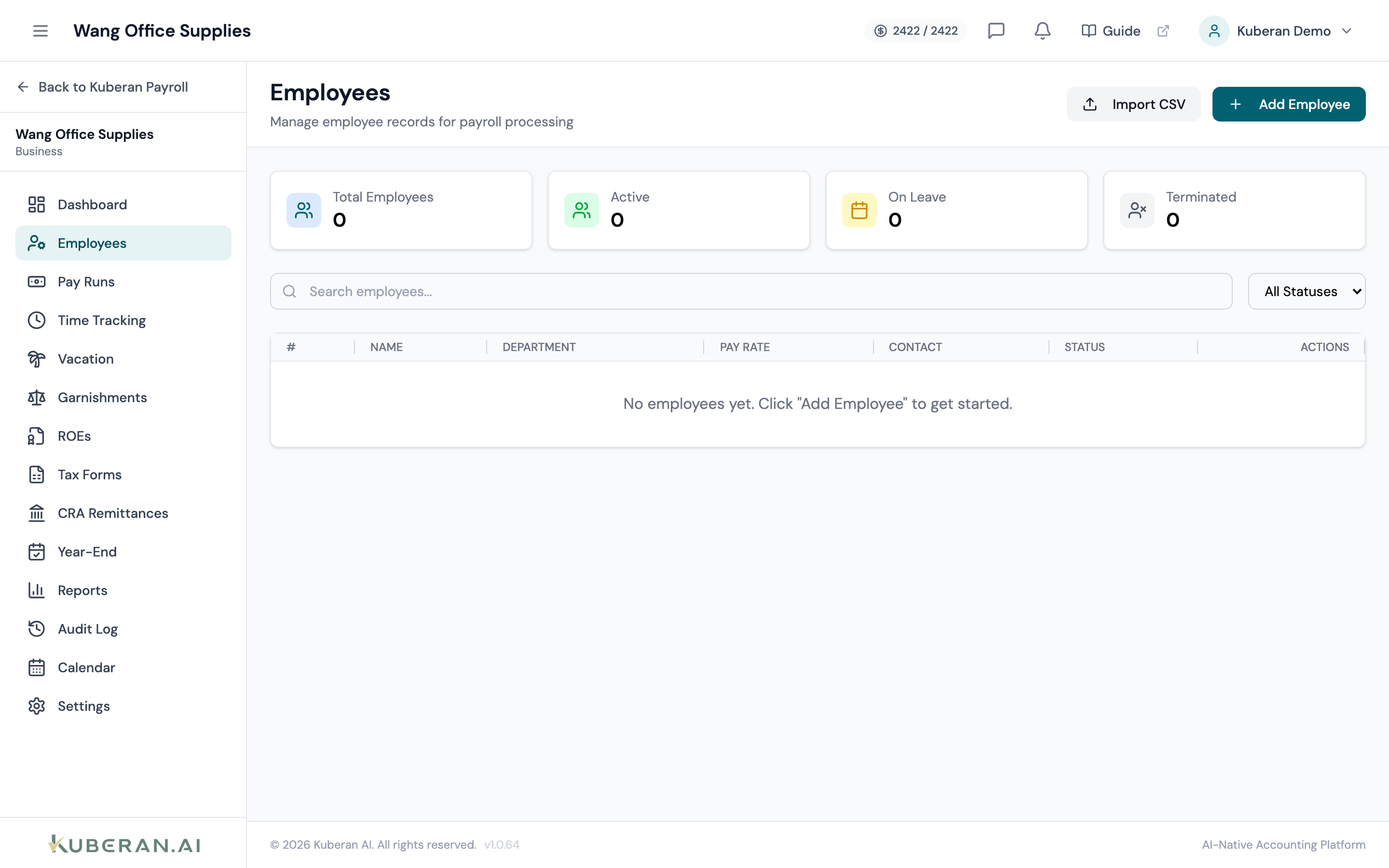
- (1) Add Employee button — opens the new employee wizard
- (2) Status badge — Active (green) or Terminated (grey)
- (3) Pay type — Salary or Hourly
- (4) Masked SIN — last four digits shown only
- (5) Actions menu — Edit, Terminate, Delete
Screen Layout
Toolbar (top): Add Employee button and a Status filter (Active / Terminated / All).
Employee table: One row per employee with columns for Name, Status, Pay Type, Province, SIN (masked), and an Actions column.
UI Elements
Active (green) means the employee is currently employed and will be included in pay runs. Terminated (grey) means the employee has an end date recorded and is excluded from new pay runs. Terminated employees remain visible in the list for historical reporting.
Salary — a fixed annual amount divided by pay periods. Hourly — a rate per hour; hours must be entered on each pay run.
The employee’s Social Insurance Number, masked as ••• ••• XXX where only the last three digits are visible. The full SIN is stored encrypted and is only used for T4 generation and CRA submissions. To view or edit the full SIN, open the employee record.
The province of employment used for provincial income tax calculations. This is not necessarily the province where the employee lives — it is where the work is performed.
Actions
Add Employee
- Click Add Employee in the toolbar.
- Personal Info tab: Enter the employee’s legal name, address, SIN, date of birth, and start date.
- TD1 Form tab: Enter the federal and provincial TD1 claim amounts as provided by the employee. These determine the personal tax credit applied to each paycheque.
- Banking tab: Enter the employee’s bank account details for direct deposit (institution number, transit number, account number). If direct deposit is not being used, select Cheque.
- Earnings & Deductions tab: Set the pay type (Salary or Hourly) and the base rate. Add any recurring deductions (e.g., benefits, RRSP contributions) or recurring additions (e.g., car allowance). Each deduction can be configured as a fixed dollar amount or a percentage of gross.
- Click Save Employee. The employee immediately becomes available for inclusion in the next pay run.
Edit Employee
Click the Actions menu (⋯) on any employee row and select Edit, or click the employee’s name to open their record. All fields from the Add Employee wizard are editable. Changes take effect from the next pay run; they do not retroactively alter processed pay runs.
Terminate Employee
- Open the Actions menu on the employee’s row and select Terminate.
- Enter the last day worked and the reason for separation.
- Click Confirm Termination.
The employee’s status changes to Terminated and they are excluded from future pay runs. Kuberan AI will prompt you to create a Record of Employment (ROE) after termination.
Rehire a Terminated Employee
- Set the Status filter to Terminated or All to find the employee.
- Open the Actions menu and select Rehire.
- Enter the new start date and confirm any changed details (pay rate, province, banking).
- Click Save. The employee returns to Active status.
Delete Employee
Open the Actions menu and select Delete. Deletion is only available if the employee has never been included in a processed pay run. If pay runs exist, use Terminate instead to preserve the historical record. Deleted employees cannot be recovered.
Tips
- SIN is required to generate T4 slips and to calculate CPP and EI correctly. Add it as early as possible when onboarding a new employee.
- Province of employment matters for payroll tax calculations, not the employee’s home province. An employee who lives in Ontario but works at a site in Alberta should have Alberta entered here.
- TD1 amounts default to the basic personal amount if you leave them blank. Always collect a signed TD1 form from each new employee and enter the exact amounts they claimed.