
Clients
Overview
The Clients list is the master registry of all business clients in your workspace. A client record is the central hub that connects to every service module — Books for accounting, Payroll for Canadian payroll processing, and Mileage for automobile logbook tracking. Each client card shows the enabled modules at a glance and provides direct-launch buttons to open each one. The Clients list also drives many other parts of Kuberan AI: document requests, portal access, engagement assignments, invoices, and communications are all scoped to a client.
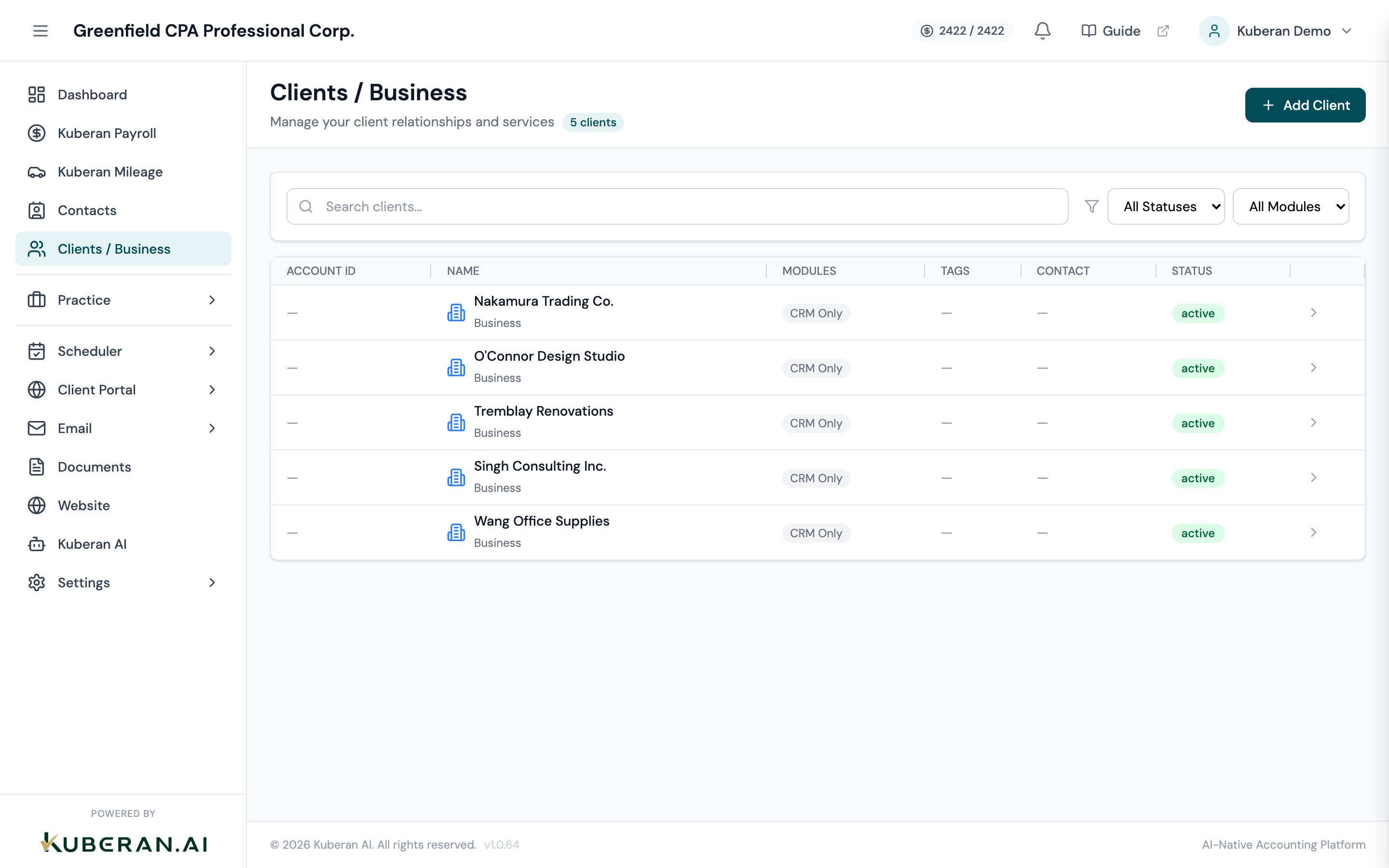
- (1) Search field and status filter
- (2) Add Client button
- (3) Business name and client type
- (4) Module badges — Books, Payroll, Mileage
- (5) Actions menu — Edit, Archive, Delete, Open module
Screen Layout
Toolbar (top): Search field, Status filter (Active / Archived / All), and the Add Client button.
Client list: One row per client showing business name, client type, status badge, enabled module indicators, and an Actions menu.
UI Elements
The client’s registered business name. Clicking the name opens the Client Detail screen where you can view all client information, linked contacts, and module activity in one place.
The type of entity. Common types: Sole Proprietorship, Corporation, Partnership, Non-Profit, Individual (T1). The type is informational but may affect available modules and how the client appears in reports.
Active (green) — the client is current and their records appear throughout Kuberan AI. Archived (grey) — the client is no longer actively serviced. Archived clients are hidden from most views by default but their data is retained.
Coloured pills indicating which modules are active: Books (blue), Payroll (purple), Mileage (green). A grey pill with a ”+” indicates the module is not yet activated. Click a pill to jump directly to that module for the client.
Actions
Create a Client
- Click Add Client in the toolbar.
- Enter the business name and select the client type.
- Add the business address, fiscal year-end, and any other relevant details.
- In the Linked Contact field, search for and select the existing Contact record for this client (e.g., the business owner). If the contact does not exist yet, you can create it from within this field.
- Optionally activate modules at creation time: tick the checkboxes for Books, Payroll, or Mileage to launch the respective setup wizards inline.
- Click Save Client.
Edit a Client
Open the Actions menu (⋯) on the client’s row and select Edit, or click the client name to open their detail screen and then click Edit. All fields are editable. Changes are saved when you click Save.
Archive a Client
Open the Actions menu and select Archive. Archived clients:
- No longer appear in the default Active view
- Cannot have new invoices, engagements, or pay runs created against them
- Retain all historical data, which remains fully accessible when you switch the Status filter to Archived or All
- Can be restored to Active at any time via Unarchive in the Actions menu
Delete a Client
Open the Actions menu and select Delete. Deletion is permanent and removes all associated data, including books, payroll records, and mileage trips. Kuberan AI requires confirmation and shows a summary of what will be deleted. This action cannot be undone. Use Archive instead in almost all cases — delete only when a client was created in error and has no meaningful data.
Open Books
Click the Books badge on the client row, or open the Actions menu and select Open Books. This takes you directly to the client’s Books Dashboard. If Books is not yet activated for this client, you are shown the Books activation flow.
Open Payroll
Click the Payroll badge, or select Open Payroll from the Actions menu. Takes you to the client’s Payroll Dashboard. If Payroll has not been activated, the activation wizard opens.
Open Mileage
Click the Mileage badge, or select Open Mileage from the Actions menu. Takes you to the client’s Trips list. If Mileage has not been activated, the activation form opens.
Client Detail Screen
Clicking a client’s name opens the Client Detail screen — a single view of everything related to that client:
- Overview tab: Business details, linked contacts, notes
- Activity tab: Recent events from all modules (pay runs, invoices, document uploads, emails)
- Modules tab: Quick access to Books, Payroll, and Mileage with summary stats
- Portal tab: Portal user list and portal access settings for this client
Tips
- Archive, don’t delete. Historical data (T4s, financial statements, pay run records) has long-term value and may need to be retrieved years later. Archiving preserves everything while keeping the active client list clean.
- Linked Contacts vs. Portal Users: A linked Contact is the CRM record of the person. A Portal User is someone with login access to the client portal. These are different things. A contact can exist without portal access.
- Search by name or type. The search field matches on business name. Use the Type filter if you want to see only corporations, only sole proprietors, and so on.