
Track time on engagements
Accurate time tracking is the foundation of a well-run practice. Every hour logged against an engagement becomes a potential invoice line item, and every hour not logged is revenue that disappears without a trace. Kuberan AI gives you three ways to log time — a manual entry form, a live timer, and a weekly timesheet — and applies the correct billing rate automatically so you never have to look one up.
Where time lives in Kuberan AI
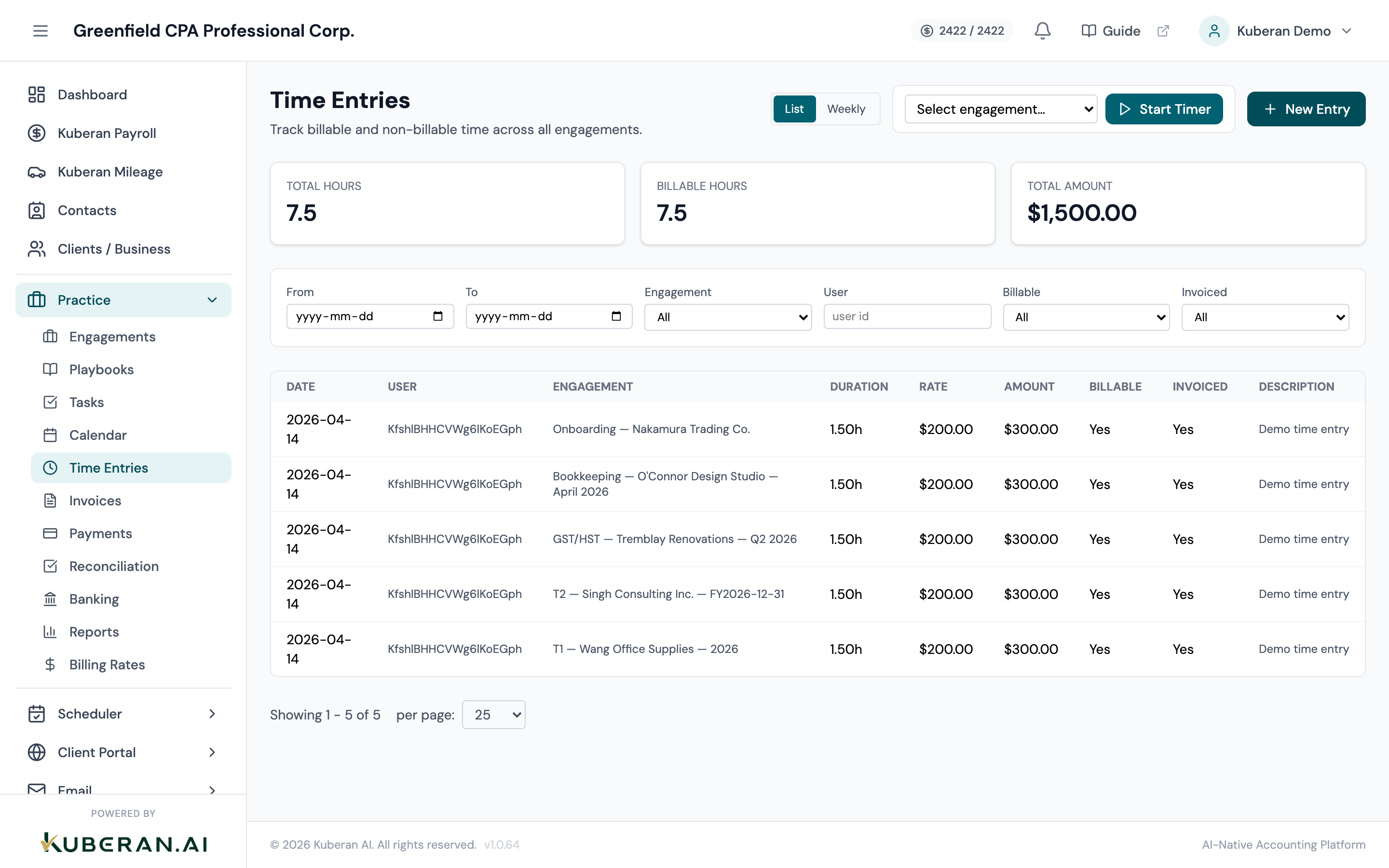
Time entries live at Practice > Time Entries — a global view of every entry across all engagements and team members. Open Practice > Time Entries
The page has two views, switched with the List / Weekly toggle in the header:
- List — the entries table with summary cards (total hours, billable hours, total amount) and filters
- Weekly — a timesheet grid for logging hours by engagement and day
Rates are applied automatically
You never pick a billing rate when logging time. Rates are configured once at Practice > Billing Rates, and Kuberan AI resolves the correct rate for each entry automatically from that configuration when you save. The Rate and Amount columns are filled in for you, so all you need to record is the engagement, the duration, and what you did.
Method 1: Manual time entry
Manual entry is best when you are recording time after the fact — at the end of the day, or when you finish a block of work.
Open Time Entries
Go to Practice > Time Entries and make sure the List view is selected.
Click New Entry
Click the New Entry button in the header. The New Time Entry modal opens.
Fill in the entry details
- Engagement — the engagement you worked on (required)
- Date — defaults to today; change it if you are entering time retroactively
- Duration (hours) — enter as decimal hours (e.g. 1.5 for one hour thirty minutes)
- Description — a brief note about what you did (e.g. “Reconciled chequing and savings; categorised 34 transactions”)
- Billable — leave checked if this time will be charged to the client; uncheck it for internal or write-off time
Click Create Entry
The entry is saved. Kuberan AI resolves the rate and computes the amount automatically, and the entry appears in the list.
Method 2: Live timer
The live timer is best when you want to track time as you work, without estimating hours later.
Pick an engagement in the timer widget
In the header of the Time Entries page, the live timer widget shows an engagement selector. Choose the engagement you are about to work on.
Start the timer
Click Start Timer. The elapsed counter begins and ticks up every second.
Stop the timer when you finish
Click Stop. A prompt asks for an optional description of what you worked on.
Confirm
Confirm the prompt. A time entry is created for the exact elapsed duration, with the rate resolved automatically. The entry is billable by default — open it from the list if you need to change that.
Method 3: Weekly timesheet
The weekly timesheet is best for filling in a whole week at once — a familiar grid of engagements down the side and days across the top.
Switch to the Weekly view
Use the List / Weekly toggle in the header to switch to Weekly.
Choose the week
Use the week arrows, or the This week button, to move to the week you want to fill in.
Add engagement rows
Any engagement you already logged time against this week appears as a row. To add another, click Add engagement row and pick it from the list.
Type hours into the cells
Enter decimal hours in the cell for the right engagement and day. The entry saves when you leave the cell. Clear a cell to 0 to remove that day’s logged time. Row, column, and week totals update as you go.
Billable vs non-billable time
Every entry carries a Billable flag. Keep it on for client work; turn it off for internal time you want recorded but not charged — internal meetings, training, and firm administration. Logging non-billable time still gives you accurate capacity data even though it never reaches an invoice.
Reviewing and finding unbilled time
Use the filters on the List view to review your time:
- Set User to yourself (or leave it open, as a manager, to see the whole team)
- Set the From / To dates to the period you want
- To find time that has been logged but not yet billed, set Invoiced to Not invoiced
The summary cards at the top total the hours and billable amount for whatever the filters currently show, so this doubles as a quick billing pipeline check. Run it weekly so nothing falls through the cracks.
How time flows into invoices
When you invoice a client from an engagement (see Invoice clients from engagements), unbilled billable time entries for that engagement are pulled in as line items. Once an entry has been invoiced, its Invoiced flag flips to Yes and the entry becomes read-only — it can no longer be edited or deleted, which keeps billed time in step with what the client was charged.
Building a daily time-tracking habit
Practical habits that work for accounting firms:
- Log time immediately after each task block — enter it while it is fresh, not later
- Use the timer for longer focused blocks (reconciliation, tax preparation), and the manual form for shorter tasks (client calls, emails)
- Fill in the weekly timesheet on Friday to catch anything you missed during the week
- Log non-billable time too — internal meetings, training, and admin, so you have accurate capacity data
- Do not round down aggressively — a 20-minute client call is 0.3 hours, not zero. Consistent under-reporting adds up to significant lost revenue over a year