
Invoice clients from engagements
Kuberan AI’s billing workflow is designed to move cleanly from logged time to paid invoice without manual re-entry. Once your team has been logging time against an engagement, a guided wizard turns approved time, fixed fees, and expenses into a polished, GST/HST-compliant invoice in a few minutes.
The billing workflow at a glance
Review unbilled time → Create invoice with the wizard → Review & edit the draft → Send to client → Record paymentStep 1: Review unbilled time entries
Before creating an invoice, it is worth reviewing the time entries to catch anything that needs adjusting — a wrong billing rate, a non-billable entry accidentally marked billable, or time that should be written off.
Open the engagement
Navigate to Practice > Engagements and click on the engagement you want to invoice.
Go to the Time tab
Click the Time tab to see all time entries. Look for:
- Entries with no description (add one so the invoice line item is clear to the client)
- Entries with the wrong billing rate (click to edit)
- Entries that should be non-billable (toggle the billable flag off)
- Time that should be written off entirely (mark as non-billable or delete)
Make any corrections
Click any time entry to edit it. Changes here affect only this engagement’s entries.
Step 2: Create the invoice with the wizard
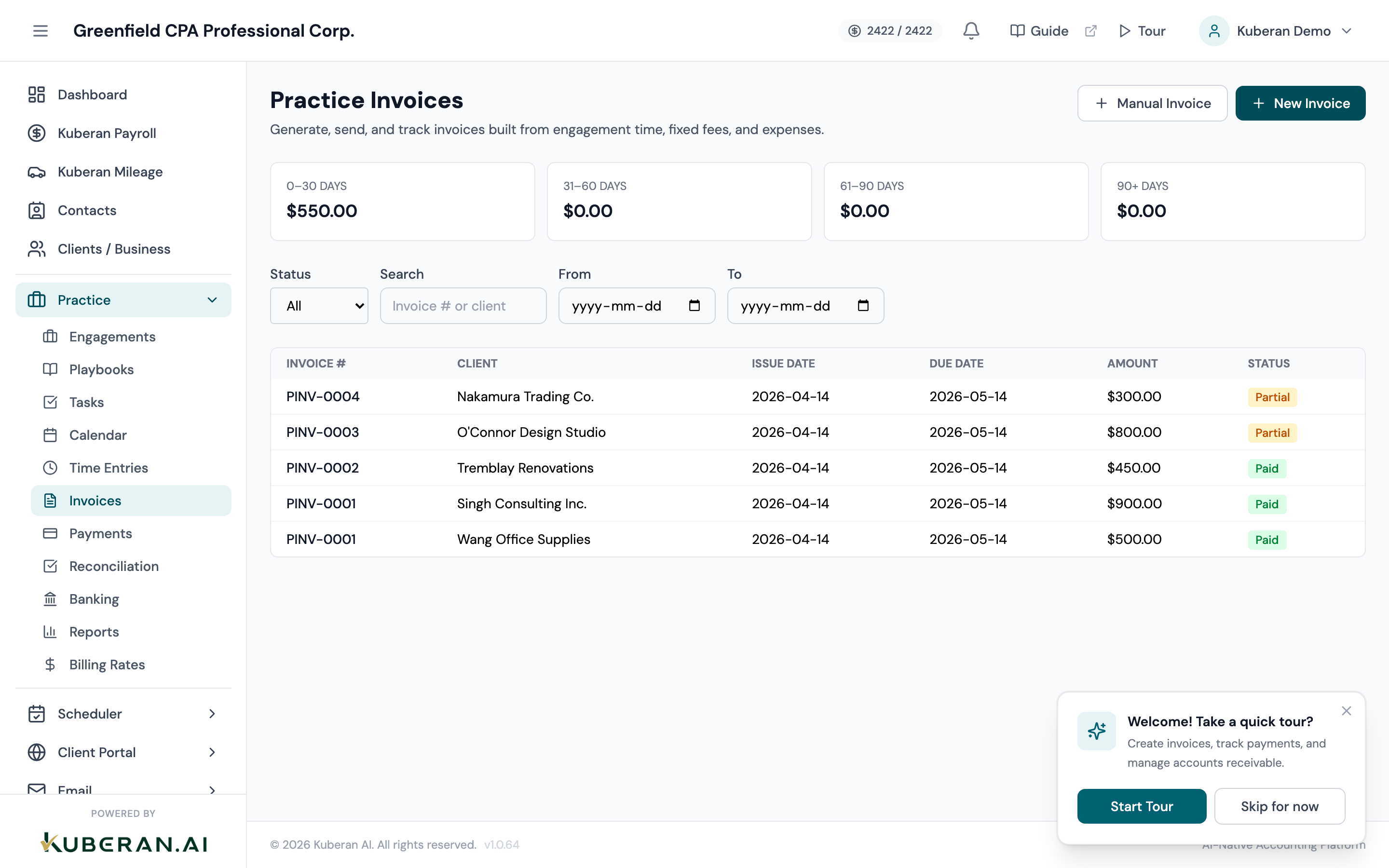
From Practice > Invoices , click New Invoice to open the four-step wizard.
Step 1 — Select the client
Choose the client. Their engagements load automatically for the next step.
Step 2 — Select engagements and sources
Tick one or more engagements to bill (you can combine several on one invoice). Then choose what to pull in with the Include time entries, Include fixed fees, and Include reimbursable expenses toggles, and optionally set a Date from / Date to range to limit which items are captured — useful for month-end billing.
Step 3 — Adjustments, notes, and terms
Optionally enter a Write-up / Write-down amount (use a negative number for a discount) with a reason. Add Notes for a message to the client and Terms & conditions to print on the invoice — for example: “This invoice covers the period January 1–March 31, 2025.”
Step 4 — Review the preview
The wizard shows the resolved line items, subtotal, tax, and total, along with the tax profile that was applied. Check that:
- The client details are correct
- The line items are accurate
- The GST/HST and total are right (see the tax note below)
Once the preview looks right, click Save as Draft to save it for later review, or Save & Send to save and email it to the client immediately.
Step 3: Review and edit the draft
If you saved a draft, open it from the Invoices list to review it before sending.
Open the draft
Click the invoice row to open its detail panel. You’ll see the line items, tax breakdown, totals, and a collapsible PDF Preview (click Show to render it).
Edit the line items if needed
Click Edit Draft to change line item descriptions, quantities, rates, dates, notes, or terms. Only drafts are editable — once an invoice is sent, use a credit note or void-and-reissue to correct it.
Step 4: Send the invoice
Click Send Email
From the draft’s detail panel, click Send Email. An email dialogue appears defaulting to the client’s primary contact email, where you can adjust the recipient, subject, and message.
Send
Send the email. The invoice status changes to Sent, and the time entries, fixed fees, and expenses it included are marked as invoiced. The email includes a View invoice online link, and you can also click Copy Public Link to share a read-only client view directly.
Step 5: Record payment when received
When the client pays — by e-transfer, cheque, credit card, EFT, wire, or cash — record the payment against the invoice.
Open the invoice
Go to Practice > Invoices and click the invoice. Payments are always recorded from the invoice itself, so the correct invoice is already selected — there is no invoice picker.
Click Record Payment
In the detail panel, click Record Payment.
Enter payment details
- Amount — defaults to the full outstanding balance; change it if the client paid a partial amount
- Payment date — the date the funds cleared or the cheque was deposited
- Method — Cheque, E-Transfer, Wire, Credit Card, Cash, EFT, or Other
- Reference — the e-transfer reference, cheque number, or other identifier (optional but useful for reconciliation)
- Notes — optional internal notes
Record the payment
Click Record Payment. A full payment moves the invoice to Paid; a partial payment moves it to Partial and reduces the balance. The payment then appears in the Practice > Payments ledger, where it can later be matched during bank reconciliation.
Handling partial payments and overdue invoices
Partial payment: If a client pays part of an invoice, record the partial amount. The invoice status changes to Partial and the outstanding balance is tracked automatically. Record further payments against the same invoice as they arrive.
Overdue invoices: Kuberan AI automatically shows a sent invoice as Overdue once it is past its due date with a balance owing. Filter for these with the Overdue status filter at Practice > Invoices. To chase payment, open the invoice and click Re-send to email the client another copy of the invoice.
Common questions
Can I void or edit a sent invoice? A sent invoice can be voided (which cancels it and reverts the linked time, fixed fees, and expenses to un-invoiced) but not edited directly, since the client already has a copy. If changes are needed, void the original and re-issue. If the amount was too high, issue a credit note instead — this reduces the balance without cancelling the invoice.
Can I create an invoice without any engagement or time entries? Yes. Use the Manual Invoice button on the Invoices screen. It opens a standalone invoice with an editable line-item table — ideal for a flat fee, a project milestone, or an expense recovery that isn’t tied to an engagement. Tax is still resolved from the client’s tax profile.
Can I set up recurring invoices? Yes, for retainer-style work. Recurrence is configured on the playbook, and the scheduler drafts an invoice for each qualifying engagement. It only ever creates drafts — nothing is sent to a client automatically, so you always review and send each one. See Recurring Invoices.