
Using playbooks
A playbook is a reusable recipe that defines how a type of engagement runs: its workflow stages, its default tasks under each stage, its playbook-level defaults (priority, time budget, naming), and its billing and intake form. When you create an engagement from a playbook, Kuberan AI generates those stages and tasks automatically — so you never rebuild a checklist from scratch.
Playbooks are one of the most powerful tools in Kuberan AI for building a consistent, scalable practice. The time you invest in building good playbooks pays back every time you open a new engagement.
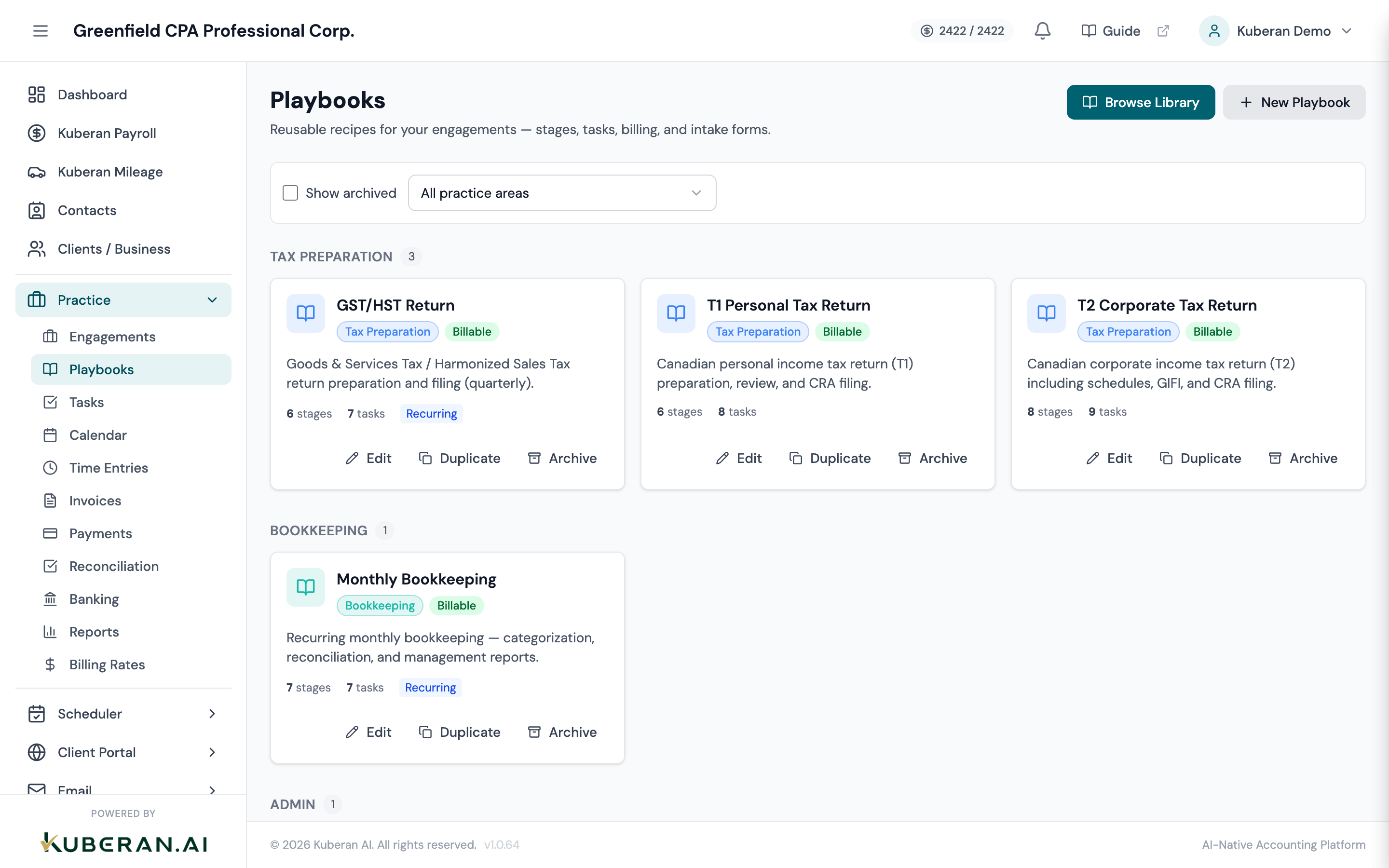
Navigate to Playbooks
In the left sidebar, click Practice, then click Playbooks. This screen shows all playbooks in your workspace, grouped by practice area, with a Show archived toggle and a practice-area filter.
Building a playbook from scratch
Let’s build a “Monthly Bookkeeping” playbook as a worked example.
Click New Playbook
In the page header, click New Playbook. The editor slides open on the Overview tab.
Name your playbook and pick a practice area (Overview tab)
Give it a clear, specific name: “Monthly Bookkeeping” rather than just “Bookkeeping.” If your firm has variations (e.g. cash-basis vs. accrual clients), name them to distinguish: “Monthly Bookkeeping — Accrual” and “Monthly Bookkeeping — Cash Basis.”
Then select a Practice Area (e.g. Bookkeeping). This is required, and it determines the group the playbook appears under. Note that practice area is locked once the playbook is created. Optionally set a description, icon, and colour.
Define your stages (Stages tab)
Open the Stages tab and click Add Stage for each phase of the work. For monthly bookkeeping you might use: Intake, Reconciliation, Review, and Delivered. Mark the first stage as Initial, mark the final stage Terminal, and drag stages into order. You can give each stage a colour and a client-facing status.
Add tasks under each stage (Tasks tab)
Open the Tasks tab. Tasks live inside stages, so add them under the relevant stage. Click Add Task in a stage and type the task name. For a Monthly Bookkeeping playbook your tasks might be:
Reconciliation stage
- Download bank and credit card statements from client portal
- Import statements into Books
- Reconcile chequing account
- Reconcile savings account
- Reconcile credit card — Visa
- Categorise uncoded bank transactions (target: 0 uncoded)
- Process accounts receivable — apply received payments
- Process accounts payable — enter and approve new bills
- Post payroll journal entries from payroll module
- Review GST/HST collected and paid — flag anomalies
Review stage 11. Prepare adjusted trial balance 12. Draft financial statements 13. Manager/partner review
Delivered stage 14. Send financial statements to client
Drag tasks to reorder them within a stage.
Add task detail (optional)
Expand any task to add a description, an assignee role (Preparer, Reviewer, Manager, or Partner), a due offset in days, and a “client request” flag (which surfaces the task in the client portal). Descriptions appear when a team member opens the task, so they double as in-platform training documentation — for example: “Reconcile chequing account — Target: difference of $0.00. If unreconciled, check for duplicate entries or missing deposits before escalating.”
Note there is no per-task estimated-hours field. Time is budgeted once for the whole playbook on the Defaults tab.
Set playbook defaults (Defaults tab)
Open the Defaults tab to set values applied to engagements created from this playbook: Priority, Time Budget (hours), Default Assignee Role, a Naming Pattern (using tokens such as
{clientName},{taxYear},{month}), and a Due Date Offset in days from the engagement start.Review billing (Billing tab)
Open the Billing tab to see whether the playbook is billable and which billing rate it links to. In v1 this tab is read-only; manage the rate itself on the Billing Rates page.
Save the playbook
Click Create Playbook. It now appears as a card under its practice-area group, ready to use on new engagements.
Adopting a playbook from the library
Kuberan AI provides a library of starter playbooks for common Canadian accounting services. To use one:
On the Playbooks screen, click Browse Library. The Playbook Library opens as a slide-over, with entries grouped by practice area.
Browse or search for the recipe you want, and click an entry to preview its stages and tasks.
Click Adopt. The recipe — its stages, default tasks, billing rate, and any intake form — is copied into your workspace as a new playbook, and a toast confirms “Playbook adopted into your workspace”. The library panel closes; the new playbook appears under its practice-area group (no “Copy of” prefix, and the editor does not open automatically).
Reusing an existing playbook
To base a new playbook on one you already have, click Duplicate on its card. The copy is named “<Name> (Copy)” and lands in the same practice area, where you can rename and edit it. When a playbook is no longer used, click Archive on its card — archived playbooks are hidden but preserved for historical engagements. (Playbooks cannot be permanently deleted; tick Show archived to see them again.)
Tips for building effective playbooks
Be specific about what “done” means. Vague tasks like “Review financials” are harder to delegate than “Prepare adjusted trial balance — verify all accounts have reconciling items documented.” The more specific the task, the more confidently a junior staff member can complete it without asking for clarification.
Use stages to model your workflow. Group tasks under the stage where they happen (Intake, Reconciliation, Review, Delivered). Stages give you a clear picture of where each engagement stands and can drive the status the client sees.
Keep playbooks to a manageable length. Very long task lists become hard to navigate. If a playbook grows unwieldy, consider splitting the work into separate engagements with their own playbooks.
Version your playbooks seasonally. If your year-end playbook changes each tax season, duplicate it, update the copy for the new year, and archive the old version to preserve the historical record.
Use descriptions as training documentation. New staff read task descriptions when unsure how to complete a step. Good descriptions reduce interruptions and accelerate onboarding.
Review and refine after every engagement. Note any tasks that were missing, unnecessary, or unclear, and update the playbook before the next cycle.