
Audit Log
Overview
The Audit Log is a chronological record of actions performed on the client’s accounting file. Each event captures a timestamp, the user (or system process) responsible, the action, the entity affected, and — for updates — the field-level changes. It is the primary tool for practice oversight, dispute resolution, and file documentation. The newest events appear at the top, and the log can be exported as JSON or CSV.
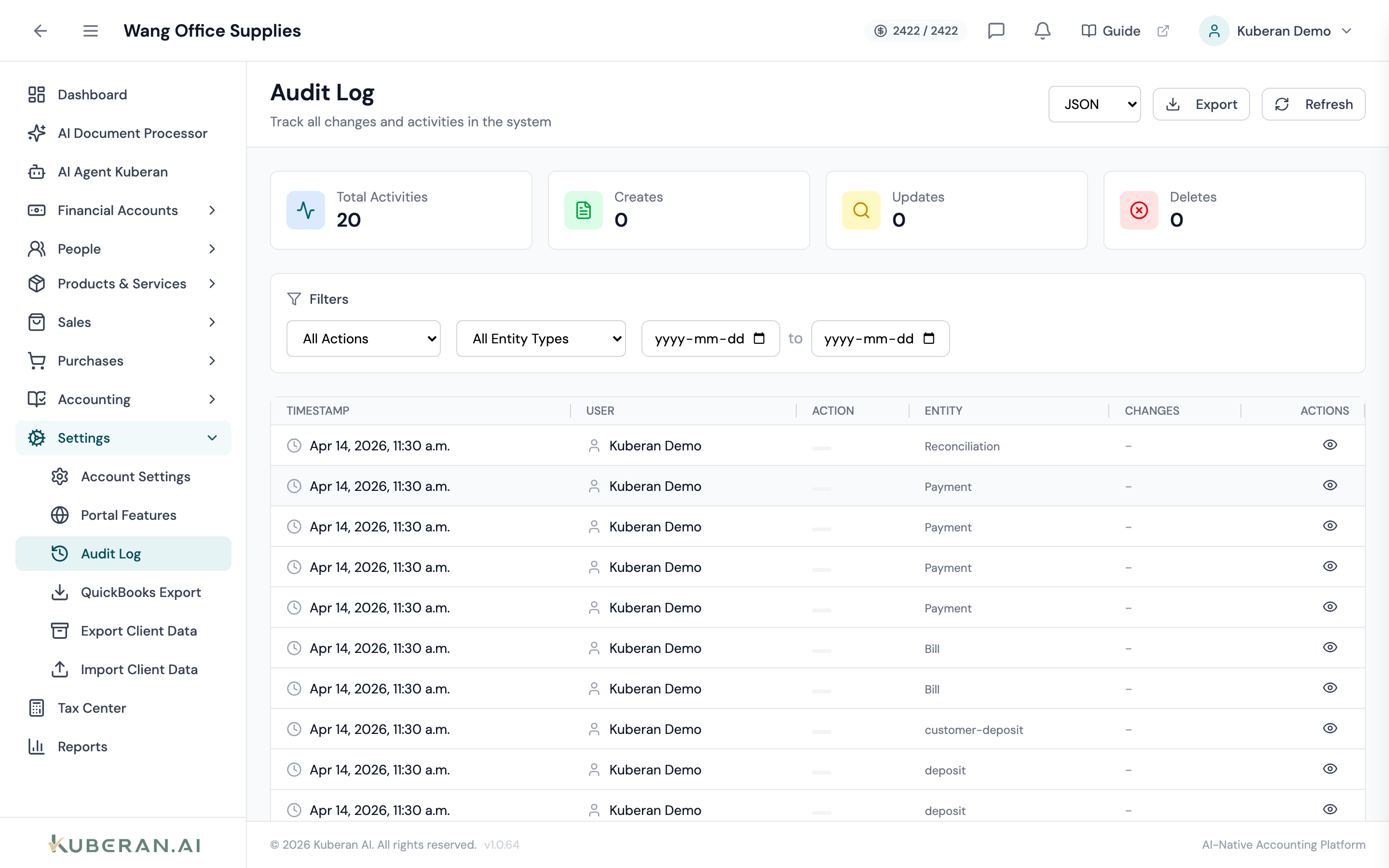
- (1) Summary cards — Total Activities, Creates, Updates, Deletes
- (2) Filters — Action, Entity Type, and a date range
- (3) Action badge — colour-coded action type
- (4) Entity column — the record's type and name
- (5) Export — download the filtered log as JSON or CSV
Screen Layout
Header (top): A JSON / CSV format dropdown with an Export button, and a Refresh button.
Summary cards: Total Activities, Creates, Updates, and Deletes for the client.
Filter bar: An Action filter, an Entity Type filter, and a start/end date range. A Clear Filters link appears once any filter is set.
Audit log table (centre): Columns are Timestamp, User, Action, Entity, Changes, and an actions column with a View (eye) button that opens the detail panel. The newest events appear first.
UI Elements
Filter Bar
Filter by the type of action recorded. The list is populated from the actions that exist in the log — for example Created, Updated, Deleted, Posted, Voided, Reconciled, Closed Period, Locked Period, Reopened Period, Year-End Close, Logged In, Exported, Imported, Processed Document, and Changed Settings.
Filter by the category of record affected — for example Journal Entry, Invoice, Bill, Payment, Account, Bank Transaction, Reconciliation, Fiscal Period, Customer, Vendor, Document, or Settings.
Start and end date pickers that bound the events shown.
Resets the action, entity-type, and date filters. Only shown when a filter is active.
Table Columns
The date and time of the event, in the workspace’s local timezone.
The display name of the person who performed the action. System-generated events (crons, document processing, automations) show as System.
A colour-coded badge for the action. Common ones: Created (green), Updated (blue), Deleted (red), Posted, Voided (red), Reconciled (purple), Closed Period (yellow), Locked Period (orange), and Year-End Close. Actions without a specific colour render in grey.
The affected record’s type (e.g., Journal Entry, Invoice) with its name underneath when available.
A short summary: “N fields changed” for updates, “New record” for creates, “Record removed” for deletes.
Opens the Audit Log Details panel for the event.
Detail Panel
Opening an event shows:
- Overview — timestamp, user (with email), action, and the entity’s type, name, and ID.
- Edit Reason — the optional reason captured when a posted journal entry was edited.
- Changes — a field-by-field diff with old and new values. Journal-entry line changes render as before/after tables of account, debit, and credit.
- Entity Data — the record snapshot for create and delete events.
- Metadata — IP address, source, and session ID when available.
Actions
Filter the Audit Log
- Choose an Action to focus on a single action type.
- Choose an Entity Type to narrow to one record category (e.g., all actions on Journal Entries).
- Set a start and end date to bound the time window.
- Click Clear Filters to reset.
View the Detail of an Event
- Click the View (eye) button on any row.
- The detail panel opens with the overview, any edit reason, the field-level changes, the entity snapshot, and metadata.
- For updated journal entries, the Changes section shows the lines before and after the edit as side-by-side tables.
Export the Audit Log
- Apply any filters to narrow the export.
- Choose JSON or CSV in the format dropdown.
- Click Export. The filtered log downloads (CSV includes the IP address column). Exports are capped at the most recent 10,000 events.
Access
The Audit Log records activity across the client file — including create, update, delete, post, void, reconcile, period close/lock/reopen, year-end close, login, export, import, document processing, and settings changes. Access to the screen is restricted to authorised practice roles.
Related
- Periods — Period close, reopen, lock, and year-end-close events are logged here
- Journal Entries — Journal entry creates, edits, posts, and voids are logged, with line-level diffs
- Documents — Document uploads and AI extraction events are logged
- Tax Centre — GST/HST filing events are logged