
Recurring transactions
Overview
The Recurring Transactions screen is the unified dashboard for everything the books generate on a schedule — recurring invoices, recurring bills, and recurring journal entries. It gives a single view of what is coming up and what was recently generated, and it is where you create and manage recurring journal-entry templates directly.
A recurring template runs on a frequency you set (daily through annually) and produces a new transaction each cycle until it is paused, completed, or cancelled. Journal-entry templates carry their own balanced debit/credit lines and can auto-post when generated. Recurring invoices and bills are created from an existing document in their own modules — this dashboard surfaces them and links you there.
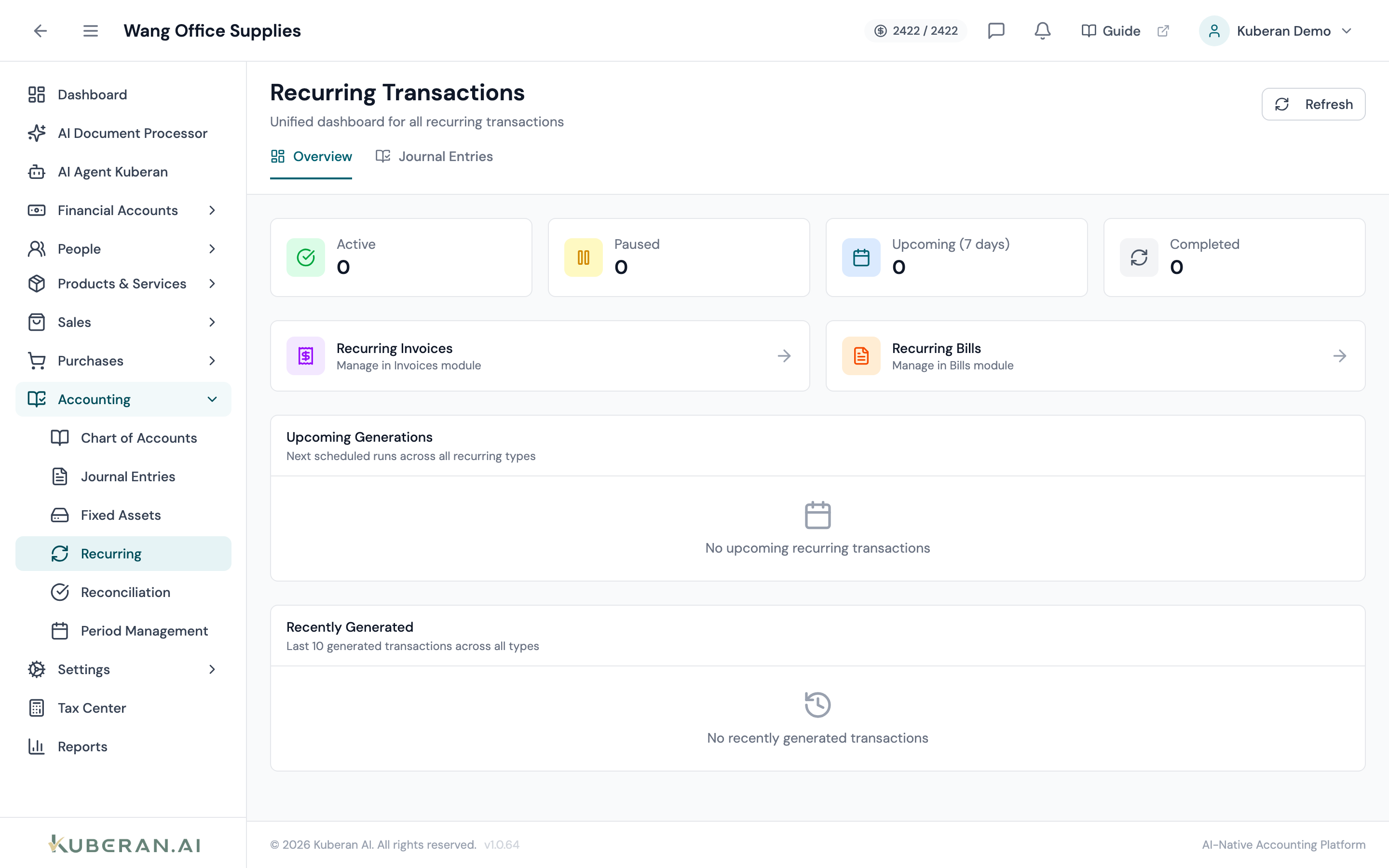
- (1) Summary cards — Active, Paused, Upcoming (7 days), Completed
- (2) Tabs — Overview and Journal Entries
- (3) Type badge — Invoice, Bill, or Journal Entry
- (4) Status badge — Active, Paused, Completed, Cancelled
- (5) Template actions — run now, skip, pause/resume, edit, cancel
Screen Layout
Summary cards (top): Active, Paused, Upcoming (7 days), and Completed counts.
Tabs: Overview (Upcoming Generations and Recently Generated, plus quick links to Recurring Invoices and Recurring Bills) and Journal Entries (the recurring JE template list).
Statuses
| Status | Colour | Meaning |
|---|---|---|
| Active | Green | Running on schedule; will generate on the next run date |
| Paused | Amber | Temporarily stopped; resume to continue |
| Completed | Blue | Reached its end date or max runs |
| Cancelled | Grey | Stopped permanently |
Type badges: Invoice (purple), Bill (orange), Journal Entry (indigo).
UI Elements
Toolbar
Opens the recurring journal-entry template form.
Filter templates by All Statuses, Active, Paused, Completed, or Cancelled.
Template Actions
Run now generates this cycle immediately; Skip next advances past the next scheduled run without generating.
Temporarily stop an Active template, or resume a Paused one.
Preview the entry that will be generated, review past generations, or duplicate the template.
Actions
Create a Recurring Journal-Entry Template
- On the Journal Entries tab, click New JE Template.
- Enter a Name (required) and an optional Description.
- Choose a Frequency: Daily, Weekly, Bi-weekly, Monthly, Quarterly, or Annually. For monthly/quarterly/annual, set the Day of Month; for weekly/bi-weekly, set the Day of Week.
- Set the Start Date, and optionally an End Date and/or Max Runs (leave blank for unlimited).
- Tick Auto-post when generated to post each generated entry automatically.
- Add Journal Lines — at least two, with Account, Debit, and Credit. Total Debit must equal Total Credit.
- Add an optional Memo and save.
Manage a Template
- Run now — generate the current cycle immediately.
- Skip next — skip the upcoming run.
- Pause / Resume — suspend or restart generation.
- Edit — change frequency, lines, or end conditions (the Start Date is locked once created).
- Cancel / Delete — stop the template permanently, or remove it.
Recurring Invoices & Bills
Recurring invoices and bills are set up from an existing document — use ⋯ → Create Recurring on an invoice or bill. They then appear in this dashboard’s Overview, and the quick links jump you to their respective modules to manage them.
Related
- Invoices — Create recurring invoices from a template invoice
- Bills — Create recurring bills from a template bill
- Journal Entries — The entries recurring JE templates generate
- Chart of Accounts — Accounts used on recurring JE lines