
Bank Rules
Overview
Bank rules — labelled Fin Rules in the app — automate the categorisation of recurring bank transactions. Each active rule is evaluated in priority order, and the first rule whose conditions match a transaction applies its actions: assigning a GL account, optionally setting a vendor/customer, a tax rate, a payment method, a memo, and (optionally) auto-confirming the match. When you save a rule it is also applied retroactively to existing eligible transactions automatically. Rules can be learned from the bank feed (“Learn Fin Rule”) or created here from scratch.
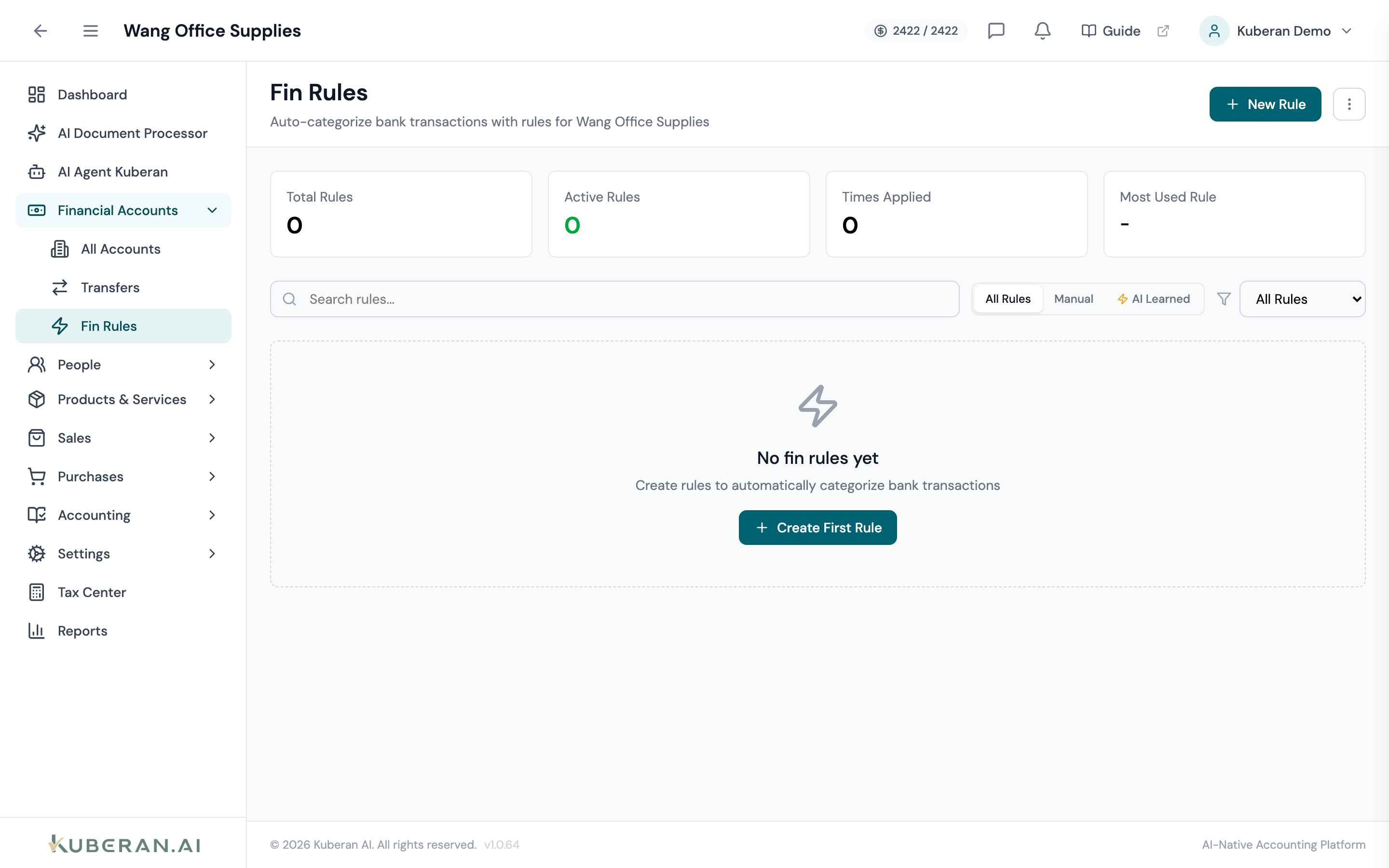
- (1) New Rule button — opens the rule builder panel
- (2) Reorder controls — up/down chevrons change a rule's priority
- (3) Conditions summary — description, type, and amount criteria
- (4) Assign To summary — the GL account (and vendor) applied when the rule fires
- (5) Status toggle & Actions menu — enable/disable, edit, duplicate, delete
Screen Layout
The screen (headed Fin Rules) is a single prioritised list. Rules are evaluated top-to-bottom by priority; the first match wins. The toolbar has a New Rule button and a ⋯ overflow menu with Import Rules and Export Rules (JSON).
UI Elements
Toolbar
Opens the Create Fin Rule builder panel on the right.
Export the client’s rules to a JSON file, or import rules from one.
Rule List Columns
An up-chevron / down-chevron pair moves a rule up or down the priority list (there is no drag-and-drop). A numeric Priority badge shows the position — a lower number means higher priority, and evaluation stops at the first matching rule.
The rule’s label. Rules that were learned automatically from the bank feed carry an AI Learned badge.
A summary of the match criteria — the description match, transaction type, and amount condition.
The GL account the rule categorises to, plus the vendor if one is set.
How many transactions the rule has been applied to.
A clickable Active / Inactive pill. Inactive rules are skipped during evaluation without being deleted.
Per-rule menu: Edit, Duplicate (creates a copy at the next priority, starting inactive), and Delete.
Rule Builder
The builder panel (Create Fin Rule / Edit Fin Rule) opens on the right. At the top it has a Rule Name (required), a Priority number (lower = higher priority), and a Rule is active checkbox, followed by the Conditions and Actions sections.
Conditions (When to apply)
All specified conditions must be true for the rule to fire (AND logic). Each rule has a single description condition and a single amount condition — they are not a repeatable list.
| Condition | Options | Notes |
|---|---|---|
| Bank Account | Any bank account, or a specific account | Scopes the rule to one account |
| Description Match | Contains, Starts with, Ends with, Equals, Regex | Matched against the transaction description; regex patterns run through a safety guard |
| Transaction Type | Any, Credits (incoming), Debits (outgoing) | Based on debit/credit direction |
| Amount Match | Any amount, Equals, Greater than, Less than, Between | ”Between” shows a second (Max) value input |
Actions (What to do)
Required. The GL account to assign. This categorises the transaction.
Optional. A single picker with Vendor and Customer tabs (choosing one clears the other). You can create a new vendor or customer inline.
Optional. Sets the tax rate applied to matched transactions.
Optional. E.g. EFT/Direct Deposit, Cheque, Cash, Credit Card, Debit Card, Wire, e-Transfer, Bank Transfer, Other.
Optional. A memo applied to matched transactions.
When on, matched transactions are confirmed automatically rather than left as a suggestion.
Actions
Create a Rule
- Click New Rule. The Create Fin Rule panel opens.
- Enter a Rule Name and, optionally, a Priority (lower runs first).
- In Conditions, set the bank-account scope, the description match (operator + text), the transaction type, and any amount condition.
- In Actions, choose the Categorize to Account (required) and optionally set a vendor/customer, tax rate, payment method, memo, and the auto-confirm toggle.
- Save. The rule is created and applied automatically to existing eligible (unreconciled, uncategorised, unlocked-period) transactions — there is no separate “apply to existing” prompt.
Edit a Rule
- Open ⚙️ → Edit on the rule row.
- The Edit Fin Rule panel opens pre-populated. Make changes and save. If the rule is active, it is re-applied to existing eligible transactions.
Reorder Rule Priority
- Use the up or down chevron on a rule row to move it in the priority list.
- The new order is saved and priority numbers are reassigned. Rules are evaluated lowest-number-first, first match wins.
Enable, Disable, or Duplicate
- Click the Status pill to toggle a rule Active / Inactive.
- Use ⚙️ → Duplicate to copy a rule; the copy is created at the next priority and starts inactive.
Delete a Rule
- Open ⚙️ → Delete on the rule row and confirm.
- Deleting a rule does not un-categorise transactions it previously matched.
Related
- Bank Transactions — Review and manually categorise transactions
- Vendors — Link rule actions to vendor records for better reporting
- Chart of Accounts — Manage the accounts available for rule assignment