
Set Up a Client's Books
Before you can record a single transaction for a client, you need to configure their Books ledger. Setup is not a single wizard — it is spread across a few screens: the accounting method lives in Accounting Settings, the chart of accounts and opening balances live in the Chart of Accounts, and the GST/HST profile lives in the Tax Center. Working through them once, in order, sets the foundation for accurate reporting and clean period-end reconciliation.
Step 1 — Create the client and enable Books
Add the client
From the left sidebar, open Kuberan Books and click Add Client. The Add Client panel walks through two steps — Client Info and Services. On the Services step, turn on the Books module (and Payroll or Mileage if the engagement needs them), then click Create Client.
If the client already exists but Books is not turned on, open the client from the Clients list and click Enable Books on the client detail page — confirm in the Enable Books dialog.
Open Books
On the client detail page, click Open Books to enter the client’s Books workspace. This is where the Chart of Accounts, Bank Accounts, Reports, and Tax Center all live.
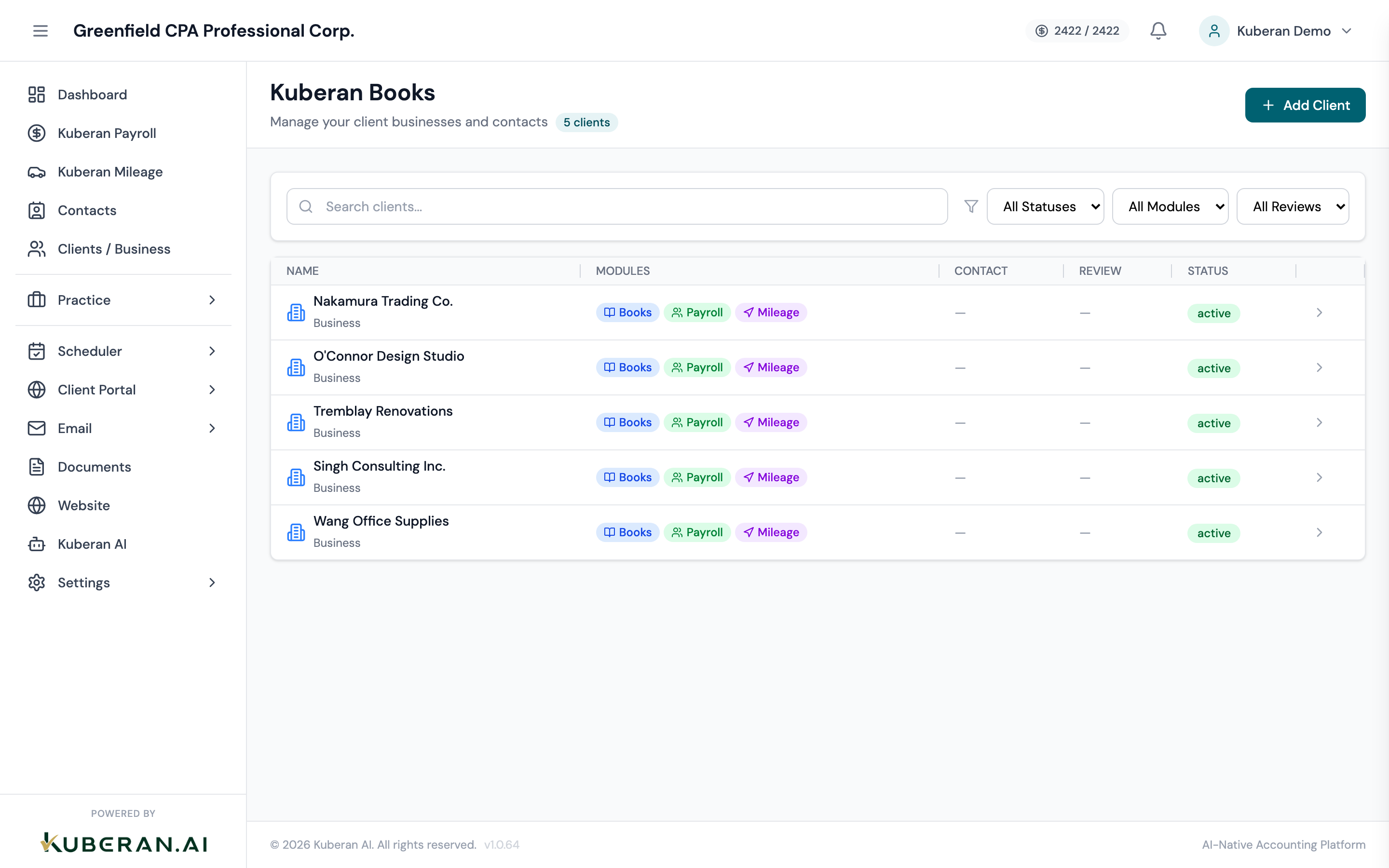
Add the client and enable the Books module, then open their Books workspace.
Step 2 — Choose the accounting method
Inside the client’s Books, open Accounting Settings and find the Accounting Method section. Choose one of the two radio options:
- Accrual Basis — recommended for most businesses; required for incorporated businesses, non-profits, and any client following ASPE or IFRS. This is the default.
- Cash Basis — simpler, common for sole proprietors and small service businesses.
You can change the method later from this same screen, but the change applies to new transactions only — it does not retroactively re-recognise posted entries. Click Save to store your choice.
Step 3 — Set the fiscal year start
On the same Accounting Settings screen, set the Fiscal Year Start month.
- Kuberan tracks the fiscal year by its start month, and derives the year end from it. January = a calendar (Jan–Dec) year; April = an Apr–Mar fiscal year.
- Most owner-managed corporations choose a non-December year end for tax-deferral reasons — pick the month their fiscal year begins.
- Sole proprietors use a January start (calendar year).
You can also record an optional Business Start Date when creating the client. Kuberan uses the start month to label your reporting periods correctly.
Step 4 — Initialize the chart of accounts
Open the Chart of Accounts
Inside the client’s Books, click Chart of Accounts. For a brand-new client the screen shows an empty state with two options.
Seed the accounts
- Click Initialize Default Accounts to seed the Canadian small-business chart of accounts. Every account comes pre-mapped to a CRA GIFI code, ready for T2 / T2125 export.
- Or click Add Account Manually to build the chart from scratch, one account at a time.
If you are migrating from another system, use the Import action in the toolbar to upload a chart of accounts as a CSV. The importer previews the rows and lets you choose Skip existing or Update existing for duplicates; required columns are Account Number, Account Name, Account Type, and Account Subtype (an Opening Balance column is also recognised). The Copy from… action copies another client’s account structure (balances are not copied).
Seed the default Canadian chart of accounts, then customise it for the client. Review and customise
Accounts are grouped by type (Assets, Liabilities, Equity, Income, Revenue, Cost of Goods Sold, Expenses) in either Tree View or List View. You can:
- Rename any account or edit its number, GIFI code, and description
- Add accounts with the Add Account button
- Deactivate accounts that do not apply (accounts are archived, not hard-deleted, and can be reactivated later; system accounts cannot be deactivated)
Step 5 — Add opening balances
Opening balances represent the financial position of the business on the day you start bookkeeping in Kuberan — either the first day of the fiscal year or the migration date if you are taking over from another system. Kuberan offsets each opening balance to the Opening Balance Equity account (3900) automatically.
There is no separate opening-balances wizard. Enter them one of two ways:
Via the chart of accounts CSV import
Include an Opening Balance column in the CSV you import in Step 4. Each account’s opening amount is posted as you import.
Per bank, credit card, or loan account
When you add a financial account under Bank Accounts, enter its Opening Balance and Opening Balance Date (the date must be provided when the opening balance is non-zero). Use the closing balance from the prior month’s statement.
Step 6 — Configure the GST/HST profile
The GST/HST registration profile lives in the Tax Center, not in Accounting Settings.
Open the Tax Center
Inside the client’s Books, click Tax Center and select the Tax Settings tab. If no tax rates exist yet, click Initialize Tax Rates to seed the Canadian provincial rates.
Set the province and jurisdiction
Under Tax Jurisdiction, choose the client’s Province/Territory. Kuberan shows the tax system and combined rate for that jurisdiction and applies the correct default tax rate to new transactions.
Enter the registration details
Under Tax Registration:
- Tick Business is registered for GST/HST if the client charges GST/HST.
- Enter the GST/HST Number in the format
123456789 RT0001(9 digits, then RT and a 4-digit account number). - If the province is Quebec, a QST Number field also appears.
Set the filing frequency
Choose the Filing Frequency as registered with CRA — Monthly, Quarterly, or Annually. Kuberan uses this to validate the period length when you file an HST/GST return.
Save
Save the tax settings. The client’s Books are now ready for recording transactions.
What to do next
- Connect a bank account via Plaid to pull in transactions automatically
- Import transactions from a file if you prefer manual import
- Create invoices to start recording accounts receivable