
Create your first engagement
An engagement is the container for a defined piece of work for one client. Every engagement is built from a playbook, which supplies its stages, default tasks, practice area, and naming pattern. Before creating an engagement, make sure the client already exists and the playbook you want is in your library.
Before you begin
- The client must already exist in Clients
- A playbook must exist for the kind of work you’re setting up — the playbook is required and cannot be changed later. See Using playbooks
- If you plan to assign a team member, they must already be invited to the workspace
Creating an engagement
Navigate to Practice > Engagements
In the left sidebar, click Practice, then click Engagements. You see the engagements list — or, if you prefer a visual overview, click Board View to switch to the Kanban view grouped by stage.
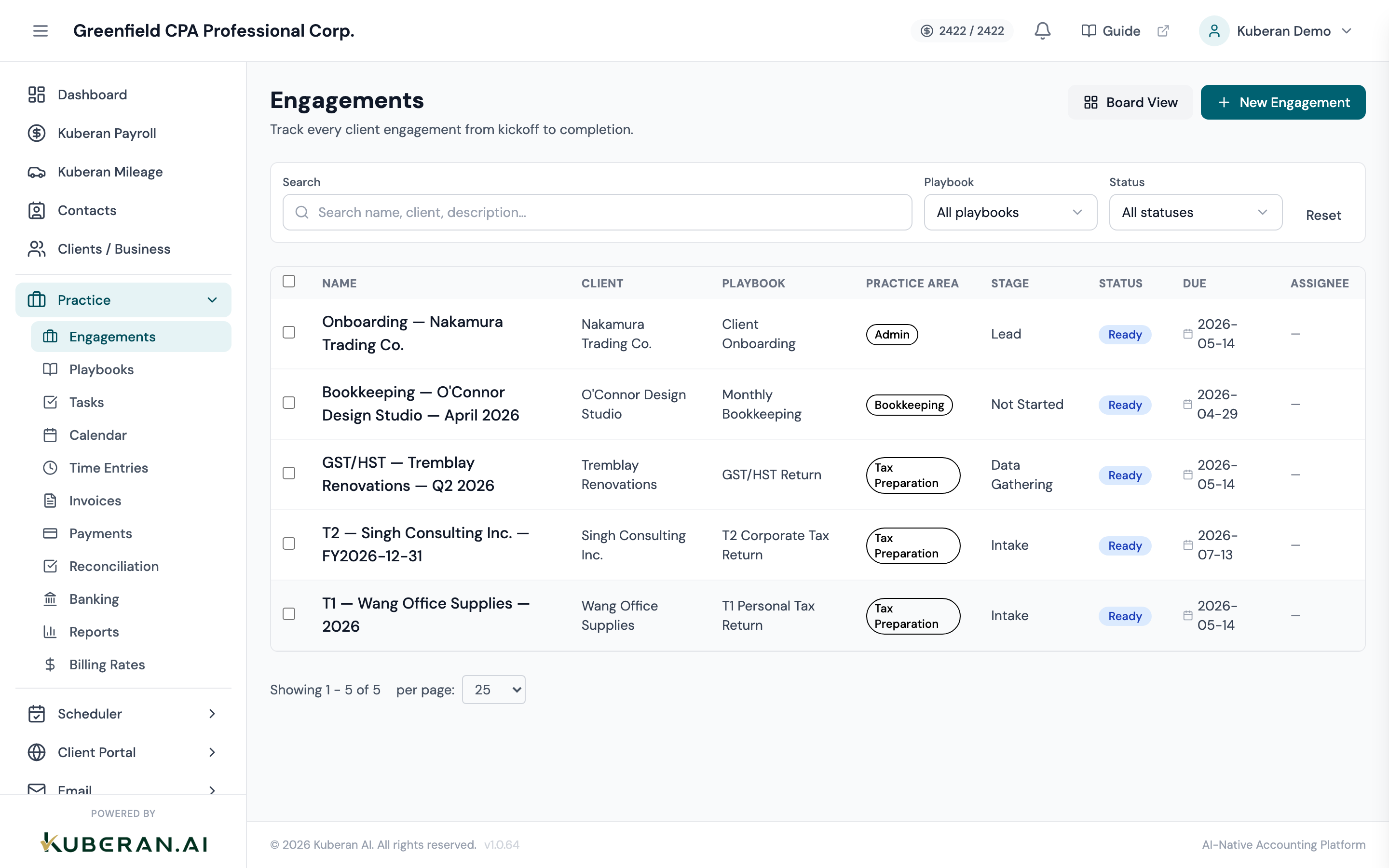
The Engagements screen. Use the list view for detailed information or the board view for a visual, stage-based overview. Click New Engagement
Click the New Engagement button in the top-right corner. A centered dialog opens for creating the engagement.
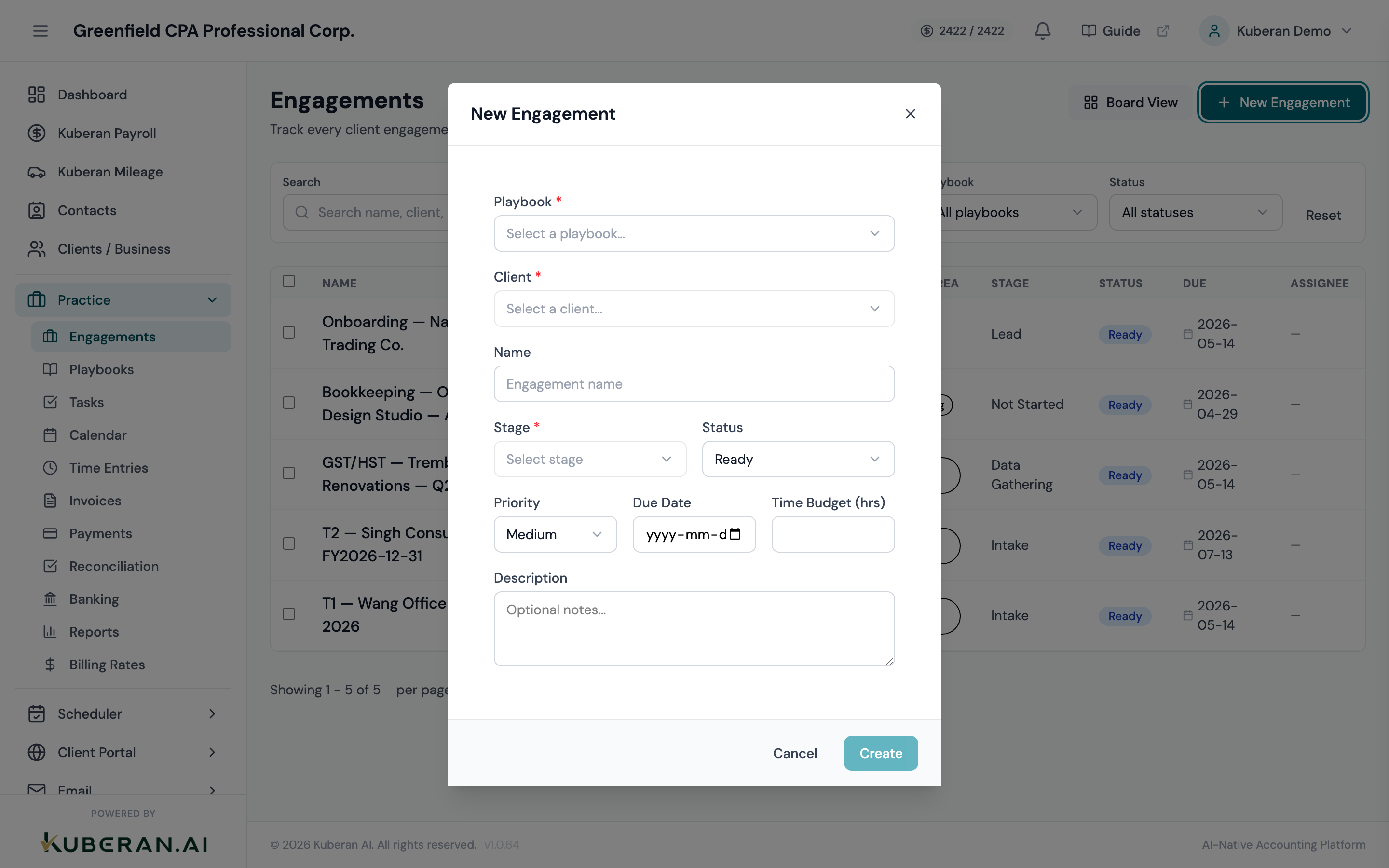
Choose the playbook
Select a Playbook from the picker at the top of the dialog. This is required and is the first thing you choose — it determines the engagement’s stages, default tasks, practice area, and name suggestion, and it cannot be changed after the engagement is created.
Selecting a playbook also fills in sensible defaults for the following fields: the starting stage, priority, time budget, and a due date (if the playbook defines a due-date offset).
Select the client
The Client field becomes available once a playbook is chosen. Start typing the client’s name and select them from the dropdown. The client must already exist in the system.
Confirm the name
Kuberan AI auto-suggests a Name from the playbook’s naming pattern — for example “T2 — Acme — FY2025” — filling in tokens such as the client name and year. Edit it if you like.
If the pattern contains tokens that can’t be resolved automatically, an AI suggestion chip may appear offering a completed name; click it to accept, or type your own.
Review the AI assignee suggestion (optional)
When a playbook and client are both selected, Kuberan AI may suggest a team member to assign, based on who has handled similar work in your workspace. Click Accept on the suggestion chip to assign them on creation, or dismiss it. There is no manual assignee dropdown in this dialog — assignment is managed afterward from the engagement’s detail panel.
Confirm the stage
The Stage field is required and defaults to the playbook’s initial stage. Change it only if you’re recording work that has already progressed past the first stage.
Set the status
Choose the starting Status. New engagements default to Ready. The available statuses are:
- Planned — scheduled but not yet ready to start
- Ready — ready to begin (the default)
- In Progress — work is actively underway
- Waiting — blocked, typically pending client information
- Complete — all work done
Status is your internal workflow state and is separate from the engagement’s stage.
Set the priority, due date, and time budget
- Priority — Low, Medium, High, or Urgent (defaults from the playbook, or Medium).
- Due Date — the deadline for the engagement. For deadline-driven tax work, use the actual filing deadline so your overdue reports stay accurate.
- Time Budget (hrs) — the planned hours for the engagement. When set, the detail panel shows a budget-vs-actual bar (green under 80%, yellow at 80% or more, red over 100%).
Add a description (optional)
Use the Description field for scope, special instructions, or context that doesn’t fit the standard fields — for example: “Client using QuickBooks Online — export CSV for import” or “Partner review required before sending draft financials.”
Click Create
Click Create. The engagement is created, its default tasks are materialized from the playbook, and its detail panel opens.
What happens after you create it
When the engagement is created, the playbook’s default tasks are added to its Tasks tab. Each task carries its name, completion state, an optional assignee, and an optional due date (calculated from the engagement’s dates when the playbook specifies offsets).
You are also auto-followed on the engagement, along with anyone on the assigned team. Followers receive activity updates and can be @mentioned in the Comments tab. Team members assigned to tasks see them in their personal task list at Practice > Tasks.
Updating stage and status
As work progresses you can advance the engagement in two ways:
- Stage — drag the card between columns on the Board view, or change the Stage selector on the Overview tab. Each move is recorded in the engagement’s stage history. A playbook stage may also auto-advance the engagement when its tasks are complete, recorded in the history as an automated move.
- Status — change the Status selector on the Overview tab (Planned → Ready → In Progress → Waiting → Complete). Marking an engagement Complete records a completion date.
The engagement’s Overview tab also shows a recent stage-history list and, when a time budget is set, a budget-vs-actual progress bar.
Common questions
Can I create multiple engagements for the same client? Yes — and you often will. A client might have simultaneous engagements for monthly bookkeeping, HST filing, and payroll processing. Each is tracked separately.
Can I change the playbook after creating an engagement? No. The playbook is locked at creation. If you picked the wrong one, clone the engagement is not a substitute — instead create a new engagement from the correct playbook.
Can I copy an engagement from last period? Yes. Open the engagement’s detail panel and click Clone in the header. Cloning creates a copy named “(original name) (copy)” with the same playbook, client, stage, and settings, but with its status reset to Ready and all tasks reset to not started. Time entries and completion history are not carried over.
Who gets notified about an engagement? Everyone auto-followed on it — the creator, the assigned team, and anyone assigned later (including on a clone). Followers can also be @mentioned from the Comments tab. Use the Comments tab’s follow control to opt in or out.