
Reports
Overview
The Reports screen provides access to all standard financial statements and analytical reports for the client’s accounting file. Reports are shown as a grid of cards grouped by category; click a card to open and generate that report. Reports pull live data directly from the ledger and reflect the current state of the books for the period you select. Most reports take a date range or an as-of date; the Income Statement, Balance Sheet, Cash Flow Statement, and HST/GST report also support multi-period comparison columns, and the Income Statement is the one report with a cash-vs.-accrual basis toggle. Generated reports can be printed, saved as a named snapshot, and exported as PDF or CSV for client delivery, CRA submission support, or year-end working paper files.
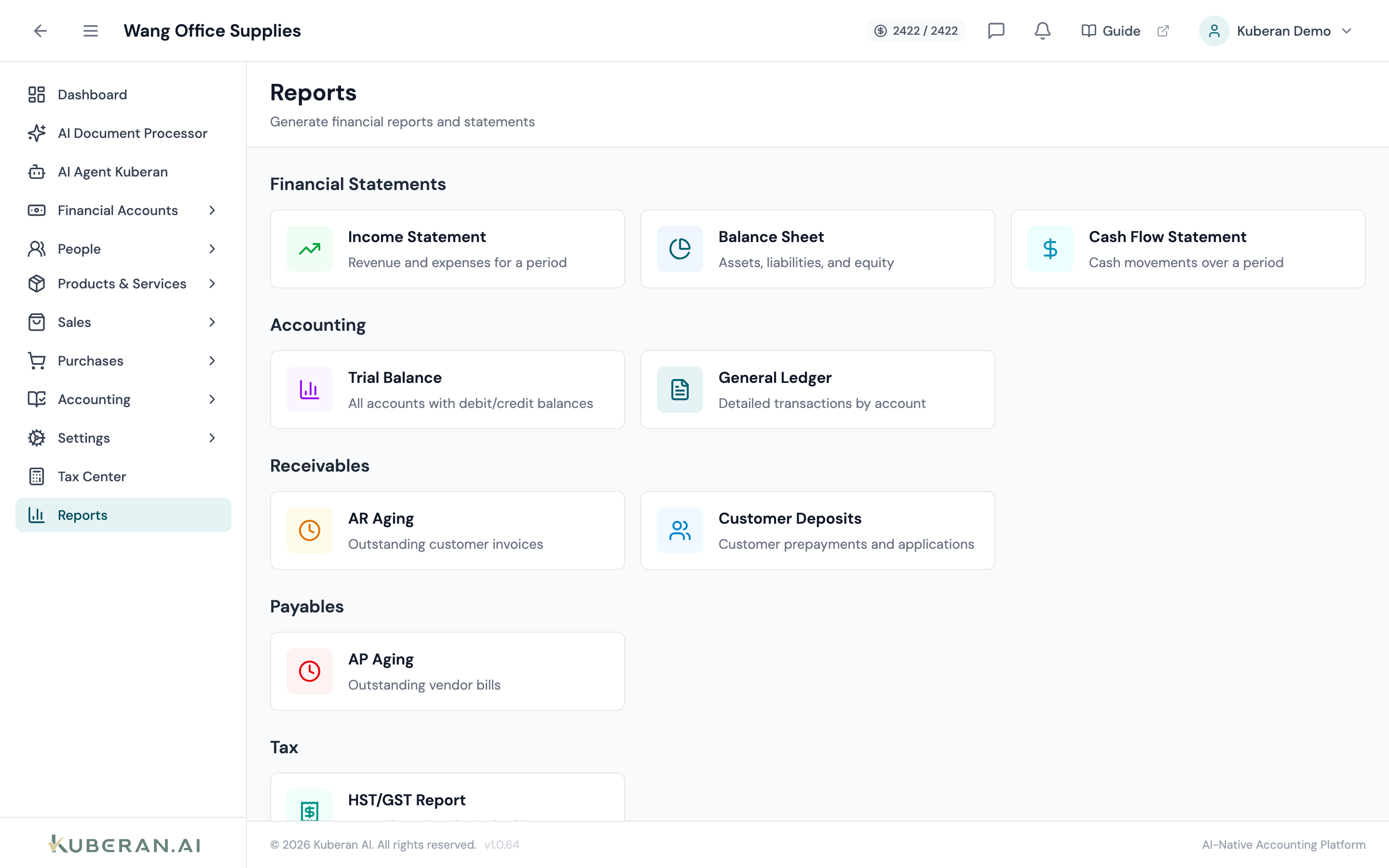
- (1) Report cards — grouped by category: Financial Statements, Accounting, Receivables, Payables, Tax, Banking
- (2) Date range / as-of date — set the reporting period
- (3) Compare periods — add 2–6 period columns (selected reports)
- (4) Accounting method — Accrual or Cash (Income Statement only)
- (5) Toolbar — Save snapshot, Print, and Export as PDF or CSV
Available Reports
The Reports landing page shows twelve reports as cards grouped under six category headings: Financial Statements, Accounting, Receivables, Payables, Tax, and Banking.
Financial Statements
Income Statement (Profit & Loss)
Shows revenue, cost of goods sold, gross profit, operating expenses, and net income for the selected period. The standard report for client meetings and year-end tax preparation. The Cost of Goods Sold section includes the COGS entries posted automatically when inventory-tracked items are sold (accrual basis), so gross profit is correct without a manual year-end inventory adjustment.
Options: Date range, compare periods (2–6 periods), accounting method (Accrual or Cash), show sub-accounts, show account numbers, show zero-balance accounts. Collapsible section headers group the report. This is the only report that offers a cash-vs.-accrual toggle.
Balance Sheet
Shows assets, liabilities, and equity at a specific date. Confirms that the accounting equation (Assets = Liabilities + Equity) holds. Used at fiscal year-end and for bank covenant reporting. The Inventory Asset account reflects the value of stock on hand for inventory-tracked items, kept current automatically by purchases and sales.
Options: As-of date, compare periods (2–6 as-of dates), show sub-accounts, show account numbers, show zero-balance accounts. Clicking Retained Earnings drills down to the income and expense activity that makes up the balance.
Cash Flow Statement
Reports cash inflows and outflows classified by operating, investing, and financing activities. Prepared using the indirect method (starts with net income and adjusts for non-cash items and working capital changes).
Options: Date range, compare periods (2–6 periods), show zero-balance accounts.
Accounting
Trial Balance
Lists every account with its debit or credit balance at a point in time. Confirms that total debits equal total credits across all accounts. Standard working paper for year-end file preparation.
Options: As-of date, show zero-balance accounts.
General Ledger
The most detailed report: every journal entry line for every account within the date range, presented account by account with running balances. Essential for tracing individual transactions and responding to audit queries. Each account expands to reveal its transactions inline.
Options: Date range, show zero-balance accounts.
Receivables
AR Aging
Groups outstanding invoices by ageing bucket: Current, 1–30 days overdue, 31–60 days, 61–90 days, and 90+ days. Essential for collections follow-up and credit risk assessment. Click a customer name to see the invoices behind their balance.
Options: As-of date, show zero-balance accounts.
Customer Deposits
Lists customer prepayments (deposits received in advance) and how they have been applied against invoices.
Options: Shows all customer deposit activity for the client.
Payables
AP Aging
Groups outstanding bills by the same ageing buckets as AR Aging (Current, 1–30, 31–60, 61–90, 90+). Used to manage vendor payment prioritisation and cash flow planning. Click a vendor name to see the bills behind their balance.
Options: As-of date, show zero-balance accounts.
Tax
HST/GST Report
A GST/HST return report in CRA GST34 line format. It totals all GST/HST collected (Line 103) and all Input Tax Credits claimed (Line 106) for a reporting period, and supports a Compare periods view. A Transaction Details section can be expanded to see the individual transactions behind each line, and a File HST Return action posts a filing journal entry for the period (a snapshot is saved automatically before filing).
Options: Date range, compare periods, show zero-balance accounts.
GIFI Summary
A trial balance grouped by CRA RC4088 GIFI line rather than by individual account — the structure tax software expects for a T2 (corporate) or T2125 (self-employment) return. Each row shows the GIFI code, its CRA label, and the aggregated debit and credit totals for every account mapped to that code as of the selected date.
Accounts that do not yet have a GIFI code mapped are grouped into an “Unmapped” row with a count, so you can see at a glance how much of the trial balance would not flow through to the return. Map those accounts in the Chart of Accounts (the Missing GIFI only filter there lists exactly which ones) and re-run the report. Click any GIFI line to expand it to the contributing accounts, and drill into an account for its transactions.
Options: As-of date, show zero-balance accounts, CSV export (the CSV includes a Net Amount column formatted for pasting directly into tax-preparation software).
Banking
Deposit Summary
Summarises bank deposits over a period, grouped by account and status. Useful for reconciling batched deposits against the bank feed.
Options: Date range, show zero-balance accounts.
Undeposited Funds
Lists payments that have been received but not yet deposited to a bank account — the balance sitting in the Undeposited Funds account waiting to be batched into a deposit.
Options: As-of date, show zero-balance accounts.
Common Report Controls
For period reports (Income Statement, Cash Flow, General Ledger, HST/GST, Deposit Summary), a start-and-end date selector. Quick presets: This Month, Last Month, This Quarter, Last Quarter, Year to Date, Last Year, Last 12 Months, plus Fiscal-Year and Calendar-Year/Quarter tabs (fiscal presets appear when the client’s fiscal year does not start in January) and a Custom range. The default range on open is Year to Date.
For point-in-time reports (Balance Sheet, Trial Balance, GIFI Summary, AR Aging, AP Aging, Undeposited Funds), a single date that the report is calculated as of.
Available on the Income Statement, Balance Sheet, Cash Flow Statement, and HST/GST reports. Adds extra columns for 2 to 6 periods (date ranges, or as-of dates for the Balance Sheet) so you can compare across months, quarters, or years side by side.
A dropdown to switch between Accrual and Cash basis. Available on the Income Statement only. Cash basis recognises revenue when received and expenses when paid; accrual recognises them when earned/incurred. It applies only to the report view — it does not change the underlying transactions. All other reports are presented on an accrual basis.
On the Income Statement and Balance Sheet, toggle whether individual sub-accounts (and their account numbers) are shown or rolled up into parent totals.
Available on every report — includes or hides accounts with a zero balance for the period.
Saves the current report as a named snapshot. Saved snapshots are listed on the Reports landing page under Saved Snapshots and can be reopened or deleted.
Opens the browser print dialog with a branded print header and footer.
A dropdown with two options: Export as PDF and Export as CSV. PDF produces a formatted document with the client name and report date in the header; CSV downloads the data for Excel, working papers, or tax-preparation software. (There is no Excel/XLSX export — CSV and PDF only.)
Actions
Generate a Report
- Navigate to Reports for the client.
- Click a report card under its category heading (e.g., Income Statement under Financial Statements). The report opens as a full-screen overlay.
- Set the Date Range (or As-of Date) using the quick presets or custom pickers.
- Turn on Compare Periods and pick a period count where the report supports it.
- On the Income Statement, choose the Accounting Method (Accrual or Cash).
- The report renders automatically as you change options.
- Drill into a figure by clicking an amount (or a customer/vendor name on the aging reports) — a detail view of the contributing transactions opens.
Export a Report
- With the report open, click Export in the toolbar and choose Export as PDF or Export as CSV, or click Print to print.
- The file downloads immediately.
- Use Save to keep the current report as a snapshot you can reopen later.
Related
- Chart of Accounts — Account hierarchy determines report structure
- Periods — Close periods before generating year-end reports
- Tax Centre — GST/HST Summary report ties to the tax filing workflow
- Journal Entries — Post adjusting entries to ensure reports are accurate before distribution
- Inventory Accounting — Why COGS and Inventory Asset move automatically on the P&L and Balance Sheet