
Time Entries
Overview
The Time Entries screen is where your firm’s billable and non-billable hours are captured and reviewed. Each entry records who did the work, which engagement it belongs to, how long it took, and the amount — the billing rate is resolved automatically from your practice’s rate configuration, so you never pick a rate by hand. You can log time three ways: manually with the New Entry form, on the fly with the live timer in the header, or in a grid with the Weekly timesheet. A summary strip totals hours and billable amount for the current view.
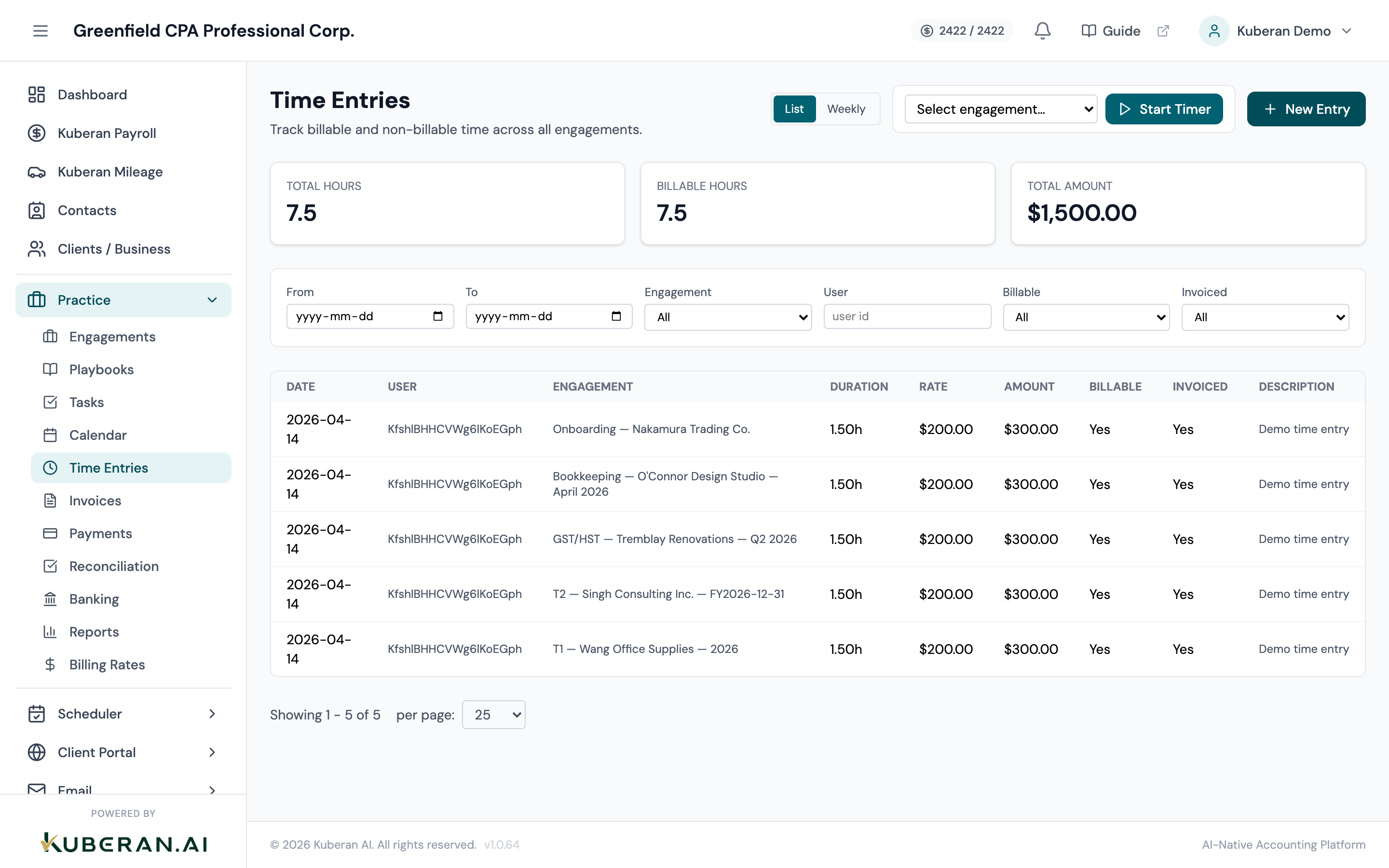
- (1) List / Weekly toggle — switch between the entry list and the weekly timesheet grid
- (2) Live Timer widget — pick an engagement and start/stop a running timer
- (3) New Entry button — opens the manual time entry form
- (4) Filter bar — From/To dates, Engagement, User, Billable, Invoiced
- (5) Entries table — click a row to edit or delete the entry
Screen Layout
Header: The page title, a List / Weekly view toggle, the live timer widget, and (in List mode) a New Entry button.
Summary cards (List mode): Three cards showing total hours, billable hours, and total billable amount for the filtered view.
Filter bar (List mode): From, To, Engagement, User, Billable, and Invoiced controls.
Entries table (List mode): Rows sorted by date descending. Columns: Date, User, Engagement, Duration, Rate, Amount, Billable, Invoiced, Description. Click a row to open the edit modal.
Weekly timesheet (Weekly mode): A grid of engagement rows by day of week, with editable hour cells. See Weekly Timesheet below.
UI Elements
Header
Switches between the List view (summary, filters, and entries table) and the Weekly timesheet grid.
When idle, shows an engagement selector and a Start Timer button. When running, shows the engagement, a live HH:MM:SS elapsed counter, and a Stop button.
Opens the New Time Entry modal for manual logging. Shown in List mode only.
Filter Bar
Date fields that bound the entries shown to a date range.
Filters to a single engagement. Defaults to All.
Filters to a specific team member by user ID.
All, Billable, or Non-billable.
All, Invoiced, or Not invoiced.
Table Columns
The date the work was performed.
The team member who logged the entry.
The related engagement.
Time spent, shown in decimal hours (e.g. “1.50h”).
The hourly rate applied to the entry, resolved automatically from your rate configuration.
Duration × Rate, computed when the entry is saved.
Yes or No.
Yes or No. Once an entry is invoiced it becomes read-only and can no longer be edited or deleted.
The free-text note describing the work.
New / Edit Time Entry Modal
Clicking New Entry, or clicking an existing row, opens the entry modal. It has these fields:
- Engagement — the engagement the time belongs to (required)
- Date — defaults to today
- Duration (hours) — decimal hours (e.g.
1.5); stepped in quarter-hours - Description — a short note about the work
- Billable — a checkbox, on by default
There is no billing-rate picker. The rate is resolved server-side from your practice’s rate configuration when the entry is saved, and the amount is computed from it. When editing an existing entry, a Delete button is also available (unless the entry has been invoiced).
Weekly Timesheet
The Weekly view replaces the list with a grid: one row per engagement, one column per day (Mon–Sun), and an editable hours cell for each engagement/day pair.
Previous/next week arrows and a This week button move the grid between weeks. The current week range is shown between the arrows.
Type decimal hours into a cell to log time for that engagement on that day. Saving upserts an entry: it updates an existing one, creates a new one, or (if the cell is cleared to 0) removes it.
Adds another engagement as a row so you can log time against it for the week.
The grid tallies hours per engagement (row), per day (column), and for the whole week.
Actions
Create a Time Entry Manually
- Click New Entry in the header. The New Time Entry modal opens.
- Select the Engagement.
- Set the Date (defaults to today).
- Enter the Duration in decimal hours.
- Add a Description of the work.
- Leave Billable checked, or uncheck it for internal or write-off time.
- Click Create Entry. The rate and amount are filled in automatically and the entry appears in the list.
Use the Live Timer
- In the header timer widget, select the engagement you are about to work on.
- Click Start Timer. The elapsed counter begins and updates every second.
- When finished, click Stop. A prompt asks for an optional description.
- Confirm. A time entry is created for the elapsed duration, with the rate resolved automatically.
Log Time in the Weekly View
- Switch the header toggle to Weekly.
- Use the week arrows or This week to choose the week.
- If the engagement you need is not already a row, click Add engagement row and pick it.
- Type decimal hours into the cell for the correct engagement and day. The entry saves when you leave the cell.
- Clear a cell to 0 to remove that day’s logged time.
Edit or Delete a Time Entry
- Click the entry’s row in the list. The edit modal opens.
- Change any field and click Save Changes, or click Delete to remove the entry.
- Entries that have been invoiced are read-only and cannot be edited or deleted.
Related
- Billing Rates — Configure the rates that are applied automatically when time is logged
- Invoices — Bill logged time to clients
- Engagements List — View time entries in the context of a specific engagement
- Reports — Time and billing summary reports across your firm