
Settings — Workspace
Overview
Workspace Settings defines the foundational information for your Kuberan AI practice account. These settings affect how the application behaves across all modules — the timezone determines when dates and times are displayed, the currency sets the default for all invoices and financial reports, and the fiscal year end affects period calculations in the Books module. Most of these settings are set once during onboarding and rarely changed thereafter, but they are always accessible here if your practice details change.
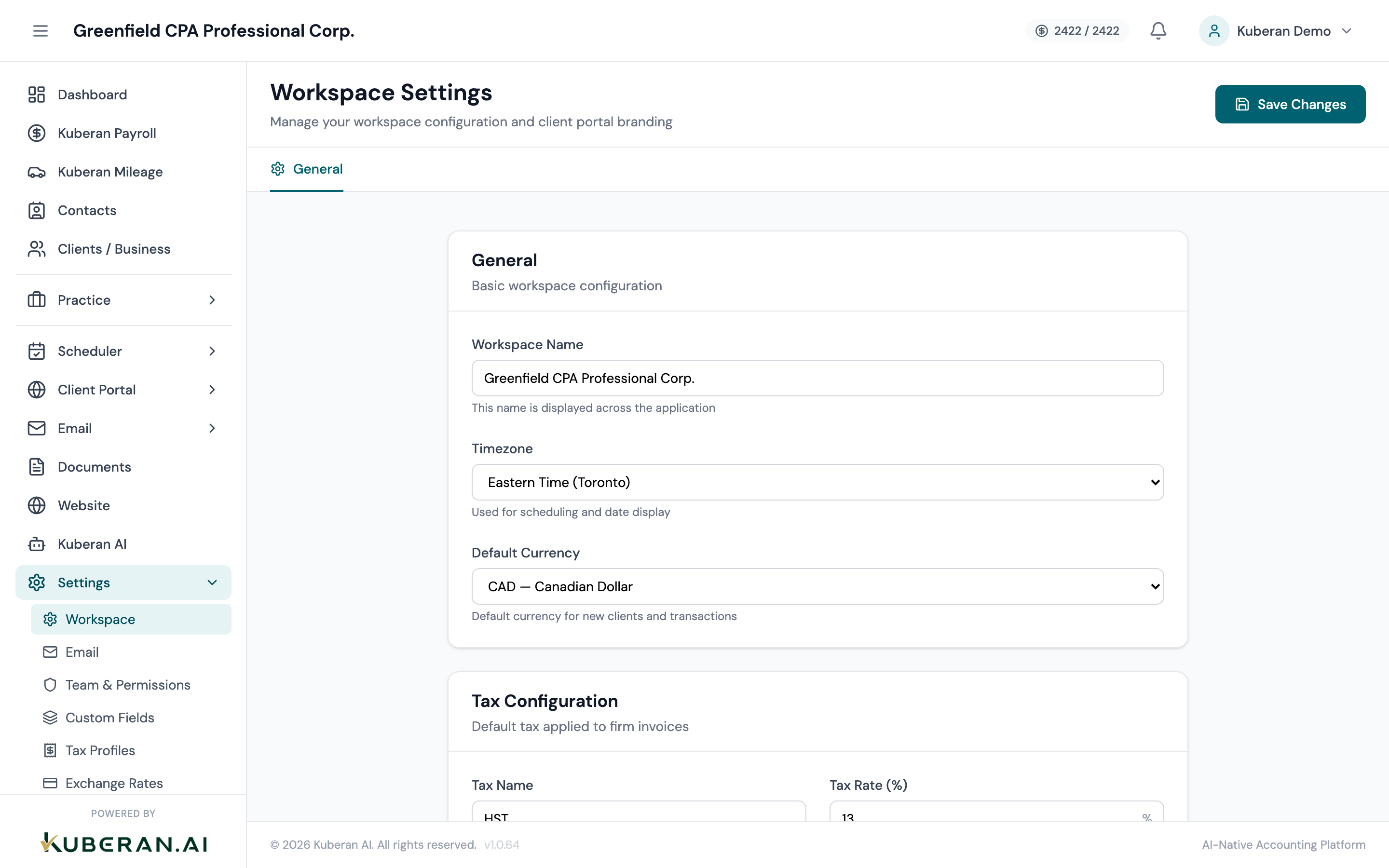
- (1) Workspace Name field
- (2) Logo upload area
- (3) Timezone, currency, and language selectors
- (4) Fiscal Year End selector
- (5) Address fields
General
The name of your practice as used throughout Kuberan AI — in the navigation bar, in email signatures, on invoices, and in the client portal. Enter your full practice name (e.g., “Smith & Associates Professional Corporation”).
Upload your practice logo. It appears in the top-left corner of the application, on invoices, and in the client portal (if no separate portal logo is set). Accepted formats: PNG, SVG, JPG. Recommended size: minimum 400×120 px, transparent background preferred.
Localisation
The timezone used for all date and time displays across the workspace — appointment times in the scheduler, timestamps in activity feeds, and scheduled remittance due dates. Choose the timezone of your primary office location. If you have clients across multiple time zones, Kuberan AI uses the workspace timezone for internal dates and the client’s local timezone for portal-facing information.
The default currency for all invoices, financial reports, and payroll amounts. For Canadian practices, this should be set to CAD (Canadian Dollar). If you work with multinational clients, individual client files can be set to a different currency — see Exchange Rates for rate configuration.
The default fiscal year end used when creating new client Books files. Common values: December 31 (for calendar-year filers), March 31, June 30, September 30. This default can be overridden per client when setting up their Books file.
The default display language for the application. Currently supported: English and French. Individual users can override this in their own profile settings. Client portal language is set separately in Portal Settings.
Address
Your practice’s primary street address. This appears on invoices, letters, and other documents generated by Kuberan AI.
The city where your practice is located.
The province of your primary office. This affects certain default settings in other modules — for example, the default province for payroll setup is inferred from this setting.
Your practice’s postal code in the standard Canadian format (e.g., M5V 3A8).
The practice’s main phone number. Appears on invoices and in the portal contact information section.
Your practice’s website URL (optional). Shown on invoices and in the client portal footer.
Saving Changes
All changes on this screen require you to click Save Settings at the bottom of the page. There is no auto-save. If you navigate away without saving, unsaved changes are lost. A warning prompt appears if you attempt to leave the page with unsaved changes.
Tips
- Keep the workspace name consistent with your professional registration. It appears on all client-facing documents, so it should reflect your legal practice name exactly as registered with your provincial CPA body.
- Set the timezone carefully. An incorrect timezone will cause all timestamps to be offset, which can cause confusion when reviewing activity logs and scheduled events.
- Fiscal year end default only affects new client files created after the change. It does not retroactively update the fiscal year end of existing client files. Change individual client fiscal year ends in the client’s Books Settings.