
Bank Transactions
Overview
The Bank Transactions screen is where imported bank and credit card transactions are reviewed and posted to the general ledger. Every transaction imported from Plaid, or uploaded via CSV/Excel/JSON, lands here first as Uncategorized. Each row is inline-editable: you assign a GL Account (categorising it), and optionally a Vendor/Customer, Tax Rate, transaction Type, and Tags — directly in the grid. Assigning an account and confirming the transaction creates the corresponding double-entry journal entry. Fin rules (bank rules) and AI can pre-fill these fields for recurring payees. Transactions can also be split across multiple accounts, matched to an existing invoice or bill, marked as a transfer, excluded from the ledger, or selected for bulk actions.
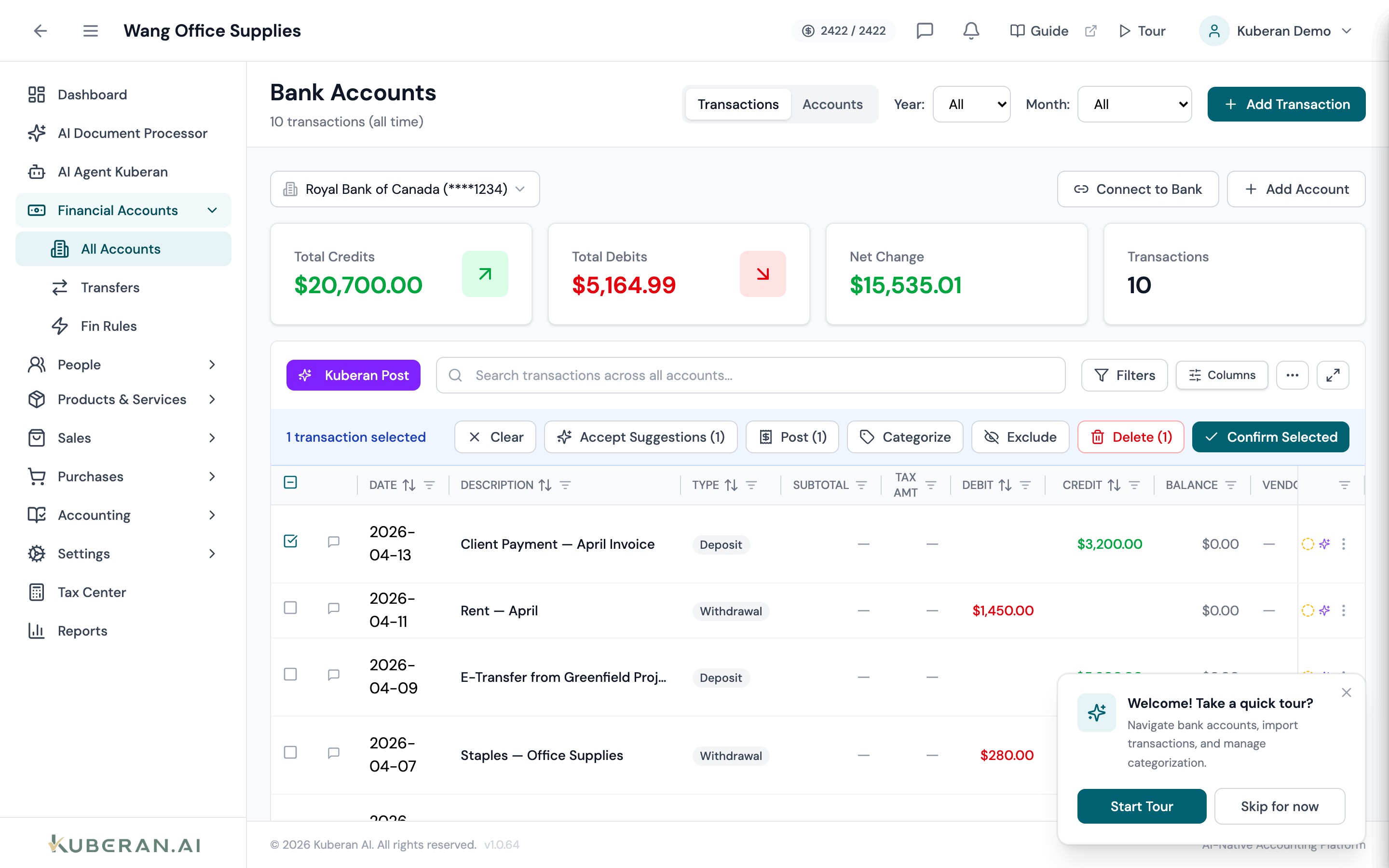
- (1) Kuberan Post button — opens the guided posting workflow
- (2) Search + column filters — per-column multi-select (status, description, type, GL account, tax, tags) and amount/date ranges
- (3) GL Account cell — inline account picker with 'Add New' account creation
- (4) Status & Actions column — status icons plus the per-row ⋯ action menu
- (5) Bulk action toolbar — appears when one or more rows are selected
Screen Layout
Bank Transactions and Bank Accounts share one screen with two tabs — Transactions and Accounts. This page describes the Transactions tab.
Toolbar (top of the transaction card): A violet Kuberan Post button, a cross-account Search field, and an overflow ⋯ menu with Show Excluded / Show Active, AI Categorize, Import, and Export.
Summary cards: Counts and totals for the transaction set above the grid.
Transaction grid (centre): An inline-editable table sorted by date descending. Click any cell that supports editing (Type, Subtotal, Tax Amt, Debit/Credit, Vendor/Customer, GL Account, Tax, Tags) to edit it in place. Each column header carries its own filter.
Bulk action toolbar: Appears above the grid when one or more row checkboxes are selected. The buttons shown adapt to what the selection is eligible for.
UI Elements
Toolbar
Opens the guided Kuberan Post workflow — transactions are grouped (by payee/AI suggestion), shown alongside any linked document or cheque image, and posted one group at a time. Each group has a categorisation panel (GL Account, Vendor/Customer, Tax Rate) and a Fin Rule card to create or reuse a rule as you post. The GL Account picker here also supports inline Add New account creation.
Searches transactions across all accounts by description. Matching results appear in a dropdown; press Enter to apply the search to the current account.
Toggles the grid between active transactions and excluded ones. When viewing excluded transactions, the bulk toolbar offers Restore Selected.
Runs the AI categorisation agent over the account’s transactions, populating suggested GL account, vendor/customer, and tax rate. High-confidence suggestions can be auto-applied.
Opens the Import dialog to bring in accounts or transactions from a CSV, Excel (.xlsx/.xls), or JSON file. CSV/Excel files go through a column-mapping step; existing records (matched by ID) are skipped.
Opens the Export dialog. Transactions export as CSV or JSON; accounts export as CSV. Choose which fields to include.
Column Filters
Each column header has its own filter. Filters are evaluated server-side and combined with AND logic — the active set is persisted so a filtered view is remembered between visits.
Multi-select. Every transaction resolves to exactly one status bucket, in priority order (highest first):
- Reconciled / Posted — cleared in a finalised reconciliation
- Confirmed — categorisation reviewed and confirmed by a user
- Matched — linked to an existing invoice, bill, payment, transfer, or split
- AI Applied — the AI applied a category automatically
- AI Suggestion — the AI (or a fin rule) has proposed a category awaiting acceptance
- Categorized — a GL account is assigned but the transaction is not yet matched, confirmed, or reconciled
- Uncategorized — no account assigned yet
Multi-select of the descriptions present in the current set.
Multi-select of the transaction types (Deposit, Withdrawal, Charge, Payment, Fee, Interest, Refund Received, Transfer, and so on — see Transaction Types).
Multi-select of the vendors/customers, GL accounts, and tax rates present in the list. These columns also offer Assigned / Not assigned and AI-suggested / Not suggested dimension toggles, so you can isolate rows the AI suggested a value for that no one has confirmed.
Multi-select of any tags applied to transactions.
The Debit, Credit, Subtotal, Tax Amt, and Balance columns filter by a numeric range; the Date column filters by a date range independent of the search.
Grid Columns
The grid shows these columns, most of them inline-editable:
Transaction date as reported by the institution. Sortable and editable.
The description/merchant text from the bank feed, with any sub-description and imported category beneath it. A balance-error icon appears if a running-balance discrepancy was detected during OCR extraction.
The semantic transaction type (see Transaction Types). Edit it with the in-cell type picker; the available options depend on the account type.
The tax-exclusive subtotal and the tax amount. When a tax rate is suggested but not yet confirmed, the computed values show in violet italics. If the GL account has an ITC restriction, the claimable portion is shown beneath the full tax.
The amount, split into two columns. Debits (money out) show in red; credits (money in) show in green. Only one of the two is populated per row.
The running balance after the transaction, where available.
The linked vendor (debits) or customer (credits). The in-cell picker has Vendor and Customer tabs and can create a new vendor/customer inline. AI-suggested names show in violet italics.
The chart-of-accounts account assigned to this transaction. Click to open the account picker; start typing to search, or choose Add New to create an account without leaving the grid. AI-suggested accounts show in violet italics until confirmed.
The tax rate applied. In-cell picker; AI-suggested rates show in violet italics.
Coloured tag chips. Edit inline to add or remove tags.
Quick links: a cheque-image icon (when a cheque image is matched) and a document icon that opens the linked invoice or bill.
The right-hand sticky column shows status icons (Confirmed, Matched/Reconciled, AI-applied, AI-suggestion) and the per-row ⋯ menu. For an un-posted row the menu offers Match to Invoice / Bill, Match Multiple Invoices / Bills, Split Transaction, Accept Suggestion (when an AI suggestion exists), Post to Account, Mark as Transfer, Learn Fin Rule, and Delete. For an already-matched or reconciled row it offers Unreconcile, Learn Fin Rule, and Delete.
Bulk Action Toolbar
Selecting one or more rows reveals a toolbar whose buttons depend on the selection’s eligibility:
- Accept Suggestions (N) — accept AI-suggested categories for eligible rows
- Post (N) — open the Bulk Post dialog
- Categorize — assign the same GL account (and optionally vendor/tax) to the selection
- Transaction Type (N) — change the transaction type on eligible rows
- Exclude — exclude eligible rows from the ledger
- Delete (N) — delete non-reconciled rows
- Unreconcile (N) — release reconciled rows back to unreconciled
- Confirm Selected — confirm categorisation on the selection
- Restore Selected — shown instead of the above when viewing excluded transactions
Transaction Types
Every row carries a Type that classifies what the transaction is. The picker offers different options depending on the account type — for example a chequing (depository) account offers Deposit, Withdrawal, Cheque, POS, ACH, Wire, ATM, E-Transfer, Fee, Interest, Adjustment, Transfer, and Refund Received; a credit card adds Charge, Payment, Refund, Cash Advance, and Cashback.
Actions
Categorise a Transaction
- Click the GL Account cell in the row (or use the Kuberan Post workflow). Start typing to search the chart of accounts, or choose Add New to create the account inline.
- Optionally set the Vendor/Customer, Tax Rate, and Type in their cells. If the account has an ITC restriction, the claimable tax portion is shown automatically.
- The transaction moves to Categorized. Click Confirm Selected (or accept via Kuberan Post) to confirm it and post the double-entry journal entry.
Split a Transaction
Use Split to allocate a single bank transaction across multiple accounts.
- Open the row’s ⋯ → Split Transaction.
- Add split lines, each with an amount and a target (a GL category, a bill/invoice, or a transfer account). A running remainder is shown.
- The split amounts must sum to the transaction total. Save to post the transaction as a multi-line entry.
Match to an Invoice or Bill
- Open the row’s ⋯ menu. For money in choose Match to Invoice (or Match Multiple Invoices); for money out choose Match to Bill (or Match Multiple Bills).
- Select the document(s) to apply the payment against. The transaction is marked Matched and the payment is recorded.
Mark as Transfer
Open ⋯ → Mark as Transfer to record a movement between the client’s own accounts. See Transfers for the full transfer workflow.
Exclude a Transaction
Exclude transactions that are not true business activity — a personal charge on a business account, or a movement already recorded elsewhere.
- Select the transaction(s) and click Exclude in the bulk toolbar.
- Excluded transactions are removed from financial reports and hidden from the default view.
- Use the Show Excluded toggle to surface them, then Restore Selected to bring one back.
Bulk Post Transactions
- Select multiple transactions and click Post (N) in the bulk toolbar.
- The Bulk Post dialog groups the selection: rows ready to post (they have a GL account), rows missing a GL account (assign one in the grid first), and any transfer-like rows that are set aside.
- Click Create Records. For each posted transaction a journal entry is created and the transaction is marked reconciled. Income/expense accounts also create a payment record; balance-sheet accounts create a journal entry only. AI-suggested categories are auto-accepted and fin rules learned.
Import Transactions
- Open ⋯ → Import.
- Choose whether to import accounts or transactions, then upload a CSV, Excel, or JSON file.
- For CSV/Excel, map the columns (Date, Description, Amount, and so on) in the mapping step. Review the preview; existing records matched by ID are skipped.
- Confirm. New transactions appear in the grid as Uncategorized.
Export Transactions
- Open ⋯ → Export.
- Choose the account and the fields to include.
- Select CSV or JSON and download.
Related
- Bank Accounts — Connect Plaid accounts and manage manual accounts
- Bank Rules — Automate categorisation for recurring payees
- Reconciliation — Match categorised transactions to bank statements
- Chart of Accounts — Manage the account hierarchy used for categorisation