
Reconciliation
Overview
Reconciliation confirms that the transactions in the client’s ledger match the transactions on the bank, credit card, or loan statement. You start a reconciliation from an account card, enter the statement date and ending balance, and then work through the transaction list marking each entry as cleared (present on the statement) or leaving it uncleared. Because Kuberan AI’s transactions are typically created from OCR-extracted statements, starting a reconciliation auto-clears every unreconciled transaction dated on or before the statement date — you then simply unclear anything that does not belong. A running Difference must reach $0.00 before you can complete the reconciliation.
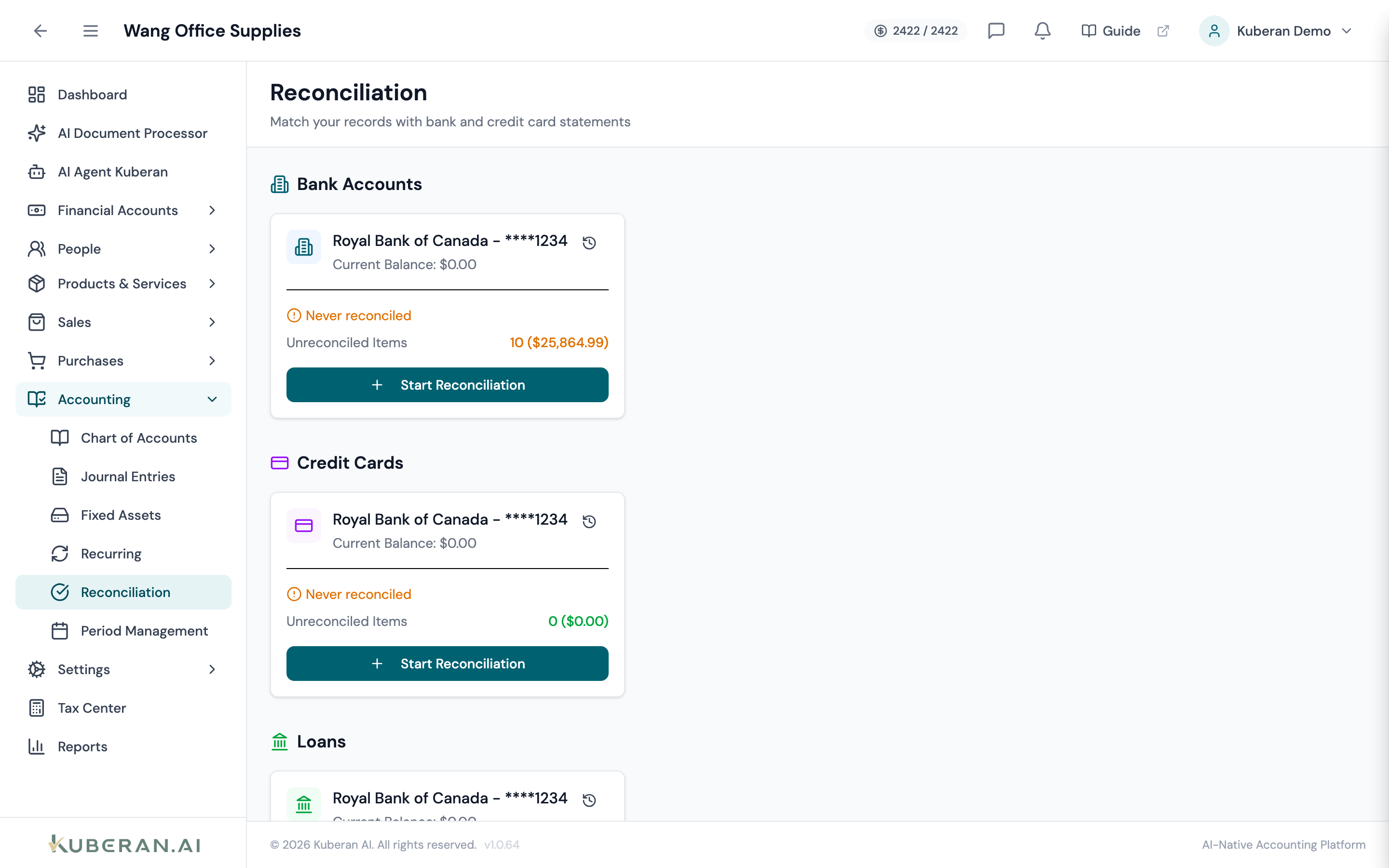
- (1) Account cards — click Start Reconciliation on a bank, credit card, or loan account
- (2) Statement Ending Balance — the closing balance from the statement
- (3) Statement Date — the last date on the statement being reconciled
- (4) Cleared toggles — each transaction on the statement (auto-cleared, unclear any that don't belong)
- (5) Difference — must reach $0.00 to enable Complete Reconciliation
Screen Layout
Account cards (start): Each reconcilable account (bank, credit card, or loan) is shown as a card with its current balance, a Start Reconciliation button, and a History (clock) button.
Setup panel: When you start, a panel shows the account name and current balance (read-only) with two inputs — Statement Date and Statement Ending Balance. The beginning balance is derived automatically from the previous completed reconciliation (or the account’s opening balance), so there is no beginning-balance field.
Transaction list (centre): A single combined list (not split into separate payments/deposits sections) with a cleared toggle, Date, Description, Type, and Amount. Debits show in red, credits in green. A filter dropdown (All Transactions / Credits Only / Debits Only / Cleared / Uncleared) and a search box narrow the list.
Summary bar: Shows the Statement Date, Statement Balance, Cleared Balance, Book Balance, and the running Difference.
UI Elements
Setup
On an account card. Opens the setup panel for that account. Reconcilable account types are bank accounts, credit cards, and loans.
The closing balance shown on the statement for the period. For credit cards and loans, enter the balance as shown (a positive amount owed).
The last date of the statement period. Transactions dated on or before this date are the candidates for clearing (and are auto-cleared when you start).
Transaction List
A per-row check that marks a transaction cleared or uncleared. Toggling updates the running difference immediately. Because candidates are auto-cleared on start, most of your work is unclearing transactions that are not on the statement.
Filter the list by All Transactions / Credits Only / Debits Only / Cleared / Uncleared, or search by description.
When you tick the list’s row-selection checkboxes, a Clear Selected (N) button appears to clear that group at once. (Already-cleared rows are not selectable.)
Summary & Completion
The beginning balance plus the sum of the transactions marked cleared.
Statement Ending Balance minus Cleared Balance. Must be $0.00 (within a one-cent tolerance) before the reconciliation can be completed.
Opens an inline adjustment form (description, amount, increase/decrease, offset account) to account for a small statement-only item such as a bank fee. Adjustments post as a journal entry when the reconciliation is completed.
Enabled only when the Difference is $0.00. Completing marks every cleared transaction as reconciled (locking it), posts any adjustment journal entries, and records the reconciliation.
Actions
Complete a Reconciliation
- On the Reconciliation screen, click Start Reconciliation on the account’s card.
- Enter the Statement Date and the Statement Ending Balance from the statement.
- Kuberan AI auto-clears the candidate transactions. Work through the list and unclear any transaction that is not on the statement; clear any that were missed.
- Watch the Difference in the summary bar. If it reaches $0.00, the account is balanced.
- If a small statement-only item (e.g. a bank fee) is causing the gap, use Add Adjustment to record it without leaving the screen.
- When the Difference is $0.00, click Complete Reconciliation. Cleared transactions are marked reconciled and locked, and the reconciliation is recorded.
Investigate a Non-Zero Difference
Common causes of a reconciliation difference and their resolutions:
| Cause | Resolution |
|---|---|
| Transaction not entered in the ledger | Add it in Bank Transactions, then return to reconcile |
| Transaction entered with the wrong amount | Correct it from the transaction grid, then return |
| A statement-only charge (bank fee, interest) | Record it with Add Adjustment |
| Bank feed imported a duplicate | Exclude the duplicate from Bank Transactions |
| Bank error on the statement | Note the discrepancy and contact the institution |
View Reconciliation History
- Click the History (clock) button on the account’s card.
- The history panel lists past reconciliations with the statement date, statement ending balance, a status badge (Completed / In Progress / Cancelled), and the completion date.
- An in-progress reconciliation can be cancelled, which releases its cleared transactions back to unreconciled. A completed reconciliation cannot be undone from here.
Related
- Bank Accounts — Add and manage bank accounts before reconciling
- Bank Transactions — Review and categorise transactions prior to reconciliation
- Journal Entries — Enter missing transactions that appear on the statement but not in the ledger
- Periods — Close an accounting period after reconciliation is confirmed