
Invoices
Overview
The Invoices screen is the billing command centre for your accounting practice. There are two ways to create an invoice. New Invoice launches a guided wizard that builds an invoice from one or more engagements — pulling in approved time, fixed fees, and reimbursable expenses so every billable item is captured. Manual Invoice creates a standalone invoice with custom line items for work that isn’t tied to an engagement. Once an invoice is sent, Kuberan AI tracks it through to full payment, ages outstanding balances automatically, and lets you issue credit notes when an adjustment is needed.
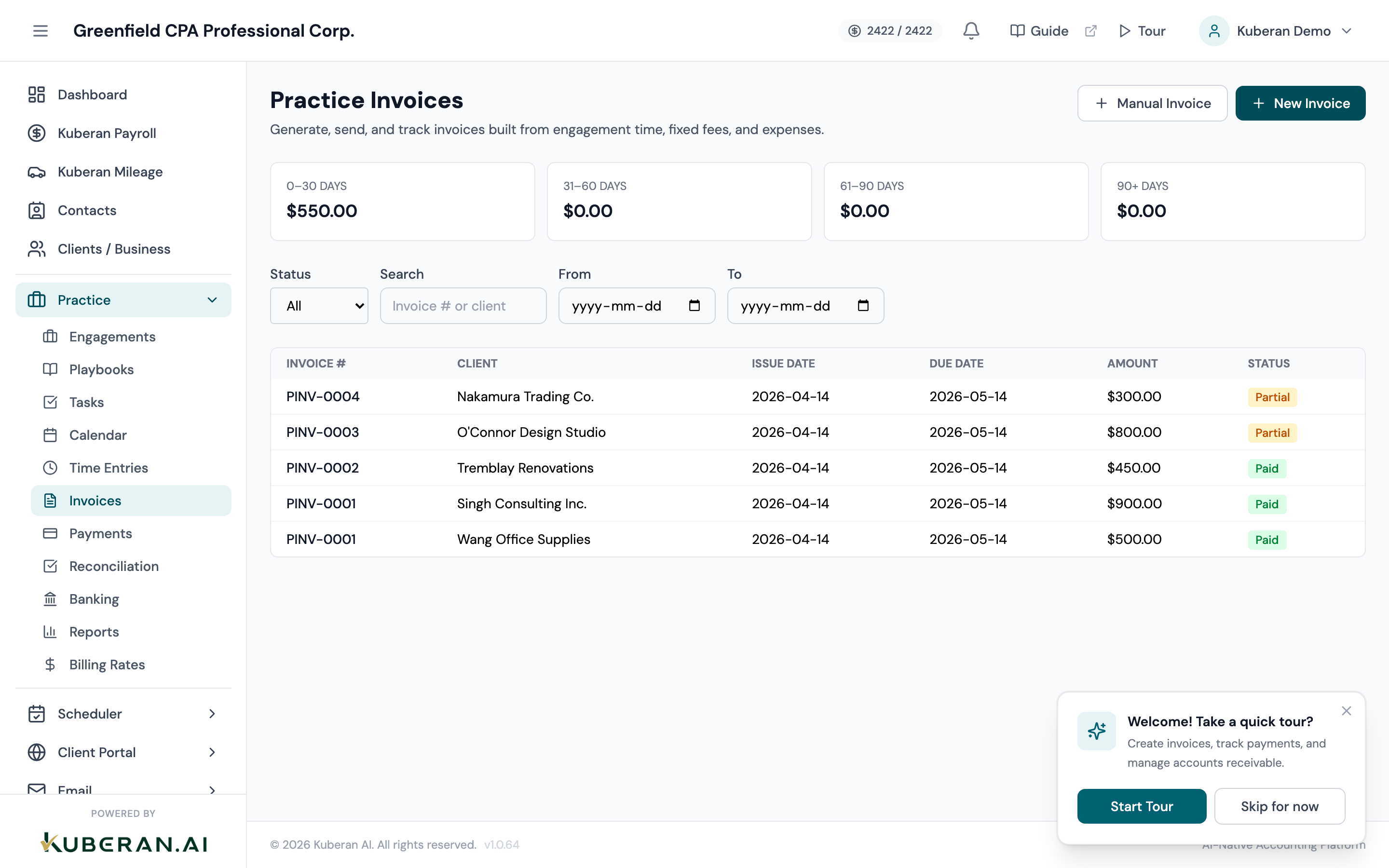
- (1) A/R aging buckets — outstanding balance by 0–30, 31–60, 61–90, and 90+ days
- (2) New Invoice button — opens the engagement-based invoice wizard
- (3) Manual Invoice button — opens the standalone custom-line-item modal
- (4) Status filter — dropdown to narrow the list by invoice status
- (5) Invoice row — click anywhere to open the detail panel
Screen Layout
Header: The page title and a short description, with two buttons on the right — Manual Invoice and New Invoice.
A/R aging panel: Four cards above the table showing the total outstanding balance in each aging bucket: 0–30 days, 31–60 days, 61–90 days, and 90+ days.
Filters: A Status dropdown, a Search field (invoice number or client), and From / To date inputs.
Invoice table: Columns: Invoice #, Client, Issue Date, Due Date, Amount, Status. Sorted by issue date descending. Clicking any row opens the invoice detail panel — there is no per-row action menu.
UI Elements
Status Badges
| Badge | Colour | Meaning |
|---|---|---|
| Draft | Grey | Created but not yet sent to the client |
| Pending | Grey | Awaiting send/processing |
| Sent | Blue | Delivered to the client; awaiting payment |
| Partial | Amber | Partially paid; a balance remains |
| Paid | Green | Fully paid (or fully credited to zero) |
| Overdue | Red | Past the due date with an outstanding balance |
| Void | Grey (struck through) | Cancelled; no financial effect |
Filters
Dropdown to filter the list by status: All, Draft, Pending, Sent, Partial, Paid, Overdue, Void.
Free-text search by invoice number or client name.
Date inputs that limit the list to invoices issued within the range.
Table Columns
The invoice number (e.g., INV-0042). Draft invoices that have not yet been numbered show a dash. Click the number, or anywhere on the row, to open the detail panel.
The client being billed.
The date the invoice was issued.
Payment due date, derived from the invoice terms. Blank until set.
The invoice total, including tax.
Colour-coded badge as described in the status table above. The badge reflects the effective status, so an unpaid sent invoice past its due date shows as Overdue automatically.
Invoice Detail Panel
Clicking a row opens a slide-in panel with the invoice header, action buttons, a collapsible PDF preview, line items, a tax breakdown, totals, the payments applied to the invoice, and any credit notes. The actions available depend on the invoice’s status — see Actions below.
A collapsible PDF Preview section. Click Show to load the rendered invoice PDF inline; it stays collapsed until requested so the panel opens quickly.
Each line shows description, quantity, rate, and line total. On engagement invoices these are generated from time entries, fixed fees, and expenses; on manual invoices they are the lines you entered.
A table of every payment recorded against this invoice — date, method, reference, and amount. Empty until a payment is recorded.
Appears once at least one credit note exists. Shows each note’s date, reason, who issued it, status, and amount, with a Void action on issued notes.
Actions
Create an Invoice from Engagements (New Invoice wizard)
The New Invoice button opens a four-step wizard. It requires at least one engagement — for invoices with no engagement, use Manual Invoice instead.
- Step 1 — Client. Choose the client. Their engagements load automatically.
- Step 2 — Engagements. Select one or more engagements (multi-select). Toggle which sources to pull in — Include time entries, Include fixed fees, Include reimbursable expenses — and optionally set a Date from / Date to range to limit which items are captured.
- Step 3 — Adjustments. Optionally enter a Write-up / Write-down amount (negative for a discount) with a reason, plus Notes and Terms & conditions to print on the invoice.
- Step 4 — Review. The wizard previews the resolved line items, subtotal, tax, and total, along with the client’s tax profile. Click Save as Draft to save without sending, or Save & Send to save and immediately email the invoice.
Create a Manual Invoice
The Manual Invoice button opens the Create Manual Invoice modal for a standalone invoice with no engagement.
- Select the Client. Their tax profile is resolved automatically and drives the default Tax % and tax code shown on each line.
- Fill in the Line Items table. Each line has a description, quantity, rate, and per-line Tax %. Setting a line’s Tax % to 0 marks it non-taxable. Click Add line item for more rows and the trash icon to remove one. The subtotal, tax, and total update live.
- Optionally add Notes and Terms & Conditions.
- Click Create Draft. The invoice is saved as a draft; open it from the list to review, send, or take further action.
Edit a Draft Invoice
- Open a Draft invoice from the list.
- Click Edit Draft to change line items, dates, notes, or terms.
- Save. Only drafts are editable — once an invoice is sent, correct it with a credit note or by voiding and re-issuing.
Send (or Re-send) an Invoice
- Open the invoice and click Send Email (on a draft) or Re-send (on an already-sent invoice). The email dialogue opens.
- Review the recipient, subject, and message, then send. Sending a draft moves it to Sent.
- The email includes a View invoice online link so the client can open the invoice without signing in.
Copy the Public Link
- Open the invoice and click Copy Public Link. This mints a secure view token and copies a shareable link to your clipboard.
- The link opens a read-only client view of the invoice (at
/invoices/view/<token>) — the same view the “View invoice online” email link points to. Share it directly if you prefer not to email.
Record a Payment
Payments are recorded from the invoice, so the invoice is already fixed — there is no invoice picker.
- Open a Sent, Partial, Overdue, or Paid invoice and click Record Payment. (The action is disabled on draft and void invoices.)
- Enter the Amount (defaults to the outstanding balance), Payment Date, and Method (Cheque, E-Transfer, Wire, Credit Card, Cash, EFT, or Other).
- Optionally add a Reference and Notes, then click Record Payment. A full payment flips the invoice to Paid; a partial payment moves it to Partial and reduces the balance. Overpayments are flagged.
See Payments for the ledger view of all recorded payments.
Issue a Credit Note
Credit notes reduce an invoice’s outstanding balance — for a discount honoured, a disputed line, or a goodwill adjustment.
- Open a Sent, Partial, Paid, or Overdue invoice and click Issue Credit.
- Enter a Credit amount (defaults to the outstanding balance and cannot exceed it) and a required Reason. Optionally add internal notes not shown to the client.
- Click Issue Credit Note. The invoice’s balance drops by the credited amount; if it reaches zero the status flips to Paid. The note appears in the invoice’s Credit Notes table, where it can later be Voided to restore the balance.
Void an Invoice
Voiding cancels an invoice permanently without deleting its record. It is the only way to cancel an invoice — there is no duplicate or delete action.
- Open a Draft or Sent invoice and click Void.
- Enter a Reason for voiding (required) in the confirmation dialogue.
- Confirm. The status changes to Void, and any linked time entries, expenses, and fixed-fee engagements revert to their un-invoiced state so they can be billed again.
Download or Print the PDF
- Open the invoice and click Download PDF to open the rendered PDF in a new tab, or Print to send it straight to your browser’s print dialogue.
- The PDF includes your firm details, all line items, taxes, terms, and notes.
Related
- Recurring Invoices — Draft invoices automatically for engagements on recurring playbooks
- Time Entries — Approve time entries to make them available for invoicing
- Payments — View and manage all payment records across every invoice
- Reports — Billing summary and revenue-by-client reports