
Playbooks
Overview
Playbooks are reusable recipes that define how a particular type of engagement runs — its workflow stages, its default task list, its billing, and an optional client intake form. When an engagement is created from a playbook, its stages and tasks are generated automatically, so your team follows the same process every time and nothing is missed. You can build a playbook from scratch, duplicate an existing one, or adopt a pre-built recipe from the Kuberan AI Playbook Library.
Each playbook belongs to a practice area (Tax Preparation, Bookkeeping, Payroll, Audit, Review, Advisory, Consulting, Correspondence, Admin, or Other — your workspace’s configurable set). Practice areas are how playbooks are grouped and filtered on this screen.
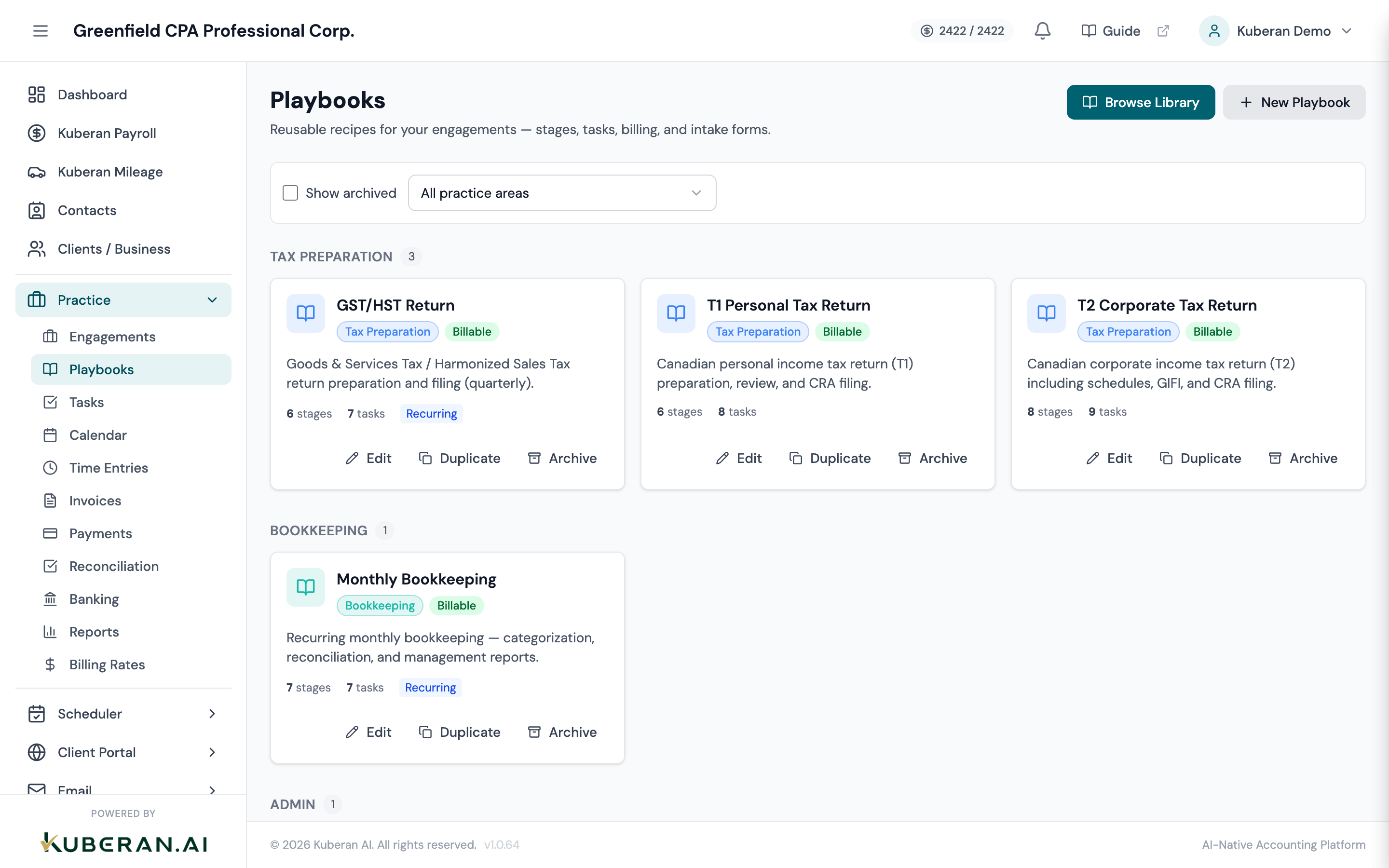
- (1) Browse Library button — opens the Playbook Library slide-over to adopt curated recipes
- (2) New Playbook button — opens the editor to build a playbook from scratch
- (3) Show archived checkbox — includes archived playbooks in the list
- (4) Practice-area filter — narrows the list to a single practice area
- (5) Practice-area group heading with a count badge
- (6) Playbook card — name, icon, colour, and Duplicate / Archive actions
Screen Layout
The Playbooks screen is a single page — there are no separate “My Playbooks” and “Library” tabs. Your workspace playbooks are shown as cards grouped by practice area, with each group header showing the number of playbooks it contains. Two controls sit above the groups:
- Show archived — a checkbox that includes archived playbooks (hidden by default).
- Practice-area filter — a dropdown that narrows the list to one practice area, or shows all.
Two buttons sit in the page header:
- Browse Library — opens the Playbook Library as a slide-over panel.
- New Playbook — opens the playbook editor with a blank form.
The Playbook Library is a read-only, browsable catalogue that opens as a slide-over panel (not a tab). Its curated entries are grouped by practice area and can be previewed or adopted into your workspace.
The playbook editor is a multi-tab slide-over panel that opens when you click a card or click New Playbook.
UI Elements
Opens the Playbook Library slide-over. Browse or search curated recipes and adopt them into your workspace.
Opens the editor with a blank playbook. Nothing is saved until you complete the required fields and click Create Playbook.
Checkbox above the playbook groups. When ticked, archived playbooks are included in the list; otherwise they are hidden.
Dropdown that filters the list to a single practice area, or “All practice areas”.
Clicking a card opens the editor for that playbook. Each card shows the playbook’s name, icon, and colour, plus Duplicate and Archive actions.
Creates a copy of the playbook in your workspace. The copy is named “<Name> (Copy)” — or “(Copy 2)”, “(Copy 3)”, … if that name is taken — and appears in the same practice-area group. Duplicating does not open the editor.
Archives the playbook after a confirmation prompt. Archived playbooks are hidden from the default list but preserved so historical engagements stay legible. There is no delete — archive is the only removal action.
Shown on Playbook Library entries. Copies the curated recipe — its stages, default tasks, billing, and intake form — into your workspace as a new playbook. A toast confirms “Playbook adopted into your workspace”. The editor does not open automatically.
Editor tabs
The editor is a slide-over panel with five tabs.
Name (required, up to 200 characters), Description (up to 2,000 characters), Icon, Colour, and Practice Area. Practice area is required when creating and is locked after creation — it cannot be changed later.
A sortable list of workflow stages. Each stage has a name, a colour, an Initial flag (exactly one stage is the starting stage), a Terminal flag, an optional description, and an optional client-facing status shown to the client. Drag the grip handle to reorder.
Default tasks, grouped under the stage they belong to. You must create at least one stage before adding tasks. Each task has a name, an optional description, an assignee role (Preparer, Reviewer, Manager, Partner), a due offset in days, and a “client request” flag that surfaces the task in the client portal. Drag to reorder tasks within a stage. There is no per-task estimated-hours field — time budgeting is set once at the playbook level on the Defaults tab.
Playbook-level defaults applied to engagements created from it: Priority, Time Budget (hours), Default Assignee Role, Naming Pattern (with tokens such as {clientName}, {taxYear}, {month}), and Due Date Offset (days from engagement start).
Shows the playbook’s billing configuration — its linked billing rate and whether it is billable or internal/non-billable. In v1 this tab is read-only; adopted library playbooks arrive with a rate already linked, and rates are managed on the Billing Rates page.
Actions
Create a Playbook from Scratch
- Click New Playbook in the page header. The editor opens on the Overview tab.
- Enter a Name (e.g., “Monthly Bookkeeping — Accrual”) and, optionally, a Description, Icon, and Colour.
- Select a Practice Area. This is required and cannot be changed after the playbook is created.
- Open the Stages tab and click Add Stage for each step of your workflow (e.g., Intake, In Progress, Review, Filed). Mark one stage as Initial, and drag stages into order.
- Open the Tasks tab. Under each stage, click Add Task and enter the task name. Optionally expand a task to set its description, assignee role, due offset, and whether it is a client request.
- Open the Defaults tab to set the playbook’s priority, time budget, default assignee role, naming pattern, and due-date offset.
- Click Create Playbook. The new playbook appears as a card under its practice-area group.
Edit an Existing Playbook
- Click the playbook card. The editor opens.
- Move between the Overview, Stages, Tasks, Defaults, and Billing tabs and edit any field. (Practice area is fixed and shown as read-only.)
- Reorder stages or tasks by dragging their grip handles; remove a stage or task with its trash icon.
- Click Save Changes. Changes apply to future engagements created from the playbook; engagements already created are not altered.
Adopt a Playbook from the Library
- Click Browse Library in the page header. The Playbook Library slide-over opens with entries grouped by practice area.
- Browse or use the search box to find a recipe (e.g., “T1 Personal Tax”). Click an entry to preview its stages and tasks.
- Click Adopt. The recipe — including its stages, default tasks, billing rate, and any intake form — is copied into your workspace as a new playbook, and a toast confirms “Playbook adopted into your workspace”.
- The library panel closes. Find the new playbook under its practice-area group and click it to review or customise. (Adopting does not add a “Copy of” prefix and does not open the editor automatically.)
Duplicate a Playbook
- On the playbook card, click Duplicate.
- A copy is created in the same practice area, named “<Name> (Copy)”. A toast confirms the duplication.
- Click the new card to rename and customise it.
Archive a Playbook
- On the playbook card, click Archive.
- Confirm in the prompt. The playbook is hidden from the default list but preserved for historical engagements.
- To see archived playbooks again, tick Show archived above the list. Playbooks cannot be permanently deleted.
Related
- Engagements List — Create engagements from a playbook’s stages and tasks
- Tasks — Review and manage the tasks generated from a playbook
- Billing Rates — Configure the rates a playbook’s Billing tab links to
- Time Entries — Log time against the tasks a playbook creates