
Engagements List
Overview
The Engagements list is the central hub for your practice’s client work. Every engagement — whether bookkeeping, tax preparation, or advisory — appears here, giving you a real-time picture of workload, deadlines, stages, and team assignments. From this screen you can create new engagements, filter the pipeline, open an engagement’s detail panel, move several engagements to a new stage at once, and switch to the Board view for a visual pipeline overview.
Engagements are playbook-driven. Each one is created from a playbook, which supplies its stages, default tasks, practice area, and naming pattern. The playbook is chosen at creation and cannot be changed afterwards.
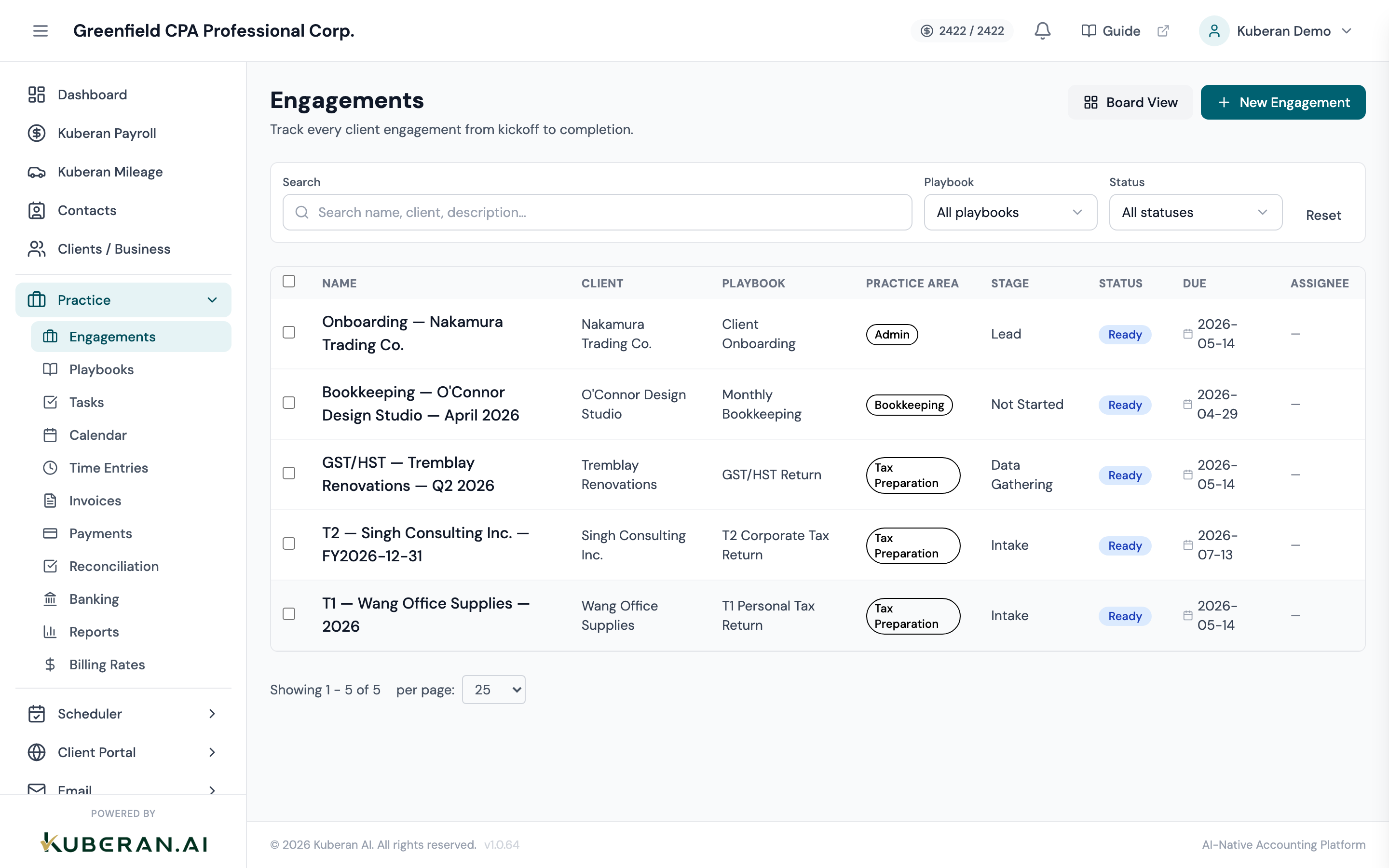
- (1) Filter bar — Search, Playbook, and Status filters
- (2) Board View button — switches to the Kanban board view
- (3) New Engagement button — opens the centered New Engagement dialog
- (4) Engagement table — Name, Client, Playbook, Practice Area, Stage, Status, Due, Assignee
- (5) Row checkbox — select rows to reveal the bulk Move stage action bar
Screen Layout
The screen is divided into three zones:
Toolbar (top): Contains the page heading, the Board View button, and the New Engagement button. A filter bar sits directly beneath it with the Search field, Playbook filter, and Status filter.
Engagement Table (centre): The primary data grid. Rows are sorted by newest first (most recently created) by default. Clicking any row opens the Engagement detail panel, which slides in from the right. Selecting one or more row checkboxes reveals a bulk action bar for moving engagements to a new stage.
Pagination footer (bottom): Displays the total engagement count and page controls. The default page size is 25 rows.
UI Elements
Toolbar
Full-text search across engagement name, client, and description. Combined with the Playbook and Status filters using AND logic.
Single-select dropdown listing the workspace’s active playbooks. Choose a playbook to show only engagements created from it, or “All playbooks” to clear.
Single-select dropdown. Options: All statuses, Planned, Ready, In Progress, Waiting, Complete.
Switches to the Kanban board view, where you pick a playbook and see its engagements grouped by stage.
Opens the New Engagement dialog — a centered modal for creating an engagement from a playbook. See Create an engagement.
Table Columns
Leading checkbox on each row. Select one or more rows to reveal the bulk action bar. The header checkbox selects every row on the current page.
The engagement name (e.g., “T2 — Acme — FY2025”). Auto-suggested from the playbook’s naming pattern at creation, then editable. The engagement’s description appears beneath the name when present. Clicking the row opens the detail panel.
The client this engagement belongs to.
The playbook the engagement was created from. Immutable after creation.
Colour-coded practice-area badge derived from the playbook — for example Tax Preparation, Bookkeeping, Payroll, Audit, Review, Advisory, Consulting, Correspondence, Admin, or Other.
The engagement’s current stage within its playbook’s workflow (for example “In Preparation” or “Ready for Review”). Stages are defined per playbook.
Colour-coded primary-status pill. See the table below.
The engagement deadline, or — when no due date is set.
The role of the first assigned team member (for example Preparer), or — when no one is assigned. Assignment is managed from the engagement detail panel and, at creation, via the AI assignee suggestion.
Status Badges
Primary status describes where the engagement sits in your internal workflow. It is separate from stage (the playbook-defined pipeline column).
| Badge | Colour | Meaning |
|---|---|---|
| Planned | Grey | Scheduled but not yet ready to start |
| Ready | Blue | Ready to begin — the default for a new engagement |
| In Progress | Amber | Work is actively underway |
| Waiting | Purple | Blocked, typically pending client information |
| Complete | Green | All work done; a completion date is recorded |
Actions
Create an Engagement
Click New Engagement in the top-right toolbar to open the centered creation dialog. You must choose a playbook first; the client, name, stage, and defaults follow from it. For the full walkthrough, see Create an engagement.
Filter the Engagement List
- Type in the Search field to match on name, client, or description.
- Open the Playbook dropdown and pick a playbook to narrow to engagements created from it.
- Open the Status dropdown and pick a primary status.
- Click Reset in the filter bar to clear all filters at once.
Move Engagements to a New Stage (Bulk)
The list view’s bulk action is a stage move. Because each engagement’s stages come from its own playbook, you first choose the playbook whose stage you want to apply.
- Tick the checkbox on each engagement you want to move. A bulk action bar appears showing how many are selected.
- In the bar, choose a Playbook, then choose one of that playbook’s Stages.
- Click Move stage. The selected engagements move to that stage, and each move is recorded in the engagement’s stage history.
- Click Clear to deselect and dismiss the bar.
Open an Engagement
- Click anywhere on the row (avoid the leading checkbox).
- The Engagement detail panel slides in from the right with tabs for Overview, Tasks, Time, Invoices, Timeline, Comments, and Activity.
- Change the engagement’s stage, status, priority, due date, and other fields from the Overview tab. Use the Clone button in the panel header to duplicate the engagement.
- Click the × or press Escape to close the panel.
Related
- Engagement Board View — Kanban pipeline showing a playbook’s engagements grouped by stage
- Create an engagement — Step-by-step creation walkthrough
- Playbooks — Define the stages, default tasks, and naming patterns engagements are built from
- Tasks — View all tasks across every engagement in one list
- Time Entries — Log and approve billable hours tied to engagements